
Most people shopping for a laptop for online classes just want something that handles Zoom without stuttering, lasts through a day of lectures, and works with their school’s software. The trap is chasing flashy specs and overlooking the boring bits that determine whether class time feels smooth or stressful.
As of 2026, reliable online learning starts with a few core standards. Wi‑Fi 6 or 6E for stable calls, a 1080p webcam, and at least 8GB RAM with a 256GB SSD. Windows 11 requires TPM 2.0, which rules out some older machines.
Let’s pin down the short answer first, then compare platforms and parts.
Quick Answer
A laptop for online classes should have 8GB RAM and a 256GB SSD. Pick Wi‑Fi 6 or 6E for stable calls. Choose a 1080p webcam with dual mics.
Use Windows or macOS for exam software compatibility. Avoid Windows S Mode if your school needs desktop apps.
Image source: Wikimedia Commons / Kannan Shanmugam, Shanmugam Studio, Kollam (CC BY-SA)
How to Choose a Laptop for Online Classes
The real problem, video calls, proctoring, and all‑day use stress laptops
Online classes pile on three things laptops hate, constant video, strict software, and long unplugged sessions. Continuous Zoom or Teams uses the CPU, camera, mic, speakers, Wi‑Fi, and GPU at the same time. That means heat, fan noise, and battery drain.
Proctoring software adds more load and restrictions. It can lock down your browser, scan the room, check for virtual cameras, and require admin rights. Some tools do not support ChromeOS or Windows on ARM.
That can turn exam day into a compatibility scramble.
School days often run six to eight hours of mixed video, note taking, and browsing. Many battery claims are based on light video playback, not live calls. In our research, aggregate reviews report video calls cut battery life by 25 to 45 percent compared to offline tasks of similar brightness.
What this means for you:
- Prioritise a quiet, cool design, so long calls do not sound like a wind tunnel.
- Aim for 50 to 75 Wh battery if you want true all day on calls.
- Pick Wi‑Fi 6 or 6E to reduce dropouts in busy dorm networks.
- Verify exam software support before you buy, then test a mock run.
If you need a quick checkpoint for specs, the table below captures the safe floor and the comfortable target.
| Component | Minimum for class | Comfortable target |
|---|---|---|
| CPU | Intel Core i3 or Ryzen 3, Apple M1 | Core i5 or Ryzen 5, Apple M2 or M3 |
| Memory | 8GB RAM | 16GB RAM |
| Storage | 256GB SSD | 512GB SSD |
| Webcam | 720p acceptable | 1080p preferred |
| Wireless | Wi‑Fi 6 | Wi‑Fi 6E if available |
| Battery | 45 Wh | 60 to 75 Wh |
If you are choosing an entry spec, this practical baseline, 8GB and 256GB, still works for most students. It gives you enough headroom for browser tabs, office apps, and Zoom without choking.
Platform options compared, Chromebook vs Windows vs Mac, and Windows on ARM
Different platforms shine for different classrooms. Here is a clear comparison with what actually impacts online learning and exams.
| Platform | Strengths | Cautions | Best for |
|---|---|---|---|
| Chromebook, ChromeOS | Fast start, easy admin, long updates on newer models, low cost | Some proctoring tools or desktop apps not supported, offline software limited | K‑12, basic college courses using Google Workspace |
| Windows 11 on Intel or AMD | Broad app support, most exam software works, flexible hardware | Bloatware on some models, loud fans on thin designs if tuned poorly | Most college majors, proctored exams, mixed workloads |
| macOS on Apple Silicon | Excellent battery life, quiet, strong webcam processing, stable | Some proctoring tools or engineering apps require Windows, gaming limited | Liberal arts, business, CS with cross platform tools, instructors |
| Windows on ARM, Snapdragon X | Great battery, quiet, instant wake | x86 app emulation improving, some drivers and proctoring apps may not work | Light office use where apps are confirmed compatible |
Decision help in plain language:
- If your school mandates Respondus, Examplify, Honorlock, or ProctorU, default to Windows on Intel or AMD. Compatibility is your safety net.
- If your coursework is mostly reading, writing, slides, and video meetings, macOS offers superb battery and silence. The latest Air review covers those strengths in detail.
- If budget is tight and your school uses Google Classroom, a Chromebook is fine. Check an example like the HP 14 Chromebook to understand typical limits and update timelines.
- If you want the newest hardware features on Windows but lighter weight, watch ARM laptops closely, and confirm your exam tools. Some institutions list approved OS versions. Microsoft documents Windows 11 requirements for device capability.
Support lifespan matters too. ChromeOS devices now list an automatic update policy by model. You can check the official ChromeOS update policy before buying, which helps avoid short support windows on budget Chromebooks.
For Mac buyers comparing models, the Neo 13 details give a feel for what smaller form factors deliver for lecture days.
Processor choices, Intel Core vs AMD Ryzen vs Apple M‑series vs Snapdragon X
Short answer, match the CPU to your apps. Web classes, docs, and spreadsheets do not need heavy chips. Coding projects, design tools, and data work benefit from stronger CPUs and more memory.
What each option means for students:
- Intel Core i5 or i7, 12th to 14th gen, good all round on Windows. Hybrid cores help with multitasking in calls plus browser tabs.
- Intel Core Ultra 5 or 7, adds on‑chip AI accelerators and better media engines. That can improve background blur and noise reduction in calls.
- AMD Ryzen 5 or 7, 7000 and 8000 U‑series, strong efficiency and integrated graphics. Often quieter under load in thin designs.
- Apple M2 or M3, excellent per watt performance. Smooth in calls, long battery life, near silent even in sustained sessions.
- Snapdragon X Elite or Plus, promising performance per watt. Great battery and instant wake, but verify app compatibility before a high stakes exam.
Memory pairing rules of thumb:
- 8GB RAM works for web classes, notes, and standard office tasks.
- 16GB RAM is a smart upgrade for heavy multitasking, dozens of tabs, or creative projects.
- If you can upgrade later, SO‑DIMM slots are nice. Many thin laptops solder RAM, so pick right at purchase.
When to step up the CPU:
- You edit 4K video or run Blender for class, choose a higher tier CPU and 16GB RAM.
- You use MATLAB, R, or data sets in Jupyter, go midrange or better and 16GB RAM.
- You rely on Adobe Creative Cloud, you benefit from stronger CPU and more memory. For app planning, these design tool recommendations outline typical resource needs.
Thermals and noise matter as much as cores. A cooler that handles 15 to 28 watts quietly will feel better in a lecture than a thin chassis that spikes to 40 watts and howls. Aggregate reviews often mention fan character, not just volume, so skim for that.
Storage is not the place to compromise. Choose 256GB SSD minimum. If you record lectures, store projects, or keep large offline libraries, 512GB is safer.
Webcam, mic, and speakers, what “good” looks like for Zoom, Teams, and Meet
You sound and look like you belong in class when three things line up, a 1080p camera, clean mics, and speakers you can hear without distortion. Aim for clarity first, not filters.
What a good setup includes:
- Webcam, 1080p at 30 fps, decent low light, and a privacy shutter. IR support helps Windows Hello, but it does not change image quality.
- Microphones, at least a dual mic array with noise suppression. Beamforming helps focus on your voice and cut keyboard clatter.
- Speakers, upward or top firing improve clarity on voices. You should hear a lecture clearly at 60 to 70 percent volume.
Video platform requirements are modest, but real life is not. The official Zoom system requirements list low CPU needs for 720p and 1080p, but that assumes ideal conditions. Add ten classmates, screen shares, and background effects, and weaker CPUs struggle.
Practical tips for better call quality:
- Sit with light in front, not behind. Even a good webcam looks bad in backlight.
- Lock exposure by turning off auto adjust in app settings if faces pulse.
- Use background blur instead of virtual backgrounds on low power machines.
- If the mic picks up fans or roommates, a simple wired headset wins on clarity.
External gear only if needed:
- A USB webcam can upgrade older 720p cameras, but verify driver support on your OS.
- A wired USB headset avoids Bluetooth delays during proctored exams.
- Keep a compact USB‑C hub for Ethernet on exam days if Wi‑Fi is shaky.
Displays and portability, screen size, brightness, and weight trade‑offs
You want a screen that is comfortable for reading and split view notes, not a spec trophy. Size, resolution, brightness, and weight set your daily comfort.
Start with these targets:
- Size, 13 to 15 inches covers most needs. Twelve inches is very portable, but tight for multitasking. Sixteen inches is roomy, but heavy in a backpack.
- Resolution, 1920 by 1200 is ideal at 13 to 14 inches. The 16:10 ratio fits more lines of notes and slides than 16:9 at the same width.
- Brightness, at least 300 nits for indoor use. If you study by a window, 350 to 400 nits keeps glare in check.
- Panel type, IPS looks natural for text and classwork. OLED is great for contrast, but watch for potential flicker at low brightness and higher power use on bright pages.
Weight and build:
- Under 3.2 pounds is easy to carry all day. Over 3.5 pounds starts to feel heavy between classes.
- Metal lids protect better in a crowded bag. Polycarbonate can be fine if the chassis feels solid and flex free.
Keyboard and touchpad comfort affect grades more than you think. Look for a backlit keyboard with 1.2 to 1.5 mm of key travel and a precision trackpad that does not misregister clicks. If you type essays often, test return and backspace feel in a store.
Eye comfort counts during long readings. Enable Night Light or Night Shift in the OS to reduce blue light in evening study. Increase UI scaling so text stays crisp without squinting.
Connectivity and ports, Wi‑Fi 6 or 6E, Bluetooth 5.x, USB‑C PD or Thunderbolt, HDMI, audio jack
A stable connection and the right ports keep class days smooth. Two strong rules cover most needs. Get Wi‑Fi 6 or 6E, and at least two USB‑C ports that support charging on either side.
Core wireless features to look for:
- Wi‑Fi 6, also called 802.11ax, is the baseline for busy campus networks. Wi‑Fi 6E adds the 6 GHz band, which can reduce interference if your router and region support it.
- Bluetooth 5.2 or 5.3 improves headset stability and latency during calls.
Ports that save you from dongle chaos:
- USB‑C with Power Delivery for charging, 65 watts or higher is common.
- USB4 or Thunderbolt 4 gives you display out, fast storage, and docking. If you run two external displays, confirm support in the specs.
- HDMI is handy for classroom projectors. A 3.5 mm audio jack is still useful during exams that ban wireless headsets.
Image source: Wikimedia Commons / Amin (CC BY-SA)
Network setup tips for new students:
- Use WPA2 or WPA3 as required by your campus. Some universities isolate student devices per user, which helps security.
- Keep your Wi‑Fi driver and firmware current. Manufacturer utilities often include wireless updates that improve stability.
- For high stakes exams, plug in an Ethernet adapter. Wired beats Wi‑Fi when you cannot risk a dropout.
If you rely on video platforms outside the big three, you might find features that fit your style. For example, a meeting platform with built in recording can simplify study reviews. You can explore options in this review of Vivomeetings to see how alternative tools present call features, then compare with your school’s standard.
Battery and thermals, real‑world Zoom runtime (Wh) and quiet operation
Battery claims are rarely based on live video calls. Expect a drop when the camera, mics, Wi‑Fi, and CPU stay active for hours. That is why a 60 to 75 Wh battery feels like true all day, while 40 to 50 Wh may need a mid‑day top up.
What affects call runtime most:
- Screen brightness is the top draw. Keep it at 50 to 70 percent indoors.
- CPU spikes from virtual backgrounds and tab hoarding shrink battery life.
- Weak Wi‑Fi forces retries and eats power. Strong signal saves watts.
Tuning ideas that work:
- Use Balanced or Better Battery on Windows. Enable Low Power Mode on macOS.
- Prefer background blur instead of complex virtual scenes.
- Close heavy web apps before long lectures. Pause cloud sync during exams.
Thermal comfort matters in quiet rooms. Thin laptops can ramp fans when they cross thermal limits. Apple Silicon and modern ARM Windows machines often stay silent for light workloads, but verify your app needs first.
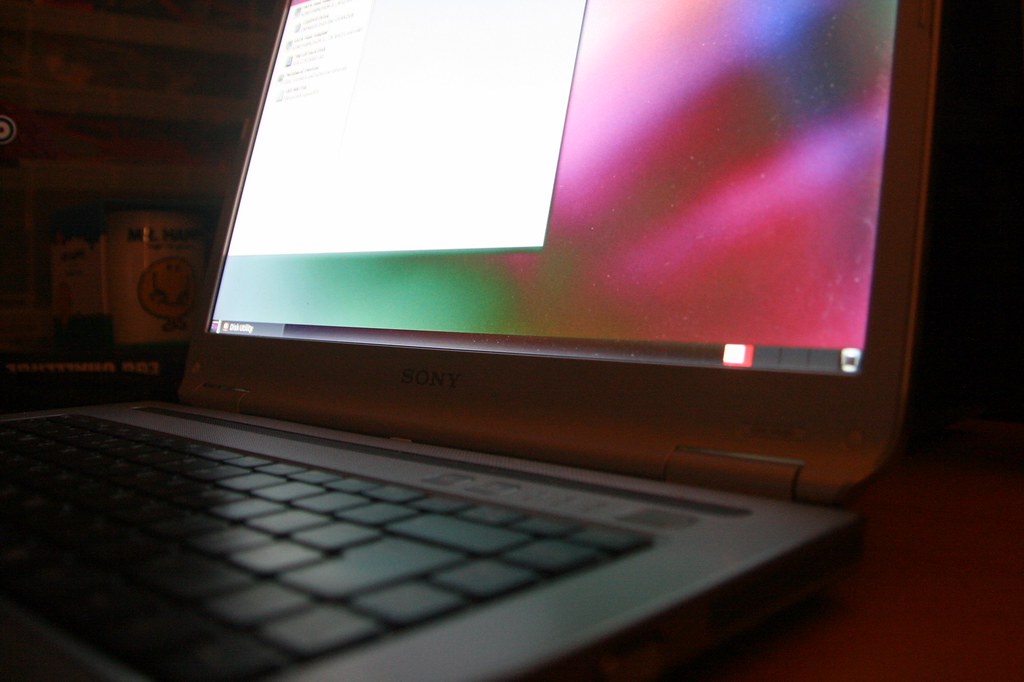
Image source: Openverse / comedy_nose (PDM 1.0)
Practical maintenance:
- Dust the vents every month. A short burst of compressed air keeps fins clear.
- Keep the intake unobstructed. A soft bed or blanket blocks airflow.
- Update BIOS or firmware. Vendors often tweak fan curves and power limits.
If you need guaranteed uptime in proctored tests, plug in. Many schools even recommend wired power for stability. For Google Meet specifics, check the official Meet requirements against your device.
Best picks by student type and use case (K‑12, college majors, teachers, proctored exams)
The right choice depends on classes and software. Use these profiles to match needs to a platform and spec level.
K‑12 and general studies:
- Chromebook or light Windows laptop, 8GB RAM and 128 to 256GB storage.
- Works well with Google Classroom, Docs, and standard Zoom links.
- Confirm your district’s approved OS list and automatic update end date.
Liberal arts and business majors:
- Windows or macOS, 8 to 16GB RAM, 256 to 512GB SSD.
- Fast wake, quiet fans, and a comfortable keyboard matter day to day.
- macOS shines for battery life and silence during back‑to‑back lectures.
Computer science and data courses:
- Windows or macOS, 16GB RAM, 512GB SSD recommended.
- Check toolchain compatibility, Docker, WSL, Homebrew, and IDEs.
- For Windows users, Intel or AMD avoids surprises with device drivers.
Engineering and design:
- Windows preferred for CAD and certain analysis tools.
- 16GB RAM minimum, plus a brighter 400 nit screen at 14 to 15 inches.
- If you must run Windows‑only apps on a Mac, plan for virtualization or a lab PC.
Media and content creation:
- CPU with strong media engines, Intel Quick Sync, Apple M‑series, or Ryzen U‑series.
- 16GB RAM and 512GB storage for footage and assets.
- If you need a simple video editor for class projects, this Invideo review explains a lightweight option.
Teachers and instructors:
- Prioritise a 1080p webcam, dual mics, and reliable Wi‑Fi 6E.
- A 14 inch, 1920 by 1200 display is a sweet spot for grading and slides.
- Consider a dock friendly USB4 or Thunderbolt port for classrooms.
Proctored exams and compliance:
- Windows on Intel or AMD for maximum compatibility with Respondus, Examplify, and Honorlock.
- Avoid ChromeOS and Windows on ARM unless your institution explicitly supports them.
- Disable VPNs during exams. If you use a VPN service for privacy at other times, the FastestVPN overview explains typical features, but do not run it in tests.
Price bands and value, budget, midrange, premium, what you get at each tier
Price affects materials, thermals, and battery life as much as raw speed. Here is what you realistically get at each level.
| Tier | Typical price | What you get | What to watch |
|---|---|---|---|
| Budget | 250 to 450 USD | Chromebooks, entry Windows with 8GB RAM, 128 to 256GB SSD | eMMC on Windows, dim 250 nit screens, 720p webcams |
| Midrange | 500 to 900 USD | Windows 11 with Core i5 or Ryzen 5, 8 to 16GB RAM, 256 to 512GB SSD | Soldered RAM, few ports, fan noise in thinner builds |
| Premium | 1000 to 1600 USD | MacBook with M‑series, or flagship ultrabooks, long battery, better screens | Fewer upgrade options, dongle life on very thin models |
Stretch smartly:
- Prioritise RAM and SSD over a slightly faster CPU. Smooth multitasking matters more in class.
- Upgrade the screen if you read for hours. A 16:10, 300 to 400 nit panel is worth it.
- Education pricing can narrow gaps. Many manufacturers offer student discounts.
Value examples:
- If you aim for a basic Windows configuration, this overview of an 8GB and 256GB setup clarifies what to expect at the entry floor.
- On the premium side, the strengths of a light Mac with long battery are covered in our Air analysis, useful if you lean toward macOS.
Hidden costs to consider:
- Extended warranty or accidental damage coverage helps in dorm life.
- USB‑C GaN chargers and a compact Ethernet adapter are handy add ons.
- Some classes require paid software licenses. Budget for that early.
Common mistakes to avoid when buying for online classes
Buying by brand hype instead of needs:
- Fix, write down your platform requirements first, then pick hardware.
Choosing Windows 11 S Mode and discovering you cannot install tools:
- Fix, plan to switch out of S Mode, or buy standard Windows 11 Home or Pro.
Accepting eMMC storage on Windows because it seems cheap:
- Fix, insist on NVMe SSD. eMMC feels slow with updates and multitasking.
Settling for 4GB RAM to hit a price:
- Fix, 8GB is the floor for modern browsers and video calls.
Ignoring Wi‑Fi specs:
- Fix, look for Wi‑Fi 6 at minimum, 6E if your campus supports it.
Not checking proctoring compatibility:
- Fix, read your exam vendor’s system requirements before purchase.
Forgetting ports and charging flexibility:
- Fix, at least two USB‑C ports with charging, plus HDMI or a hub plan.
Skipping the webcam and mic quality check:
- Fix, search for sample recordings of your model, or plan an external mic.
Overlooking weight and keyboard comfort:
- Fix, target under 3.2 pounds if you commute, and a backlit keyboard.
Assuming claimed battery equals call runtime:
- Fix, expect 25 to 45 percent less during live meetings, then size the battery.
Setup and optimization checklist for the first week (updates, permissions, cloud backup)
Do these steps once and your term goes smoother. They prevent update chaos on exam day and avoid audio or camera mishaps.
System updates and drivers:
- Apply all OS updates. Install vendor support apps for firmware and BIOS.
- Update graphics and wireless drivers. Stability beats chasing the newest features.
Accounts and cloud backup:
- Sign in to your school Microsoft 365 or Google Workspace.
- Set OneDrive, Google Drive, or iCloud to sync Desktop and Documents.
- Keep at least 20 percent free SSD space so updates install cleanly.
Video apps and LMS:
- Install Zoom, Microsoft Teams, and Google Meet. Sign in and test audio.
- Add Canvas, Blackboard, Moodle, or Google Classroom apps if your school uses them.
- Record a 30 second clip to verify webcam, exposure, and mic levels.
Permissions and privacy:
- On Windows, check Camera and Microphone privacy toggles. Allow the right apps.
- On macOS, grant Screen Recording permission to the meeting client before your first class.
- Enable a webcam shutter when you are off call.
Power and battery:
- Set Balanced or Low Power modes for quiet fans in lectures.
- Calibrate your expectations, run a two hour test call and note battery drop.
- Pack a 65 watt USB‑C charger in your bag for long days.
Network reliability:
- Join campus Wi‑Fi, accept the security certificate, then save the network.
- Keep an Ethernet dongle in your exam kit. Test it once before you need it.
- If you transfer huge project files, a dedicated tool helps. This look at large file transfer explains one simple option.
Exam readiness:
- Install Respondus LockDown Browser or Examplify early. Run the system check.
- Disable overlays, third party camera filters, and VPNs during proctored tests.
- If you like meeting summaries, tools such as a meeting notes tool or auto transcripts can help outside exam conditions.
Daily study refinements:
- Turn on Night Light or Night Shift for evening reading.
- Set Do Not Disturb in call hours to avoid pop up notifications.
- Create a weekly folder structure for each course to keep files tidy.
Compliance and compatibility: BYOD requirements, S Mode, exam proctoring support, privacy
Start with your school’s BYOD page. Match approved OS versions, Windows 11 or macOS releases, and minimum specs. Check ChromeOS automatic update end date by model before buying.
Exam tools often need admin rights and block virtual machines. Respondus and Examplify may reject ChromeOS and Windows on ARM. Switch out of Windows 11 S Mode if desktop software is required.
Protect data and privacy. Enable BitLocker or FileVault, use MFA on school accounts, and review camera and mic permissions. FERPA and GDPR rules apply to recorded sessions and proctoring data retention.
Frequently Asked Questions
Do I need 16GB RAM for classes?
No. Eight gigabytes covers web classes and Office. Sixteen helps with heavy multitasking, coding IDEs, or Adobe apps.
If RAM is soldered, buy the capacity you plan to keep.
Is a 720p webcam good enough?
It works, but 1080p looks clearer in low light. Bright front lighting helps more than resolution alone. If calls are central to your grades, upgrade the camera or use better lighting.
Can a Chromebook handle proctored exams?
Sometimes. Many proctoring vendors exclude ChromeOS. Verify your vendor’s support page first.
If exams matter, pick Windows on Intel or AMD to stay safe.
What battery size lasts a school day?
Sixty to seventy five watt hours usually covers mixed classes. Live video drains faster than video playback. Expect shorter runtime, then size the battery with margin.
Final recommendation: which laptop to buy and why
If you need guaranteed exam compatibility, choose Windows on Intel or AMD with 16GB RAM, a 256 to 512GB SSD, Wi‑Fi 6, and a 1080p webcam. It covers every platform and most proctoring tools.
If silence and battery top your list, pick an Apple M2 or M3 model with 8 to 16GB RAM and 256 to 512GB storage, then confirm exam support. If budget rules, a Chromebook is fine for Google Classroom, but verify the update date and proctoring first.


5 thoughts on “How to Choose a Laptop for Online Classes”