
You want a cheap business laptop with SSD that does not feel slow or flimsy. The trick is picking business lines that cut frills, not essentials. Start with a fast NVMe SSD, at least 8GB RAM, and a recent U‑class CPU.
Then check the keyboard, port layout, and warranty like your work depends on it.
As of 2026, Windows 11 requires TPM 2.0 and a supported processor. Manufacturer specifications also list USB‑C Power Delivery and DisplayPort Alt Mode on many budget business models. Aggregate reviews report 250 to 300 nit IPS screens as the floor you can live with.
With that in mind, let’s sort the real options from the compromises that waste money.
Quick Answer
A cheap business laptop with SSD should have an NVMe drive. Aim for 8GB to 16GB RAM, and upgradeable slots. Pick a recent Intel Core U or AMD Ryzen U CPU.
Look for a 1080p IPS screen around 250 to 300 nits. Ensure USB‑C charging and TPM 2.0 for Windows 11.
Cheap Business Laptop with SSD: What to Look For
The problem: slow, flimsy “budget” laptops vs true business laptops with SSD
The problem is not that there are no cheap laptops. The problem is that many cut the wrong corners. You get eMMC storage that crawls, dim TN panels, and soldered 4GB RAM that you cannot fix later.
True business laptops prioritise uptime and serviceability. You get a spill‑resistant keyboard, a rigid chassis, and drivers that work without drama. You also get an M.2 slot for a proper NVMe SSD, plus a real warranty.
A cheap consumer model often hides the cost in lost time and short lifespan.
Here is the filter that saves you money. Stick to business lines like Lenovo ThinkPad E and L series, Dell Latitude 5000 series, and HP ProBook or EliteBook. Focus on upgrade paths, then CPU, then screen.
If you study from home or work in the browser a lot, our guide on a study‑from‑home setup has context on webcams, mics, and battery life that still applies here.
What about Macs and Chromebooks. They sit outside this Windows‑first discussion, but they help frame value. For a cross‑platform baseline, the fanless Air is a smart comparator, see the fanless Air value.
If you live in Google Workspace, a low‑friction Chromebook like HP’s 14‑inch option, covered in our a low‑friction Chromebook, can be enough, though local apps are limited.
Quick answer: best-value picks by budget (refurb vs new) and what specs to target
If you want the most performance per dollar, off‑lease business models usually win. If you need a clean warranty and the latest ports, new entry business lines are safer. Use the matrix below to choose the lane that matches your budget and risk tolerance.
Recommended spec targets by price band:
| Price band | Best buy lane | CPU target | RAM target | SSD target | Display target | Ports to insist on | Warranty target |
|---|---|---|---|---|---|---|---|
| 350 to 450 | Refurb off‑lease | Intel 8th to 10th gen i5 U, Ryzen 3000U to 4000U | 8GB, one free slot | 256GB NVMe, replaceable | 14‑inch 1080p IPS, 250 nits | USB‑C with PD and DP Alt Mode, 2x USB‑A, HDMI, RJ‑45 | 6 to 12 months, battery 80%+ health |
| 450 to 650 | Refurb premium or new entry | Intel 10th to 11th gen i5 U, Ryzen 4000U to 5000U | 16GB preferred, or 8GB upgradable | 512GB NVMe, OPAL optional | 300 nits IPS if possible | USB‑C PD, HDMI 2.0, microSD or full SD | 1 year depot, option to extend |
| 650 to 850 | New entry business | Intel 12th to 13th gen i5 U, Ryzen 5000U to 7000U | 16GB baseline | 512GB NVMe TLC | 1080p IPS, 300+ nits, good sRGB | USB‑C PD with DP Alt Mode, optional Thunderbolt | 1 to 3 years, on‑site optional |
What to avoid at any price:
- eMMC storage, even if the listing says SSD‑like.
- TN panels under 240 nits, poor for offices and coffee shops.
- Soldered single 8GB with no SODIMM slot in Windows machines, hurts longevity.
Two buying notes that save headaches:
- Windows 11 requires TPM 2.0 and a supported CPU. Microsoft lists the requirements on the official Windows 11 specifications page.
- On refurbs, ask for the battery wear level and the SSD model. Swap a DRAM‑less QLC drive if you do large file work.
If you want a simple Windows baseline for memory and storage, this overview of 8GB and 256GB basics explains the floor most office users can live with. If you are Apple curious, the thin Mac option gives context on weight and battery targets you can mirror on the Windows side.
What makes a laptop “business‑grade” (durability, keyboard, ports, warranty, security)
A business laptop is not about premium logos. It is about predictable uptime. Here is what that means in concrete terms.
- Chassis and durability: Look for magnesium or reinforced plastic, tight hinges, and MIL‑STD‑810H tested claims. This standard is published by the U.S. Department of Defense and sets environmental stress procedures. Vendors design to it, but tests vary by vendor.
- Keyboard and input: Spill‑resistant deck, consistent key travel, backlighting for red‑eye flights, and a precise touchpad. If you like a pointing stick, ThinkPad models offer TrackPoint.
- Ports and docking: USB‑C with Power Delivery and DisplayPort Alt Mode is the new baseline. Ethernet on device or on the dock is a time saver for imaging and office desks. Thunderbolt is a nice to have for high bandwidth docks, not mandatory for most.
- Serviceability: Bottom access with captive screws, at least one SODIMM slot, and an M.2 2280 bay. Replaceable fans and batteries matter if you plan to keep the machine three to five years.
- Security and manageability: TPM 2.0, BIOS passwords, fingerprint reader or IR camera for Windows Hello. For fleets, Intel vPro or AMD PRO brings remote management features.
- Software and drivers: Business support tools like Dell Command Update, HP Support Assistant, and Lenovo Vantage cut driver drama. This reduces downtime after updates.
- Warranty and support: One year depot is common on entry lines. On‑site next business day support is worth it for teams that cannot afford to ship a device out.
Checklist you can run in five minutes:
- Turn it on in a bright room. If it looks dim at half brightness, pass.
- Plug into a USB‑C power brick. If it does not charge, the USB‑C port may be data only.
- Open the bottom panel photos online. Confirm at least one memory slot and an M.2 bay.
- Check the Windows 11 compliance flags in firmware. TPM 2.0 should be present and enabled.
For USB‑C and power details, the USB Implementers Forum publishes the USB‑C and PD specifications. You do not need to read the spec, but it confirms why some USB‑C ports charge and drive displays while others cannot.
SSD choices that affect speed and lifespan (NVMe vs SATA, TLC vs QLC, DRAM‑less vs DRAM)
If you want the snappy feel people notice, the SSD is half the story. The other half is memory configuration and firmware, but start with the drive. NVMe on PCIe gives you much higher throughput than SATA, and it also improves low queue depth performance that affects everyday tasks.
Key terms in one line:
- NVMe: a storage protocol that uses PCIe lanes for high bandwidth.
- SATA: an older interface limited to around 550 MB per second.
- TLC vs QLC: cell density that trades write endurance for capacity and cost.
- DRAM cache: onboard memory that speeds up lookups and sustained writes.
NVMe vs SATA in practice:
| Feature | NVMe on PCIe 3.0 | SATA 6 Gb/s |
|---|---|---|
| Typical sequential read | 2,000 to 3,500 MB per second | 500 to 550 MB per second |
| Random IOPS at low queue depth | Much higher, faster app feels | Lower, slower app opens |
| Boot and resume | Noticeably quicker | Adequate but slower |
| Upgrade path | M.2 2280 mostly | M.2 2280 or 2.5‑inch on older models |
NAND type and cache matter too:
- TLC is the sweet spot for mixed office work. It balances speed and endurance well.
- QLC can stutter during big writes once the SLC cache fills. If you mostly browse and do docs, it is fine. If you move large media files, pick TLC.
- DRAM‑less SSDs rely on host memory. With modern controllers they feel fine for light work, but for heavy multitasking and big file moves, a drive with DRAM cache holds speed better.
- Endurance is expressed as TBW, terabytes written. Office use rarely burns through TBW on TLC in a three year window.
Security and compliance points:
- If you encrypt with BitLocker, any NVMe SSD will work. For managed fleets that want hardware encryption, look for TCG OPAL 2.0 support. The Trusted Computing Group publishes the OPAL standard for self‑encrypting drives.
- For regulated environments, FIPS 140‑2 validated encryption may be required. That is a separate certification list, not the same as OPAL.
Practical upgrade tips:
- Aim for a 512GB NVMe drive as your base. That gives room for Windows, apps, and local files. If the laptop ships with 128GB, budget a swap on day one.
- If the model has two M.2 slots, install the new drive in the empty slot, clone, then swap boot order. If it has one slot, do a clean install or use a USB NVMe enclosure for cloning.
- Label the removed drive and store it. If warranty work needs a vendor restore, you can pop the original back in.
If you rely on Adobe or similar creative apps, you may also want to skim our overview of creative software picks. That helps size RAM and SSD based on your media workload.
CPU tiers that make sense for the money (Intel 8th–13th gen U/P vs AMD Ryzen 4000–7000U)
Pick the CPU like you pick a car engine. Enough for highway passing, not a track day. For office work, modern U‑class chips are the right fit.
They sip power and run cool, which keeps fans quieter and battery life longer.
Supported platforms to focus on as of 2026:
- Intel Core i5 U from 10th to 13th gen. These balance single core speed with good efficiency. A 1235U or 1335U feels quick in Chrome, Excel, and video calls.
- AMD Ryzen 5 from 4000U to 7000U. A 4500U is still very usable, and a 5625U or 7530U is excellent for the money.
- If you land on Intel 8th or 9th gen because of a great refurb deal, verify Windows 11 support and plan for Windows 10 end of service dates if needed.
What about P‑series chips. They boost higher but draw more power. In thin systems they can throttle under sustained load.
For office work the extra heat is often not worth it. If you compile code or run heavier analysis, P‑series can make sense with proper cooling and a 65W or 90W charger.
CPU tiering for common workloads:
| Workload | Minimum smooth | Ideal sweet spot | Notes |
|---|---|---|---|
| Browser 20 tabs, video calls | Intel i5‑10210U or Ryzen 5 4500U | Intel i5‑1235U or Ryzen 5 5625U | 16GB RAM helps a lot |
| Office apps, spreadsheets | Intel i5‑8265U or Ryzen 3 4300U | Intel i5‑1135G7 or Ryzen 5 5500U | Iris Xe or Vega iGPU is fine |
| Light photo edits | Intel i5‑1035G1 or Ryzen 5 4500U | Intel i5‑1245U or Ryzen 5 7530U | Prefer dual‑channel RAM |
| Code, light VMs | Intel i5‑1135G7 or Ryzen 5 5500U | Intel i5‑1335U or Ryzen 7 7730U | Aim for 32GB capable slots |
Three checks before you buy:
- Windows 11 support. Microsoft lists CPU families on the Windows 11 specifications page. Cross check the exact model number.
- Charging wattage. A 13th gen U‑chip in a docked setup runs best with a 65W USB‑C charger. Under‑powering leads to slow charging and throttling during calls.
- RAM channels. Many budget configs ship with single stick memory. Adding a second SODIMM unlocks dual‑channel bandwidth. It also boosts integrated graphics performance by a noticeable margin.
If you spend most of your time in the browser and cloud apps, you might compare the Windows setup to a low‑friction Chromebook. For cross‑platform context on battery life per pound, the fanless Air value is still a helpful baseline.
New vs refurbished/off‑lease: which delivers better value right now
If you prize the lowest price per performance, refurb wins most of the time. If you want a clean warranty, latest radios, and zero cosmetic wear, new is safer. Use this quick filter to decide.
When to pick refurbished:
- You want a stronger chassis, better keyboard, and easy service access under 500 dollars.
- You accept minor wear and a 6 to 12 month warranty. Ask for battery wear under 20 percent and photos of the panel.
- You value upgrade flexibility. Many Latitudes, ThinkPads, and EliteBooks keep SODIMM slots and M.2 bays accessible.
When to pick new:
- You need Windows 11 support guaranteed by CPU and firmware, plus Wi‑Fi 6 or 6E.
- You want a full 1 to 3 year warranty with optional on‑site service. This is better for teams without spare machines.
- You care about battery life more than raw CPU. Newer U‑series platforms are more efficient and often include fast charge.
Refurb checklist that avoids hassles:
- Confirm returns are at least 14 days. Verify Windows 11 activation and OEM recovery media.
- Request the exact LCD specs. IPS at 250 to 300 nits is minimum acceptable.
- Check port photos. Make sure USB‑C supports Power Delivery and DisplayPort Alt Mode, not data only.
Shortlist: model families that consistently deliver value
Lenovo ThinkPad, E and L series, plus older T‑series
- Best for typing feel and service guides. Many have dual SODIMM and M.2 2280.
- Watch for TN panels on low trims. Prefer 1080p IPS at 250 nits or more.
- T480 or T490 era offers swappable batteries on some configs and solid docks.
Dell Latitude 5400 to 5430, and 7400
- Balanced build and strong driver support with Dell Command Update.
- Commonly include USB‑C with PD and DP Alt Mode, plus RJ‑45 on 14‑inch lines.
- Check fan noise on 5400 under load. Aim for IPS and a 65W USB‑C charger.
HP ProBook 4xx and 6xx, EliteBook 840 G5 to G8
- Friendly keyboards and quiet fans. HP Support Assistant simplifies driver upkeep.
- EliteBook 840 G7 and G8 often ship with bright 400 nit panels in higher trims.
- Verify if RAM is mixed, one soldered plus one slot, which limits upgrades.
Acer TravelMate P2
- Often the lowest price for a true business chassis with RJ‑45 and SD slot.
- Panels can be dim at base trims. Seek 1080p IPS and Wi‑Fi 6.
- Serviceability varies by year. Check bottom cover photos for SODIMM access.
ASUS ExpertBook B1 and B5
- Light weight and good battery life for travel. Some models add Thunderbolt.
- Keyboards are decent. Trackpads improved on newer gens.
- Confirm international warranty coverage if you travel for work.
Microsoft Surface for Business, Surface Laptop Go for Business
- Best for weight and clean design. Serviceability is limited on most.
- RAM may be soldered. Size storage correctly at purchase.
- Strong webcams and mics for calls. Docking relies on USB‑C and Surface Connect.
Framework Laptop 13, entry configuration
- Unique for repairability. Every part has a part number and guide.
- Good keyboard, excellent port flexibility via expansion cards.
- Panels are bright with strong colour, though price sits higher than refurbs.
Side‑by‑side spec targets by price band, display, RAM, SSD, ports, battery, weight, warranty
Use this tighter spec table to steer listings that seem similar on paper.
| Budget lane | Display spec | Memory plan | SSD plan | Ports to verify | Battery target | Weight target | Warranty notes |
|---|---|---|---|---|---|---|---|
| Refurb 350 to 450 | 14‑inch 1080p IPS, 250 nits, matte | 8GB in two slots or 8GB plus free slot | 256GB NVMe, M.2 2280, upgradeable | USB‑C with PD and DP Alt Mode, 2x USB‑A, HDMI, RJ‑45 | 45 to 60 Wh, 5 to 8 hours real | 3.2 to 3.8 lb | 6 to 12 months, battery wear under 20 percent |
| Refurb 450 to 650 | 1080p IPS, 300 nits preferred | 16GB total, dual‑channel if possible | 512GB NVMe TLC if you can | USB‑C PD, HDMI 2.0, SD or microSD | 50 to 65 Wh, 6 to 10 hours | 3.0 to 3.5 lb | 1 year depot, ask about on‑site add‑on |
| New 650 to 850 | 1080p IPS, 300 to 400 nits | 16GB baseline, avoid fully soldered if you can | 512GB NVMe TLC, OPAL optional | USB‑C PD with DP Alt Mode, optional Thunderbolt, Wi‑Fi 6/6E | 50 to 57 Wh, 8 to 12 hours depending on CPU | 2.8 to 3.3 lb | 1 to 3 years, on‑site upgradeable |
Reading listings quickly:
- If the display lists 1366×768 or only says HD, skip it.
- If storage is eMMC or 2.5‑inch only with no M.2 slot, skip it.
- If USB‑C is present but the spec omits PD and DP, assume data only and verify.
Best pick for each use case, travel, spreadsheets, video calls, light dev, Linux, dock‑heavy desks
Which travel machine works best under 3.2 lb
Pick ASUS ExpertBook B5 or a newer ThinkPad E14 Gen 5 with IPS and Wi‑Fi 6. You get USB‑C charging, decent keyboards, and 8 to 10 hour real runtimes with light workloads.
What is ideal for spreadsheets and browser‑heavy work
Choose ThinkPad L14 or Dell Latitude 5420 with 16GB RAM and a 512GB NVMe. Dual‑channel memory helps with integrated graphics and snappier windowing in large sheets.
What should frequent video callers prioritise
Buy the best webcam and mic array you can find, plus a quiet fan profile. Recent EliteBook 840 G7 or Surface for Business units have strong 720p or 1080p cameras, with IR options for Windows Hello.
What fits light development or a small VM
Aim for a Ryzen 5 5625U or Intel i5‑1235U with 32GB capable memory slots. A Latitude 5430 or ThinkPad T14 Gen 2 keeps thermals in check and offers stable Linux support.
What is friendly for Linux out of the box
Dell Latitude and Lenovo ThinkPad lines often publish Linux notes and drivers. Check vendor certification pages and prefer Intel wireless cards like AX201 or AX211.
What works best at a dock‑heavy desk
Pick a model with USB‑C PD and DisplayPort Alt Mode, and if you drive dual 4K, look for Thunderbolt. Dell WD19 class docks or ThinkPad Thunderbolt docks are common in offices and easy to source.
Practical setup extras:
- Add a second SODIMM to unlock dual‑channel bandwidth. It boosts the iGPU.
- Use a 65W USB‑C charger to avoid slow charge warnings on docks.
- Keep a spare Ethernet dongle in the bag if your model lacks RJ‑45.
Hidden pitfalls to avoid, dim TN panels, single‑channel RAM, tiny SSDs, no USB‑C PD, Windows 11 lockouts
- Dim or low quality displays. If the panel is 220 nits TN, you will squint in bright rooms. Require IPS at 250 to 300 nits minimum for shared spaces.
- Single‑channel memory. If the listing says 8GB single stick or soldered 8GB, budget a second stick where possible. Dual‑channel improves both CPU and iGPU responsiveness.
- Tiny system drives. A 128GB SSD fills fast after Windows and Office. Plan for 512GB NVMe as your baseline, especially if you sync OneDrive offline.
- USB‑C without PD or DP Alt Mode. Many listings show USB‑C but hide the capabilities. Confirm it charges from USB‑C and can drive a monitor over that same port.
- Windows 11 roadblocks. Some 8th gen Intel and older AMD chips fall off the support list. Verify TPM 2.0 is enabled in firmware and cross check the CPU family before you commit.
- DRAM‑less or QLC surprises. Budget NVMe can slow on big file moves once cache flushes. If you move media, pick TLC with DRAM cache and an endurance spec that fits your write volume.
- Dock compatibility gaps. Thunderbolt docks do not always negotiate right with data‑only USB‑C ports. Match dock to port capability, and check power delivery wattage.
- Battery health on refurbs. Ask for a battery report screenshot. Under 80 percent wear readings mean a replacement is due, which can erase the price advantage.
Real costs and TCO: street pricing, upgrade parts, battery and warranty math
Budget for the full lifecycle, not just the sticker. Add the SSD and RAM you will need in six months, plus a spare charger and dock if you desk it often.
Quick TCO math:
- Refurb 500 dollars, add 40 dollars for 8GB SODIMM, 50 dollars for 512GB NVMe, 60 dollars battery in year two.
- New 800 dollars, likely no upgrades needed year one, but factor a 3‑year warranty add‑on.
- Time is money. A dim panel or flaky Wi‑Fi costs hours. Spend to avoid that.
Setup and upgrade game plan (RAM/SSD, firmware/drivers, BitLocker, docking)
Do upgrades before loading data. It saves cloning twice and keeps Windows activation clean.
Step plan:
Update BIOS and SSD firmware. Use Dell Command Update, HP Support Assistant, or Lenovo Vantage.
Install RAM, then the NVMe. Clean install Windows 11, or clone if you prefer.
Enable BitLocker. Save the recovery key to your Microsoft or Azure AD account.
Dock test. Verify USB‑C PD wattage, external display, Ethernet, and peripherals.
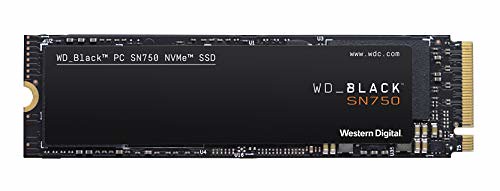
Image source: Openverse / shop8447
Troubleshooting tips:
- If dual displays fail, check DisplayPort Alt Mode or Thunderbolt support.
- If Wi‑Fi 6 misbehaves, update the AX201 or AX211 driver and firmware.
Security and compliance checkpoints (TPM 2.0, Windows 11, OPAL SED, MIL‑STD, ENERGY STAR/EPEAT)
Turn on TPM 2.0 in firmware, then confirm Windows 11 health. BitLocker uses TPM for seamless unlock, which keeps logins fast.
Compliance quick hits:
- Storage, pick TCG OPAL 2.0 if you need hardware SEDs.
- Durability, vendors reference MIL‑STD‑810H tests, ask which procedures were run.
- Efficiency, check ENERGY STAR and EPEAT listings for power and materials. ENERGY STAR maintains public criteria on energystar.gov.
FAQs: quick answers to common buying questions
How much RAM do I really need?
For office work, 16GB feels smoother than 8GB. If budget is tight, start at 8GB with a free SODIMM slot, then add another 8GB later. Dual‑channel boosts integrated graphics and windowing speed.
Is a 256GB SSD enough for Windows 11?
It works, but space runs out fast after Office, Teams, and sync folders. A 512GB NVMe is the safer baseline. If you buy 256GB today, plan to swap the drive within a year.
Do I need Thunderbolt for dual monitors?
Not always. USB‑C with DisplayPort Alt Mode drives one 4K60 display. For two 4K monitors, pick Thunderbolt or use MST with a GPU that supports it.
How do I check Windows 11 support on a refurb?
Confirm TPM 2.0 is enabled and cross check the CPU family on Microsoft’s list. If it misses, plan to stay on Windows 10 until end of service, or pick a newer unit.
Final recommendation and buying checklist
If price rules, buy a refurb Latitude, ThinkPad, or EliteBook with IPS, 16GB RAM, and a 512GB NVMe. If you want new, target an Intel Core i5‑1235U or Ryzen 5 5625U with USB‑C PD and 300 nit display.
One‑page checklist:
- 1080p IPS, 250 to 300 nits minimum.
- 16GB RAM, dual‑channel capable.
- 512GB NVMe TLC, M.2 2280.
- USB‑C with PD and DisplayPort Alt Mode.
- TPM 2.0 on, BitLocker enabled.
- Warranty you trust, battery health verified.

