How to Use Cloudcone Vps
Founder & Lead SaaS Analyst at PCSaaS · Google Ads & Analytics Certified · SaaS Stack Architect · 500+ Software Tools Tested · 8+ years in B2B SaaS evaluation, AppSumo lifetime deal curation, performance marketing, and AI workflow automation
Learning how to use CloudCone VPS starts with one uncomfortable truth. Nobody hands you a friendly setup wizard. You get root access to a KVM virtual machine and the rest is on you.
That's either exactly what you want or a fast route to frustration.
Entry plans commonly ship with 1 vCPU, around 1 GB of RAM, and a 1 Gbps uplink, and provisioning typically finishes in under five minutes. NIST SP 800-123 sets a sensible baseline for locking that fresh server down. Our research suggests most first-time buyers skip that step entirely.
Here's how to pick the right path before you spend a dollar.
Quick Answer
To use a CloudCone VPS, order a plan and choose an OS template. Provisioning takes a few minutes. Then connect as root over SSH.
Harden the server before you install anything. Update packages, add your SSH key, and turn off password login. Point your domain at the IP and set up offsite backups.
What You're Really Getting With a CloudCone VPS

Image source: Web (Bing) / stockcake.com (Web image (fair-use with source credit))
Managed vs unmanaged, the line that decides everything
A CloudCone VPS is unmanaged. That one word changes everything about what you're buying. Managed hosting means somebody else patches the kernel and restores your site when it breaks.
Unmanaged means you are that somebody.
If you want a WordPress site running without ever opening a terminal, this isn't your product. If you want a cheap Linux box you fully control, it's close to ideal. CloudCone's own documentation is upfront about the split, and the pricing reflects it.
What's in the box: KVM, root access, snapshots, one IPv4
KVM means kernel-based virtualization. Every VPS runs its own kernel, so you can load modules and run containers without asking permission.
- Full root access and your own root password
- One IPv4 address, usually with IPv6 alongside
- SSD-backed storage on a RAID array
- Snapshots you can roll back from the panel
- An HTML5 VNC console for out-of-band access
- DDoS protection on the network
That list is deliberately short. You're paying for hardware and bandwidth, not hand-holding.
The trade is straightforward. You save money and gain control. You also inherit every maintenance task, from kernel reboots to log rotation.
CloudCone's lineup shifts often, so confirm current specs and pricing as of 2026 before you commit. People run everything on these boxes, from a personal wiki to the backend for a tool like an AI content assistant.
Choosing Your Path Before You Buy Anything
Start with the job, not the spec sheet
Decide what the box is for before you compare RAM tiers. The job picks the OS, the panel, and the disk size.
Use case to plan: learning box, web host, VPN node, container host, backup target
If you're learning Linux, take the smallest plan and a Debian or Ubuntu LTS image. If you're hosting a site, you want 2 GB of RAM or more and probably a panel. If you're building a VPN node, confirm TUN/TAP is enabled and pick the closest region.
If you're running containers, lean on vCPU count and disk speed. If it's a backup target, storage size beats everything else.
| Job | Starting spec | Template |
|---|---|---|
| Learning Linux | 1 vCPU, 1 GB RAM | Ubuntu LTS |
| Small website | 2 vCPU, 2 GB RAM | Debian or AlmaLinux |
| VPN endpoint | 1 vCPU, 1 GB RAM | Debian minimal |
| Containers | 4 vCPU, 4 GB RAM | Ubuntu LTS |
| Backup target | 1 vCPU, large disk | Any minimal |
A box like this is also a natural home for scripts that pull competitor tracking data, or for automating a channel build end to end.
Picking an OS template you won't have to replace in a year
Ubuntu LTS and Debian give you the longest support windows. CentOS 7 reached end of life in June 2024, so don't start there. AlmaLinux and Rocky Linux are the modern RHEL-compatible picks.
Panel or no panel: CyberPanel, Webmin, HestiaCP vs a plain LEMP stack
If you'd rather click than type, install CyberPanel, Webmin, or HestiaCP. If you want to learn the stack, build nginx and PHP-FPM by hand. Panels eat RAM and widen your attack surface.
A plain LEMP setup is leaner and teaches you more.
From Checkout to Your First SSH Login
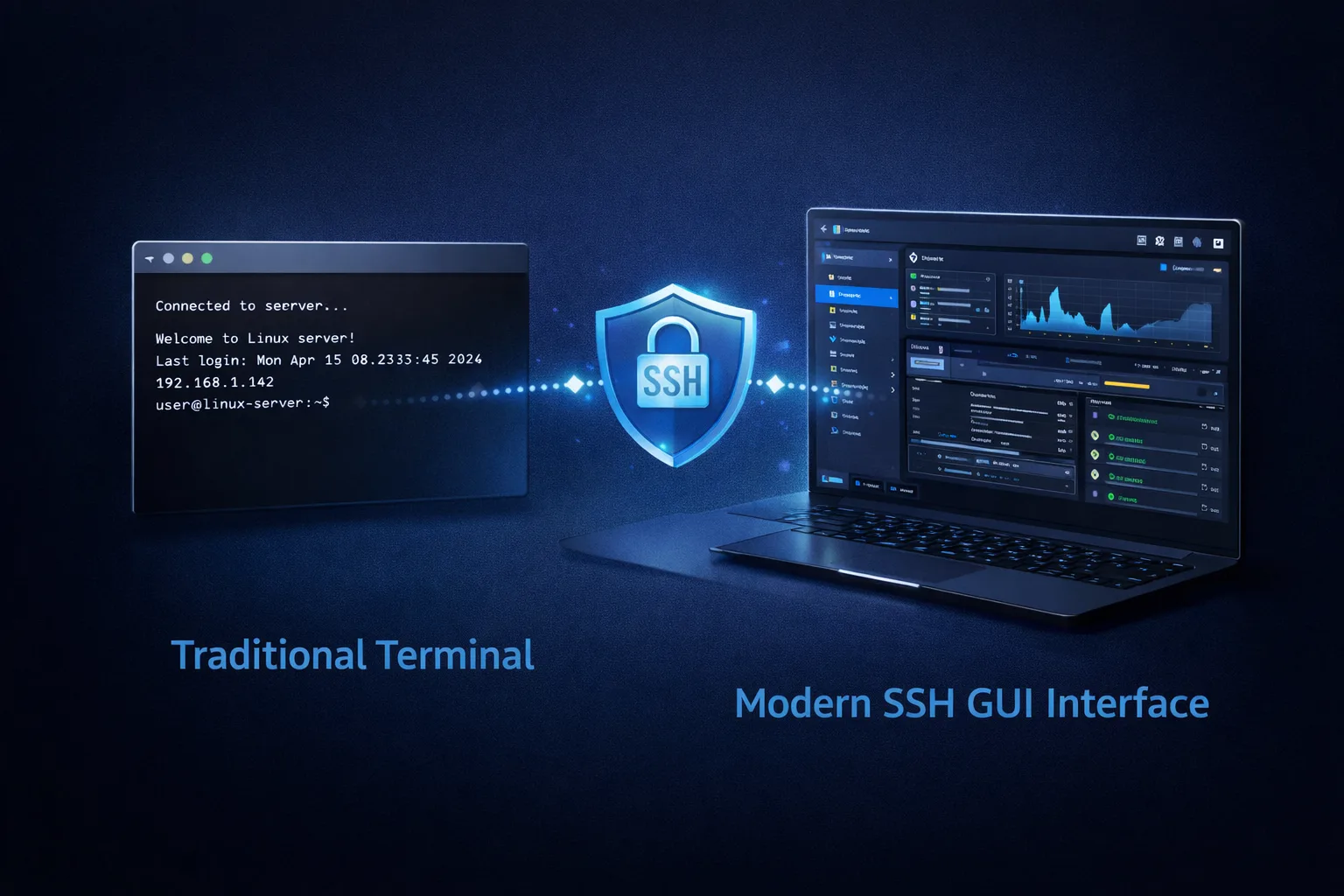
Image source: Web (Bing) / serverexplorer.ledocdev.com (Web image (fair-use with source credit))
Reading the client area: power, reinstall, VNC console, snapshots
The client area is where your first ten minutes go. Power controls, OS reinstall, the VNC console, and snapshots all live there. Learn the layout before you need it in a panic.
Reinstall wipes the disk completely. Snapshot first, every time, without exception.
Finding your IP, root password, and connecting over SSH
Your provisioning email carries the IP address and root password. If it hasn't arrived, check the client area and your spam folder.
Then connect:
ssh root@your.server.ip
Accept the host key and paste the password. You're in. Change the root password right away, then create a normal user and add your public key.
If the server will host anything public-facing, decide now how you'll handle campaign links. A tool for managing branded links runs comfortably on a 1 GB box.
The First 30 Minutes: Hardening a Fresh CloudCone VPS
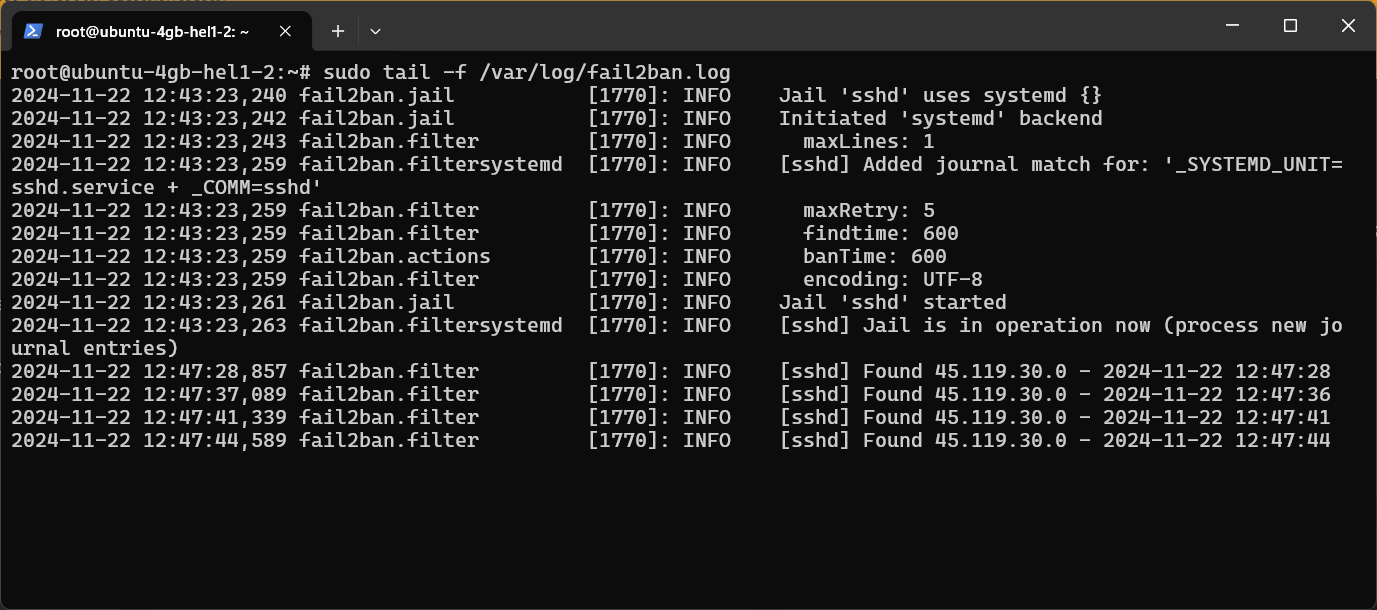
Image source: Web (Bing) / runcloud.io (Web image (fair-use with source credit))
Update, hostname, timezone, and a sudo user
Run the updates before anything else. Then set the hostname and timezone, because cron jobs and logs depend on both.
apt update && apt upgrade -y
timedatectl set-timezone Etc/UTC
hostnamectl set-hostname myserver
adduser deploy
usermod -aG sudo deploy
SSH keys, disabling root login, and password auth
Generate an ed25519 key on your laptop, then copy it across. After that, turn off root login and password authentication in /etc/ssh/sshd_config. Reload sshd and confirm you can still get in from a second terminal before you close the first one.
That last step matters. Locking yourself out is the most common beginner mistake, and the VNC console is your only way back.
fail2ban, firewall rules, unattended upgrades, and swap
Install fail2ban and UFW. Allow only the ports you actually use, usually 22, 80, and 443. Turn on unattended security upgrades so patches land without you.
NIST publishes solid baseline guidance at nist.gov, and the CIS Benchmarks give you a per-distribution checklist worth running through once.
Finally, add a swap file on 1 GB plans. Without it, a memory spike can kill your database.
Wiring Up DNS, TLS, and Backups That Actually Restore
Image source: Bing (Web (fair-use with source credit))
A records, PTR/rDNS tickets, and propagation
Point an A record at your IPv4 and an AAAA at the IPv6 if you have one. Propagation is usually fast but can take a few hours. If you're running a mail server, open a support ticket for the PTR record.
Let's Encrypt, certbot renewal, and HTTPS redirects
Install certbot and request a certificate for your domain. Set the renewal timer and confirm it works with a dry run. Then force HTTPS in your nginx or Apache config.
Snapshots vs offsite backups: rsync, Borg, Restic, and the 3-2-1 rule
Snapshots live on the same platform, so they won't save you from a lost account. Real backups go somewhere else. Follow the 3-2-1 rule: three copies, two media, one offsite.
- rsync for simple file copies
- Borg or Restic for deduplicated, encrypted archives
- Object storage or a second provider for the offsite leg
Test a restore. An untested backup is a hope, not a plan. Back up the database too, especially if you're running a small storefront.
And if the box also runs an automated video workflow for a client channel, back up those project files as well.
Where CloudCone Setups Go Wrong
Lockouts, EOL templates, blocked port 25, and IP reputation
A lockout happens when you disable password auth before confirming your key works. Test from a second terminal first. If you're already out, the HTML5 VNC console is your only way back in.
End-of-life templates cause quieter damage. Any box still running CentOS 7 stopped receiving security patches in June 2024. Reinstall on Ubuntu LTS, Debian, AlmaLinux, or Rocky Linux.
Port 25 is blocked by default. Budget hosts do this to stop spam, and CloudCone is no exception. If you need outbound mail, relay through a transactional provider instead.
IP reputation is the sneaky one. A fresh IP can arrive already listed on a DNSBL. Check it before you build anything on top.
Abuse tickets, AUP limits, and bandwidth overage
Abuse tickets move fast. Spam, phishing, mining, or an open proxy triggers suspension, sometimes within hours. Respond the same day or lose the server.
Bandwidth overage is the other trap. Entry plans cap you somewhere around 1 to 3 TB per month. Exceed it and you get throttled or billed.
A single viral traffic spike can do it.
Monthly upkeep: patching, kernel reboots, cert renewals, log audits
Unmanaged means a monthly rhythm. Patch packages, reboot for kernel updates, confirm cert renewals fired, and skim your logs. Ten minutes a month prevents most disasters.
Costs, Specs, and How CloudCone Compares
What entry plans actually give you
Entry plans sit at the low end of the market. Expect roughly 1 vCPU, 1 GB of RAM, 20 to 30 GB of SSD, and 1 to 3 TB of bandwidth. Annual flash sales drop the effective monthly cost hard.
Extra IPv4 addresses cost a small monthly fee, usually a dollar or two. IPv6 is normally free. Windows templates add a licence charge on top of the plan price.
CloudCone vs DigitalOcean, Vultr, Hetzner, and RackNerd
DigitalOcean and Vultr win on documentation, multi-region choice, and polish. You pay two to three times more for that.
Hetzner is cheaper per core but sits in Europe and the US East. That matters if your users are on the West Coast or in Asia. RackNerd competes on promo pricing.
CloudCone's edge is its snapshot tooling and Los Angeles location.
When to upgrade, and when to walk away
Upgrade when you're swapping constantly or CPU steal shows up in top. Move up a tier, or add storage and IPs.
Walk away when you need managed support, multiple regions, or a compliance attestation. Budget unmanaged hosts simply don't offer those.
Frequently Asked Questions
How long does CloudCone provisioning take?
Provisioning usually finishes in under five minutes. You'll get an email with the IP address and root password. If nothing arrives, check the client area and your spam folder.
Most delays come from payment verification, not the platform.
Do I need a control panel on a CloudCone VPS?
No, you don't. A panel like CyberPanel or Webmin makes life easier if you'd rather click than type. But it eats RAM and adds attack surface.
On a 1 GB plan, a plain LEMP stack is the leaner choice.
Can I host email on a CloudCone VPS?
Technically yes, practically it's painful. Port 25 is blocked and IP reputation is out of your hands. Most people relay through a transactional provider instead.
Keep the VPS for websites and apps.
What happens if I exceed my bandwidth?
You get throttled or charged for overage. Exact terms sit in the plan details and the acceptable use policy. Watch usage in the client area.
A single traffic spike can blow through a 1 TB cap fast.
Are CloudCone snapshots the same as backups?
No. Snapshots live on the same platform as your VPS. If the account or region fails, they go with it.
Use rsync, Borg, or Restic to push copies offsite. Follow the 3-2-1 rule.

Similar Posts