

Simplify Shopify Inventory Management and Grow Your Business
Upgrade your Shopify Inventory Management for better control and faster growth.
Keeping track of stock levels, orders, and suppliers requires a reliable system. Shopify offers tools to help streamline this process. Effective inventory management ensures you meet customer demand without overstocking. It helps prevent lost sales and reduces waste. Accurate records also make business planning easier.
With Shopify, you can automate many tasks, saving time and reducing errors. This blog will explore how Shopify's inventory management tools can benefit your business. We'll discuss features, tips, and best practices. Stay tuned to learn how to optimize your inventory and keep your online store running smoothly.
The inventory overview shows every product's stock position in one screen.
Credit: www.getmesa.com
Introduction To Shopify Inventory
Managing inventory is crucial for any e-commerce business. Shopify offers a robust inventory management system that helps streamline this process. This system allows you to track stock levels, manage product variants, and automate reorders. Understanding how to use Shopify inventory can save time and money.
Importance Of Inventory Management
Inventory management is vital for ensuring products are available when customers want them. It helps avoid stockouts and overstock situations. With proper inventory management, you can meet customer demand efficiently. This leads to higher customer satisfaction and loyalty.
Good inventory management also helps in reducing costs. You can avoid holding excess stock and reduce storage costs. This improves cash flow and profitability. For small businesses, this can make a significant difference.
Challenges In Inventory Management
Managing inventory comes with its own set of challenges. One common issue is keeping accurate stock levels. Mistakes in inventory counts can lead to stockouts or overstocking. These errors can hurt your business reputation and sales.
Another challenge is managing multiple sales channels. If you sell on various platforms, keeping inventory synced can be tough. Shopify helps by integrating with different sales channels. This makes it easier to manage inventory across all platforms.
Also, forecasting demand can be tricky. Without accurate demand forecasts, you may overstock or run out of products. This affects customer satisfaction and revenue. Using Shopify's inventory tools can help you make better forecasts.
Setting Up Inventory In Shopify
Setting up inventory in Shopify is essential for managing your online store effectively. A well-organized inventory system helps you keep track of stock levels, ensures smooth order fulfillment, and enhances customer satisfaction. In this section, we will guide you through the steps to set up inventory in Shopify, making it easy for you to manage your products.
Initial Setup Steps
Begin by logging into your Shopify admin panel. Navigate to the "Products" section. Click on "Add product" to start adding items to your inventory. Fill in the product details like name, description, and price. Upload high-quality images to attract customers. Be precise with product variants such as size and color.
Next, scroll down to the "Inventory" section. Here, you will manage stock levels. Enter the quantity available for each product. This ensures you do not oversell items. Save the details and repeat these steps for all products in your store.
Configuring Inventory Tracking
To enable inventory tracking, go to the "Inventory" section of each product. Check the "Track quantity" box. This option allows Shopify to monitor stock levels automatically. It will update the inventory count after each sale. You can also set a threshold for low stock alerts. This helps you restock items on time.
Another useful feature is the "Continue selling when out of stock" option. Enabling this allows customers to place orders even when stock is depleted. This is useful for pre-orders or backorders. But, ensure you can fulfill these orders promptly.
Finally, review your inventory settings regularly. This keeps your stock levels accurate. Regular updates prevent discrepancies. It also helps in maintaining customer trust and satisfaction.
A common mistake is enabling tracking for some variants and forgetting others — a t-shirt tracked by size but not by colour quickly produces misleading totals. Go variant by variant when you first set up tracking, and decide before you start whether untracked products should keep selling once stock reaches zero. If you sell kits or bundles, track the bundle as a single product for simplicity, then adjust the counts of the underlying components manually whenever you assemble a new batch. Review your low-stock thresholds about once a quarter, especially after a price change or a promotion shifts how fast items sell.
Optimizing Stock Levels
Optimizing stock levels in Shopify inventory management is essential for business success. Proper stock levels ensure you meet customer demands efficiently. It also helps prevent unnecessary costs related to overstocking or stockouts. This section will guide you on how to calculate optimal stock levels and avoid common pitfalls.
Calculating Optimal Stock Levels
First, analyze your sales data. Look at trends over time. Identify peak seasons. This data helps predict future sales. Next, calculate your reorder point. Consider lead time and daily sales rate. The formula is: Reorder Point = (Lead Time x Average Daily Sales) + Safety Stock. Safety stock is extra inventory. It covers unexpected demand.
In practice, lead time is rarely a fixed number. Your supplier may take four days one month and ten days the next, so base your reorder point on the longest realistic lead time rather than the average. Safety stock should also reflect variability — if sales swing wildly from week to week, hold extra buffer during promotional periods and trim it once demand settles.
Avoiding Stockouts And Overstocking
Stockouts can hurt your business. Customers may turn to competitors. To avoid stockouts, monitor inventory levels regularly. Set up automated alerts. This helps you reorder timely. Overstocking, on the other hand, ties up capital. It increases storage costs. Use inventory management software. It tracks sales and inventory in real-time. Regularly review and adjust your stock levels based on performance data.
The financial pain of overstocking is quieter than a stockout but just as damaging. Money sitting on a shelf as unsold product cannot pay for ads, new stock, or payroll. Watch for slow movers in your inventory reports and act on them early — discount them, offer them as a bundle, or return them to the supplier before they tie up cash for another season.
 Inventory reports turn raw sales numbers into decisions about what to reorder.
Credit: www.shopify.com
Counting Stock With Barcode Scanning And Cycle Counts
The most common cause of inventory mistakes is simple: stock counts are only accurate on the day you take them. Products get damaged, misplaced, or mis-shipped, and unless you verify what is actually on the shelf, your Shopify records drift. That is why well-run stores count stock on a regular schedule rather than once a year.
Cycle counting is the practice of counting a small portion of your catalog each week instead of shutting down for a full inventory audit. Many merchants start with their fastest-moving or highest-value items, since an error there hurts the most. Shopify's mobile app and Shopify POS allow you to count stock with a phone or a handheld barcode scanner, and each scan updates the quantity for that product and location instantly.
If you are ready to invest in hardware, choose a scanner that works with the Shopify POS app — most USB and Bluetooth scanners behave like a keyboard and simply type the scanned numbers into the app. The barcodes themselves follow the open GS1 standards used across global retail, so check whether your supplier's barcodes are already printed on the packaging before you create labels yourself.
A practical rhythm looks like this: run a full count once per quarter, count your top sellers every two weeks, and investigate any product whose recorded quantity differs from the physical count by more than a small threshold. Each adjustment you make should be reviewed, not just applied silently, because repeated mismatches on the same product usually point to theft, damage, or a picking error in the warehouse.
Automating Inventory Processes
Automating inventory processes can transform how you manage your Shopify store. By automating tasks, you save time and reduce errors. This allows you to focus on growing your business. Automation tools handle repetitive tasks, ensuring your inventory is always accurate. Let's delve into the benefits and tools available for automating your inventory processes.
Benefits Of Automation
Automation reduces manual work. It also minimizes human errors. This keeps your stock levels accurate. Automated processes save you time. They provide real-time updates on inventory. You can make better decisions with accurate data. Automation also helps manage multiple sales channels. This ensures consistent stock levels across all platforms.
Start with the tasks that are most repetitive and most error-prone. The usual first three are: low-stock alerts so nothing runs out silently, automatic stock updates after every sale so numbers never go stale, and purchase order reminders that prompt you to reorder before a best-seller hits zero. Once those run reliably, you can add forecasting and multi-channel sync.
Tools For Automation
Many tools can automate Shopify inventory management. Shopify's native inventory features are a great start. They offer basic automation options. Third-party apps can enhance automation. Apps like Stocky and Cin7 provide advanced features. They offer real-time tracking and notifications. Another helpful tool is Inventory Planner. It predicts inventory needs based on sales trends.
Some tools integrate with accounting software. This keeps your financials in sync with your inventory. QuickBooks Commerce is one such tool. It provides comprehensive inventory management. Using these tools can streamline your operations. It ensures your inventory processes are efficient and accurate.
Before adding a paid app, map out exactly which step you want to automate — reordering, forecasting, or multi-channel sync. Shopify's built-in low-stock alerts already handle the basic "when should I reorder" question, so many stores only need one extra app rather than three. For smaller utilities, many store owners look for budget-friendly software offers to keep monthly costs low while they test what actually saves time. Trial an app on a handful of SKUs before rolling it out to the full catalog; apps that slow down your Shopify admin are rarely worth the convenience.
Integrating With Suppliers
Effective inventory management is crucial for any e-commerce business. One key aspect of this is integrating with suppliers . By building strong relationships and seamless systems with suppliers, Shopify store owners can ensure timely stock replenishment and efficient order fulfillment.
Supplier Management Tips
Managing suppliers efficiently can streamline your inventory process. Here are some tips:
Communicate regularly: Keep an open line of communication with your suppliers. This helps you stay informed about stock levels and any potential delays.
Negotiate terms: Discuss payment terms, delivery schedules, and return policies to find the best fit for your business.
Maintain records: Keep detailed records of all transactions and communications. This helps resolve any disputes quickly.
Build relationships: A good relationship with suppliers can lead to better terms and priority service.
Automated Order Fulfillment
Automating the order fulfillment process can save time and reduce errors. Here are some ways to automate:
Use Shopify apps: Many apps integrate with Shopify to automate order processing. Apps like DSers, ShipStation, and Inventory Source can sync your store with suppliers.
Set up auto-reorder: Configure your system to automatically reorder products when stock levels reach a certain threshold. This ensures you never run out of popular items.
Integrate with ERP systems: Connect your Shopify store with Enterprise Resource Planning (ERP) systems. This provides a real-time view of inventory and automates many back-end processes.
Integrating your Shopify store with suppliers is essential for efficient inventory management. By following these tips and automating processes, you can ensure a smooth and reliable supply chain.
A realistic note on automation: it only works when the numbers feeding it are trustworthy. If your stock counts drift — because returns were not restocked, damages were not written off, or a delivery was logged twice — then every automated reorder and supplier sync will simply repeat the error. Make supplier integrations a tool within a broader stock-accuracy routine, not a replacement for it. Schedule weekly checks of incoming purchase orders against what actually arrived, and resolve discrepancies in Shopify before the next automated cycle runs.
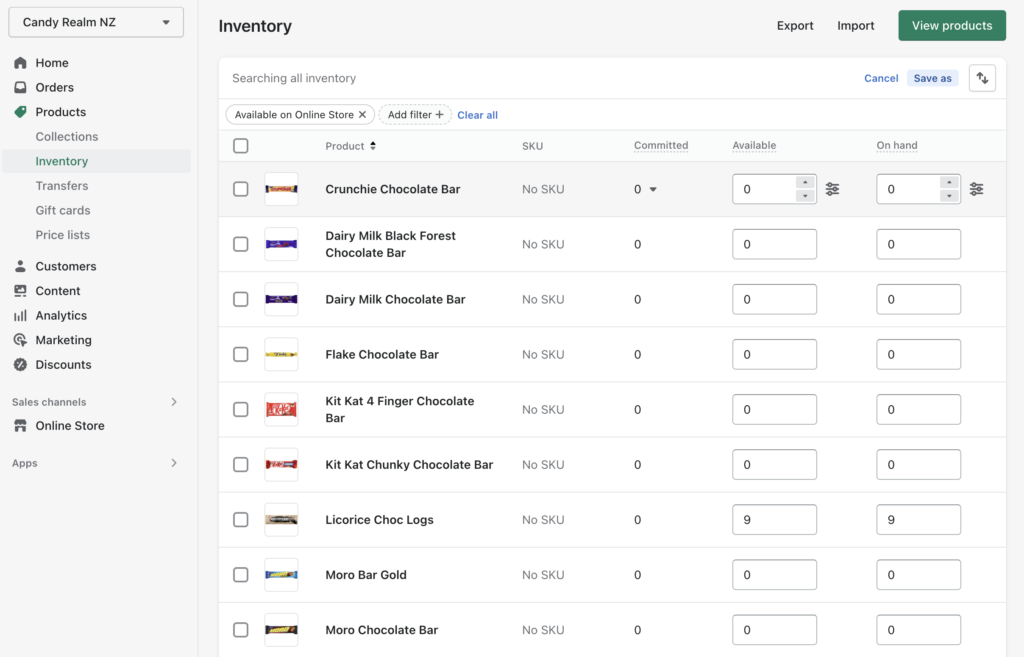 A variant-level edit keeps each size and colour count accurate.
Credit: glowcreative.co.nz
Managing Multi-Location Inventory
As soon as you stock products in more than one place — a home office, a third-party warehouse, a retail counter — a single inventory number is no longer enough. Shopify's multi-location feature gives each fulfillment source its own quantity, so the stock on your storefront reflects exactly what you can ship from the location that matters.
To get started, enable "Multiple locations" in your store settings and add each place where you hold stock. When you receive a new shipment, assign quantities to the correct location instead of to a generic total. When a customer places an order, Shopify can be set to fulfill from a preferred location automatically, or you can choose the closest warehouse at fulfillment time.
Moving stock between locations is handled with stock transfers. For example, if you send 30 units from your warehouse to a market stall for the weekend, you create a transfer and complete it when the stock arrives. This keeps both locations accurate without double-counting.
Dropshipped products follow a different rule: inventory tracking is usually switched off because the supplier owns the stock until the order is placed. Keep those products marked clearly so you do not accidentally include them in a physical count or a purchase order.
Analyzing Inventory Data
Analyzing inventory data is crucial for any e-commerce business. It helps you understand your stock levels and sales trends. It can also guide your decision-making process. Shopify offers tools to track and analyze this data. Proper use of these tools can help you optimize your inventory management.
Key Metrics To Track
Several key metrics are essential for effective inventory analysis. These include stock levels, turnover rates, and sales velocity. Stock levels show how much inventory you have on hand. Turnover rates indicate how quickly your inventory sells. Sales velocity measures the speed of sales over a set period.
Tracking these metrics helps identify trends and patterns. It can alert you to overstocked or understocked items. This ensures you have the right products available when customers need them.
Using Data For Decision Making
Inventory data can guide your business decisions. For instance, you can decide when to reorder products. It can also help in planning promotions and discounts.
Analyzing sales data can reveal your best-selling items. This allows you to focus on high-demand products. You can also identify slow-moving stock and take action to clear it. This ensures a healthy cash flow and reduces storage costs.
Understanding your inventory data helps improve operational efficiency. It ensures you meet customer demand without overstocking. It also aids in forecasting future trends. This makes your business more agile and responsive.
Make inventory data a habit, not a reaction. Many successful store owners set aside one short review every week — check sold-out products, near-threshold items, and the top five sellers — and one deeper review every month using Shopify's reports and the small business guidance published by the U.S. Small Business Administration to sanity-check their purchasing plans. Over time, this rhythm produces better forecasts than any single tool can deliver alone.
Managing Seasonal Inventory
Managing seasonal inventory is a crucial aspect of running a Shopify store. Seasonal changes can greatly impact the demand for certain products. Proper planning and strategy are key to ensuring you meet customer demands and avoid overstocking or stockouts.
Preparing For Seasonal Demand
Start by analyzing past sales data. Identify trends and patterns during different seasons. This helps predict which products will be in high demand. Use this data to forecast inventory needs. Communicate with suppliers early to ensure timely deliveries.
Consider running promotions to clear out old stock before the new season starts. Use social media and email marketing to inform customers about upcoming seasonal products. This builds anticipation and boosts early sales.
Seasonal campaigns often live on landing pages as well as the Shopify storefront itself. A simple sales page that loads quickly will convert better on phones, and you do not need a custom build to get there — many sellers start with lightweight page templates and drop in their seasonal offer in an afternoon. Keep the messaging consistent with the products you are trying to move, and link every campaign straight back to the matching collection in your store.
Adjusting Inventory Strategies
Adopt a flexible inventory strategy. Adjust stock levels based on real-time sales data. Use Shopify's inventory management tools to track inventory levels. Set up alerts for low stock to avoid running out of popular items.
Implement a just-in-time inventory system. This reduces excess stock and minimizes storage costs. Work closely with reliable suppliers to ensure quick restocks. Consider dropshipping for high-demand seasonal items. This reduces the risk of overstocking.
Regularly review and adjust your strategies. Monitor sales trends and customer feedback. Make necessary changes to optimize inventory management. Efficient seasonal inventory management leads to higher customer satisfaction and increased profits.
Once the season ends, run a short review before you move on. Compare the quantities you bought against what actually sold, note which promotions cleared stock fastest, and flag anything still sitting on the shelf that will need to be carried into next year. That review is what turns seasonal guessing into next season's forecast.
Handling Returns, Damaged Stock, And Restocking
Returns are an inventory event, not just a refund event. When a customer sends a product back, someone has to decide whether it can be resold, needs repackaging, must be repaired, or should be written off. If that decision does not flow back into Shopify, your available quantity stays wrong and the next customer may buy an item that is actually sitting in a returns pile.
A simple restocking policy keeps numbers clean: inspect the item first, then add it back to inventory only if it is in sellable condition. Use the restock option on the Shopify order page to return the quantity to the correct location. For damaged items, write them out of inventory with a clear note, or add them to a separate damaged-products line in your books so your stock value stays honest.
Returns usually spike after seasonal promotions, so plan restocking time into your calendar for the week after a big sale. This prevents a backlog of returned units from inflating your stock levels while the returns are still in transit or waiting on a refund decision.
Building A Tech Stack That Scales With Your Store
Inventory management does not happen in isolation. The tools and infrastructure around your store affect how quickly you spot stock problems, how smoothly flash sales run, and how much of your team's time is eaten by manual work. A lean stack that does one job well beats ten apps that duplicate each other.
Start with Shopify's native inventory workflow — stock tracking, locations, low-stock flags, and reports are already included with your plan. Add paid apps only when a real gap appears, and review every app subscription once a quarter. The infrastructure behind your marketing pages matters just as much as the apps: a landing page that loads slowly can waste ad spend and frustrate shoppers at the exact moment you are trying to clear inventory.
That is why a growing store pairs its Shopify backend with reliable site infrastructure for the blog and for campaign landing pages. When traffic around product launches becomes unpredictable, those same pages can move to managed cloud infrastructure without a redesign. For a founder just starting out, the choice of where your marketing site lives is still worth making early — moving hosts later is far more disruptive than choosing well the first time.
Frequently Asked Questions
What Is Shopify Inventory Management?
Shopify inventory management is the process of tracking and managing products. It helps store owners control stock levels, avoid overselling, and streamline operations.
How Do I Manage Inventory On Shopify?
To manage inventory on Shopify, use the inventory section in the admin panel. You can add, update, and track product quantities efficiently.
Can Shopify Handle Large Inventories?
Yes, Shopify can handle large inventories. It offers robust tools and integrations. These tools help manage extensive product catalogs seamlessly.
For very large catalogs, remember that the Shopify platform does the heavy lifting on product pages and checkout. The pages you use to promote that catalog should also hold up under traffic spikes — some merchants keep their company site on a commercial-grade web presence so a viral campaign never causes slowdowns.
How To Track Inventory Changes On Shopify?
Track inventory changes on Shopify by using the inventory history feature. This feature logs all adjustments and sales, providing clear visibility.
How Do I Set Up Low Stock Alerts?
Open the product you want to monitor, go to its Inventory section, and set a quantity under "Low stock threshold". Shopify will flag products that fall below that number on the Products page, and some third-party apps can send email or SMS alerts when a threshold is hit.
Can I Manage Inventory Across Multiple Warehouses?
Yes. Enable "Multiple locations" in your Shopify settings, then add each warehouse, retail store, or fulfillment center. Each location keeps its own quantity, and you can transfer stock between them when needed.
How Do I Update Stock Levels In Bulk?
Use the bulk editor on the Inventory page to change quantities for many products at once, or export a CSV, edit the quantities, and re-import it. Both methods update your stock counts in one pass instead of editing product by product.
What Is A Stock Transfer?
A stock transfer moves quantities from one location to another — for example, sending 20 units from your main warehouse to your retail store. In Shopify, you create the transfer, and the system adjusts both locations when you complete it.
How Should Returns Affect My Inventory Counts?
When a returned item is in sellable condition, add it back to the available quantity for its location. If it is damaged, write it out of inventory so your counts stay honest and you do not accidentally sell it to the next customer.
Does Shopify Work With Dropshipping?
Yes — Shopify supports dropshipped products as long as you do not enable inventory tracking for them, since the supplier owns that stock. Use a dropshipping app such as DSers to sync orders and keep your storefront from overselling.
Conclusion
Effective Shopify inventory management ensures smooth operations and happy customers. It helps avoid stockouts and overstocking. Accurate tracking saves time and reduces errors. Use the tools available to optimize your process. Better inventory management means better business performance. Start making improvements today for a more efficient store.
Pick one habit from this guide — set a low-stock alert, run a cycle count, or schedule a weekly stock review — and put it into practice this week. Small, consistent improvements add up to faster fulfillment, fewer lost sales, and a store that is ready to grow.
Happy selling!


2 thoughts on “Simplify Shopify Inventory Management and Grow Your Business”