
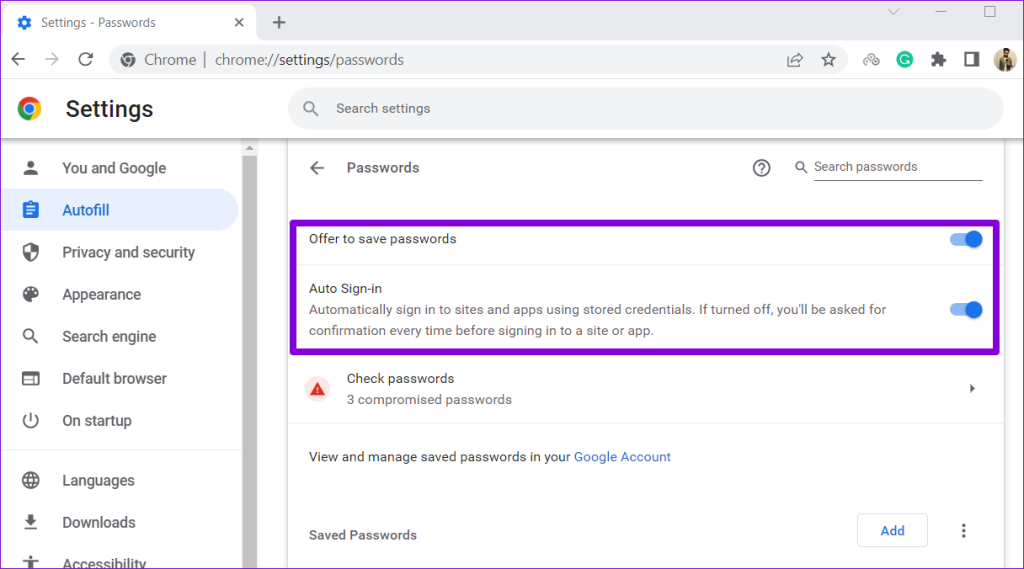
Google Password Manager is the password vault already sitting inside your Google Account, and most people never open it. It saves logins in Chrome and Android, fills them in for you, and syncs them across your devices for free. The catch is that it ties every saved credential to one account you could lose.
As of 2026, Google's own help documentation confirms the vault supports passkeys built on the FIDO2 and WebAuthn standards, alongside classic passwords. That mix of old and new is where most confusion starts. Here's how it actually works, where it can lock you out, and how to set it up safely.
Quick Answer
Google Password Manager is a free vault for your logins. It lives inside Chrome, Android, and your Google Account. It saves, generates, and autofills passwords across devices.
It stores passkeys too. Open it at passwords.google.com or in Chrome settings. Encryption is on by default.
On-device encryption is an extra step.
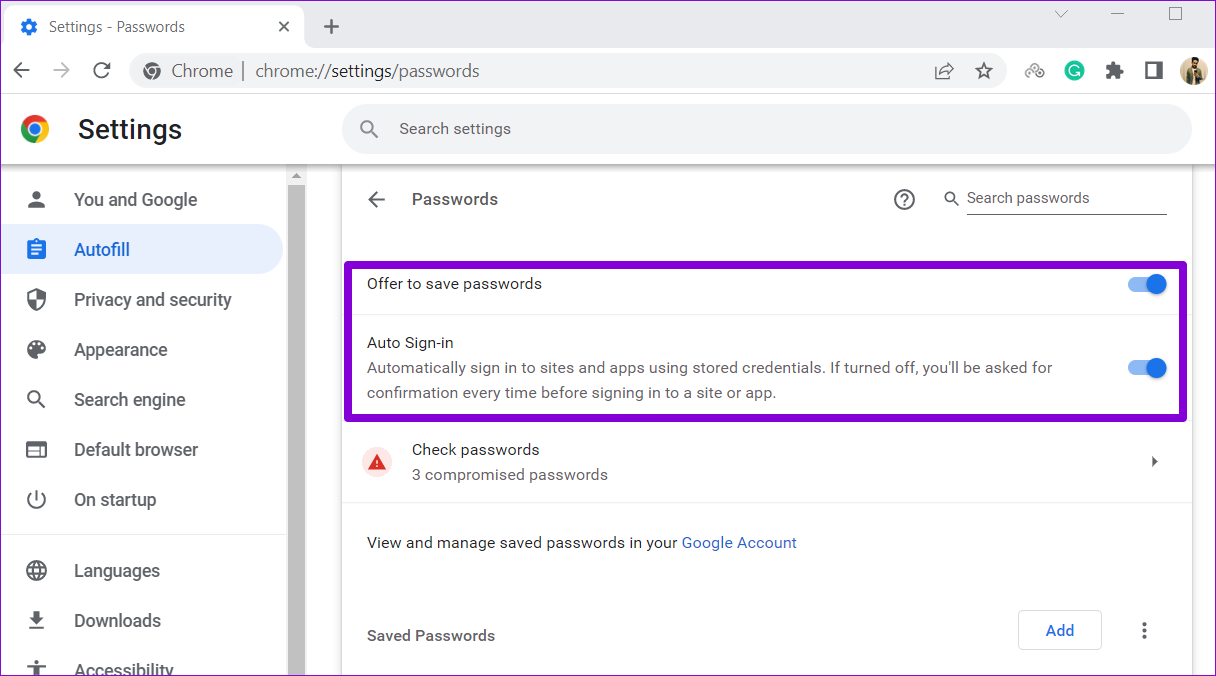
Image source: Bing (Web (fair-use with source credit))
Why Getting Google Password Manager Right Actually Matters
Google Password Manager is convenient, free, and already switched on. That's exactly why people ignore it until something breaks.
In our research across Google's help documentation and public user threads, the same pattern keeps appearing. Someone saves dozens of logins, forgets the master account password, and then can't get back in. The vault isn't the problem.
The recovery path is.
What free and built-in actually costs you
Free doesn't mean risk-free. Every credential sits behind a single Google Account, so the security of that account is the security of everything else.
If your Google Account password is weak, your vault is weak. If you skip 2-Step Verification, one stolen password exposes the lot.
Where bad advice leads to lockouts and lost accounts
Plenty of guides tell you to switch on on-device encryption and stop there. They skip the part about what happens when you forget the PIN.
Google's documentation is blunt here. If you forget your Google Password Manager PIN and your device can't verify you biometrically, you may need to delete your saved passwords on that device to regain access. That's a genuine data-loss scenario, not a scare story.
The same applies to your Google Account. Lose your recovery email and phone number, and account recovery gets much harder. Your saved logins go down with it.
That's the framing for everything below. This isn't a sales pitch. It's a map of how the thing works, where it bites, and how to set it up so you don't end up locked out.
Keeping an encrypted backup service for your most critical credentials is cheap insurance.
What Google Password Manager Really Does With Your Credentials
Google Password Manager stores, generates, and fills in your logins. It lives in three places: the Chrome browser, Android's autofill service, and the web page at passwords.google.com.
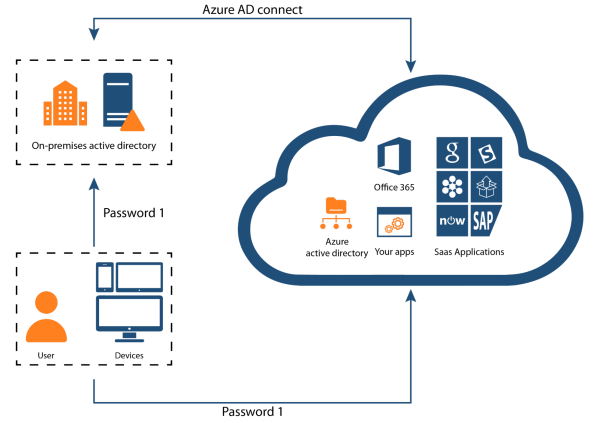
Image source: Bing (Web (fair-use with source credit))
Where your passwords actually live
Saved credentials sync through your Google Account, so the same login appears on your phone, laptop, and tablet. If Chrome sync is off, they stay local to that device only.
On Android, the manager doubles as the system autofill service. That's how it fills logins inside apps, not just websites. Treat it the way you'd treat where your files live anywhere else: know the location, then protect it.
How sync, autofill, and the PIN fit together
| Layer | What it does | Where it applies |
|---|---|---|
| Chrome sync | Moves credentials between devices | Chrome, desktop and mobile |
| Autofill service | Fills logins in apps and browsers | Android, Chrome |
| Vault PIN | Unlocks autofill on a device | Android, Chrome |
| On-device encryption | Adds a second lock to stored data | Android, Chrome |
The vault PIN is a short numeric code, usually six digits. It unlocks autofill for that device. It is not the same thing as your Google Account password.
On-device encryption versus the default
By default, Google encrypts passwords in transit and at rest. Some internal systems can still process them to run autofill and security checks. That is not zero-knowledge.
Turn on on-device encryption and the vault is locked with a key Google can't read. You trade easy recovery for stronger privacy.
Passkeys, Password Checkup, and breach alerts
Google supports passkeys built on FIDO2 and WebAuthn, the same standards the FIDO Alliance maintains. Password Checkup flags weak, reused, and breached credentials. Dark web report availability varies by country.
The Risks Nobody Mentions: Recovery Lockout, Encryption Gaps, and Google Account Dependence
The biggest risk with Google Password Manager isn't hacking. It's losing access to your own vault.
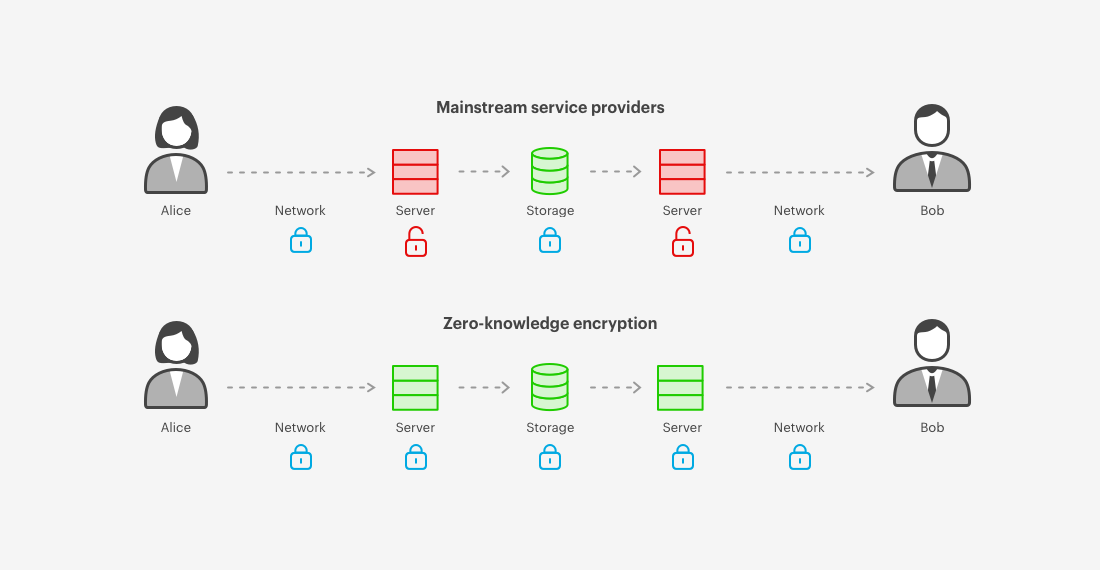
Image source: Bing (Web (fair-use with source credit))
Losing your Google Account means losing your vault
Your saved passwords hang off your Google Account. Get that account suspended, locked, or deleted, and the vault goes dark with it.
Set up a recovery email and phone number. Generate backup codes and keep them offline.
Why it isn't zero-knowledge by default
Zero-knowledge means the provider can't read your data even if it wanted to. Google's default setup isn't that.
The company states plainly that its systems can process your passwords for autofill and security checks. On-device encryption changes this. Most people never turn it on.
Cross-browser limits, iOS gaps, and sharing restrictions
If Safari, Edge, or Firefox is your main browser, the vault won't autofill there. It's a Chrome and Android tool first.
Password sharing works only inside a Google Family Group. There's no emergency access feature and no way to hand your vault to someone after you die.
Phishing, malware, and credential stuffing still apply
A password manager can't save you from a fake login page that captures what you type. Malware that logs keystrokes bypasses autofill entirely. Scan for malicious software on your device before you trust any vault with your banking logins.
Safe Setup: On-Device Encryption, Passkeys, and 2-Step Verification
Setup takes about ten minutes. Do it in this order and you dodge the common traps.

Image source: Bing (Web (fair-use with source credit))
Step 1: Lock down the Google Account first
Everything depends on this account. Turn on 2-Step Verification before you do anything else.
Add a recovery email and a recovery phone number. Then generate backup codes and print them. Digital identity guidance treats multi-factor authentication as baseline practice, not an optional extra.
Step 2: Turn on on-device encryption
Open Chrome settings, find Google Password Manager, and choose on-device encryption. You'll create a PIN.
Write that PIN down. Store it somewhere that isn't the phone it unlocks.
Step 3: Run Password Checkup
Password Checkup scans your saved logins against known breach data. Fix weak, reused, and breached passwords first.
Change the reused ones. Let the generator create something long and random.
Step 4: Add passkeys where sites support them
Passkeys replace the password entirely on supported sites. They resist phishing because there's no code to steal.
Start with your email account, then your bank.
Step 5: Handle imports and exports carefully
CSV export produces a plain-text file with every login in it. Move it somewhere safe or delete it.
For backups, an offsite copy you control beats a file sitting in your downloads folder. Never email that CSV to yourself.
Google Password Manager vs Dedicated Managers: Where the Line Falls
Google's tool is free and good enough for most people. Paid managers earn their money in specific areas.
| Feature | Google Password Manager | Dedicated managers |
|---|---|---|
| Cost | Free | Roughly $10 to $60 per year |
| Zero-knowledge encryption | Optional, off by default | Default on |
| Cross-browser autofill | Chrome only | Most browsers |
| Password sharing | Family Group only | Flexible, per item |
| Emergency access | No | Usually yes |
| Secure notes and files | Very limited | Standard |
| Passkey support | Yes | Varies by vendor |
Who should stay with Google
Stay if you live in Chrome and Android. Stay if you want zero setup and no subscription.
Stay if your real problem is reusing the same password everywhere and you want to stop.
Who should move on
Move if you use several browsers daily. Move if you need to share credentials outside your family.
Move if you want the provider to be mathematically unable to read your vault. Move if you need emergency access for a partner or executor.
A reliable VPN on public Wi-Fi is worth more than switching managers for most people. Fix the basics first.
Mistakes That Lock You Out or Expose Your Vault
Most vault disasters come from five habits. All of them are easy to avoid once you know they exist.
Clearing Chrome browsing data and wiping saved passwords
Chrome's "clear browsing data" dialog includes a checkbox for passwords. Tick it and your entire vault on that device is gone.
Read that dialog every time. If you only want to clear history and cookies, leave passwords alone.
Skipping 2-Step Verification on your Google Account
If you haven't turned on 2-Step Verification, do it now. One stolen password exposes every login you've saved.
Verified user reports describe account takeovers that started with a single reused credential. The vault wasn't cracked. The front door was left open.
Storing your Google password inside Google Password Manager
Never save your Google Account password in the vault it protects. That's circular and useless.
If you can't remember that one password, write it down and lock the paper away. Memorize the rest through the manager.
Exporting CSV files to unsecured locations
A CSV export is a plain-text list of every login you own. No encryption, no PIN, no protection.
Delete the file the moment your import finishes. Don't park it in Downloads, and never email it to yourself. If you need a safe home for critical files, a provider you trust beats a stray spreadsheet.
Ignoring breach alerts and reused passwords
Password Checkup exists for a reason. Reused passwords are the single biggest cause of credential-stuffing attacks.
Fix flagged logins the same day you see them. A breach alert you ignore is a breach you invited.
Frequently Asked Questions
Is Google Password Manager safe to use?
Yes, for most people. Google encrypts your credentials in transit and at rest, and the vault sits behind your Google Account's own security. Turn on 2-Step Verification and on-device encryption and the risk drops sharply.
It isn't zero-knowledge by default, so privacy purists should weigh that against the convenience.
Can Google employees see my saved passwords?
Not in normal operation. Google states its systems can process passwords to run autofill and security checks. With on-device encryption switched on, that access is blocked because the key stays on your device.
Most people never enable that setting, so the default is more access than many assume.
What happens if I forget my Google Password Manager PIN?
You may have to delete the saved passwords on that device to regain access. That's a real data-loss outcome, not a warning label. Your Google Account password is separate, so you won't lose the account itself.
Write the PIN down somewhere offline.
Does Google Password Manager work on iPhone?
Partially. You can view and manage saved logins through the Chrome app on iOS, and autofill works inside Chrome. It won't fill passwords in Safari or other iOS apps the way it does on Android. iPhone users who want system-wide autofill are better served by a dedicated manager.
Do passkeys replace my passwords in Google Password Manager?
Only on sites that support them. Passkeys use the FIDO2 and WebAuthn standards, and they resist phishing because there's no code to steal. Google keeps your old passwords alongside them for sites that haven't caught up.
Expect a mixed setup for a few more years.

