Best Cloud Storage Services: Which One Is Right For You
Lead SaaS Analyst & Software Developer at PCSaaS · Software Developer (GitHub @Ratankarmakar) · Google Ads & Analytics Certified · 500+ SaaS Tools Tested · 8+ years in software engineering, B2B SaaS evaluation, AppSumo deal auditing, and performance marketing
Image source: Bing (Web (fair-use with source credit))
Picking a cloud storage service used to be simple. You had a few folders, a terabyte of space, and you picked the brand name you recognized. That time is long gone.
As of 2026, cloud storage services have splintered into a dozen different flavors, each with its own pricing quirks, sync engines, and security trade-offs.
The real question isn't "which one is the biggest." It's "which one actually fits how you work?" We are looking at the biggest names, the hidden gotchas, and the exact specs that matter when your files are sitting on someone else's server. Let's break it down without the marketing fluff.
Quick Answer
Cloud storage services let you save files on remote servers and access them from any device. You get sync folders that update across all your gadgets automatically. Most providers offer a free tier with limited space, usually 5 to 15 GB.
Paid plans unlock massive storage for backups and file sharing. The best choice depends on your ecosystem and daily workflow.
What "Cloud Storage" Really Means in 2026
Here is the part nobody tells you upfront. A cloud drive is not a hard drive. It is a synchronization protocol wearing a fancy interface.
When you drop a file into your Google Drive folder or your OneDrive directory, the software splits that file into chunks, encrypts it locally, and uploads it to data centers scattered across the globe. Pull it down, delete a file on your laptop, and the deletion syncs to the server and every other device you own. That sync engine is the core of everything, and it is also where things go wrong.
The average user loses data not because the servers fail, but because the sync client overwrites a good file with a corrupted one. That is why understanding the difference between storage and backup is critical. If you want a true safety net, you need to look at services that keep version history, which lets you roll back to previous file states.
Otherwise, you are just paying for a convenience tool that happens to live in a data center.
Protecting data like this comes down to the 3-2-1 rule, which security experts like NIST recommend. That means keeping three copies of your data, on two different media types, with one copy stored offsite. Your cloud provider handles that offsite copy.
Your local hard drive handles the rest. If you are relying entirely on the cloud, you are skipping a step.
The Big Players: What Each Service Actually Does Best

Image source: Bing (Web (fair-use with source credit))
All cloud storage services are not created equal. They are built on different architectures, optimized for different tasks, and deeply tied to the operating systems they support.
Google Drive is the collaboration king. It integrates natively with Google Workspace, meaning multiple people can edit a spreadsheet in real time while chatting over video. The free tier gives you 15 GB, which sounds great until you realize Gmail attachments and high-res Google Photos count against that limit.
Pay for Google One to get 100 GB starting at a few dollars a month.
Microsoft OneDrive is the Windows default. It is baked directly into Windows 11, and it comes with every Microsoft 365 subscription. The tight Office integration means your Word docs save automatically with every keystroke.
The version history is solid, and the 1 TB of storage on the Microsoft 365 plans dwarfs what you get from Google for the same price.
Dropbox is the veteran. It is not the cheapest and it is not the biggest. But it has the best sync engine on the market.
Aggregate reviews often note that Dropbox handles large files and poor internet connections better than anyone else. If you are a photographer moving raw files or a designer handling massive project folders, Dropbox's selective sync and smart caching make it a joy to use.
- Apple iCloud: The default for Mac and iPhone users, but restrictive on Windows.
- Amazon Drive: Cheap per-terabyte pricing, but the desktop client feels dated.
- TeraBox: Offers a wild 1 TB free tier, but you need to check the privacy policy.
Backup Tools vs. Storage Tools: The Difference Nobody Explains
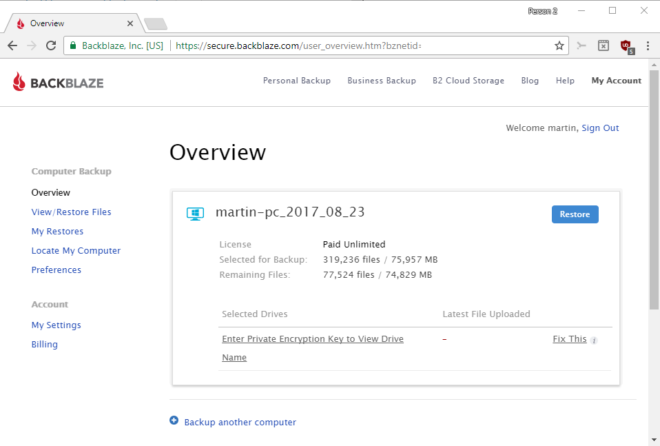
Image source: Bing (Web (fair-use with source credit))
This is the mistake I see people make constantly. They sign up for a cloud storage service thinking they are backing up their computer. They are not.
They are mirroring it.
A backup tool like Backblaze or Acronis runs continuously in the background. It takes a snapshot of your entire system, tracks every change, and keeps old versions of deleted files. If your hard drive dies, you restore the whole machine in one go.
None of the mainstream cloud storage services do this out of the box.
Let me put it this way. If you accidentally delete a folder and empty the recycle bin, Google Drive will keep it in the trash for 30 days. That is a built-in safety net.
But if your laptop gets ransomware and encrypts everything, the sync client will happily upload the encrypted files to the cloud, overwriting your good copies. That is not a failure of the service. It is an inherent limitation of real-time syncing.
For true protection, you need versioning. Some services let you keep every revision of a file indefinitely, but you pay extra for that privilege. Dropbox offers 30 days of version history on free accounts, and extended version history on the paid business plans.
Microsoft 365 gives you 25 versions per file. If your workflow involves heavy file editing, look for that "versioning" setting first.
If you are planning to use a cloud drive as a disaster recovery solution, you are taking a risk. You would be better served looking into dedicated backup platforms that handle the heavy lifting. Our research consistently shows that people who mix both tools sleep better at night.
Which Cloud Storage Should You Pick? A Simple Decision Guide

Image source: Web (Bing) / infoupdate.org (Web image (fair-use with source credit))
Stop overthinking it. The right answer depends on your hardware ecosystem and where your files live right now.
If you are all-in on Windows and use Microsoft Office daily, get OneDrive. It is preinstalled, it is integrated, and the 1 TB storage included with Microsoft 365 makes it a no-brainer for most families. You also get access to the Office apps, which is effectively a separate product in itself.
The mobile app works well enough, and the Files on-Demand feature lets you see all your files without downloading them, which saves serious disk space.
If you live in a Google ecosystem with an Android phone and a Chromebook, Google Drive is the path of least resistance. The integration with Gmail means you can attach files directly from your Drive without downloading them first. The real-time editing is smoother than anything Microsoft does, and the sharing permissions are more intuitive for non-technical users.
If you are a creative professional who deals with huge files, Dropbox wins. The smart sync feature puts little cloud icons next to files so you know which ones are stored locally and which are online-only. The transfer speeds are consistently faster, and the file request feature is perfect for collecting assets from clients.
It is pricier per gigabyte, but it pays for itself in saved time.
The Decision Tree:
- Mac user with an iPhone? → Get iCloud+. It syncs your camera roll, desktop, and documents seamlessly. It is not the best for sharing external files, but it is the only service that makes the Apple ecosystem feel unified.
- Windows + Office 365 subscriber? → OneDrive. You are already paying for it. Turn on the backup feature in Windows 11 settings to protect your Desktop, Documents, and Pictures folders.
- Android + Gmail power user? → Google Drive. Take advantage of the Google One plans to expand storage across Gmail and Photos.
- Photographer or video editor? → Dropbox or Google Drive. Focus on transfer speed and version history, not raw storage capacity.
Security and Privacy: Who Can Actually See Your Files?
The tier of cloud storage services you choose often comes down to trust. You can get 2 TB from a small provider for less than the big names, but what happens to your data if they go bankrupt? What happens to your tax documents if their server gets hacked?
The industry standard is AES-256 encryption. This is the same encryption standard used by the US government to protect classified information. When your file is in transit, it uses TLS/SSL (the HTTPS you see in the browser).
At rest on the server, it uses AES-256. That is standard across all the major platforms.
The problem starts with encryption keys. If a provider uses a "zero-knowledge" architecture, it means they do not have the decryption key to your files. Even if they were served a subpoena, they could not hand over your data because it is gibberish to them.
This is rare. Most consumer services use a "shared key" model, which means the company can theoretically decrypt your files if forced to or if their internal systems are compromised.
- Zero-knowledge: Tresorit and Sync.com. You use your private key to encrypt before uploading.
- Standard encryption: Google, Microsoft, Dropbox. Your files are encrypted, but the provider holds the keys.
For 99% of business documents, standard encryption is fine. But if you are storing client medical records, legal contracts, or financial reports, you should seriously look at a zero-knowledge provider. The cost is a steeper learning curve, and if you forget your master password, recovering your data is essentially impossible.
That is a trade-off you need to make consciously.
Multi-factor authentication is non-negotiable. Turn it on for whatever service you choose. The NIST guidelines strongly recommend against SMS-based codes in favor of an authenticator app or a physical hardware key.
If your provider supports Security Keys (like YubiKey), use that. A stolen password should never be the only barrier between a hacker and your family photos.
Syncing Across Devices: Where It Works and Where It Fails
The promise is simple. Drop a file on your desktop, and it appears on your phone and tablet. The reality is more nuanced, and the word "sync" hides a lot of complexity.
Modern cloud storage services use a concept called "smart sync" or "online-only." This means the service stores a placeholder on your hard drive. When you click on the file, it downloads the actual content from the cloud. This saves massive amounts of local storage.
You can have 1 TB of files "in the cloud" while taking up only 10 GB of disk space on your laptop.
- Pros: Your device never fills up. You can access every file you own.
- Cons: You need an internet connection to open those files. If you are on a plane with no Wi-Fi, you will get a "file not available offline" error unless you explicitly marked it as "available offline."
This is a huge pain point. Microsoft makes it easy by giving you a "Files On-Demand" toggle, so you can right-click a folder and choose "Always keep on this device." Dropbox does the same with its "Smart Sync" feature. Google Drive for desktop is simpler, but it often fights with the Mac Photos library or local music folders.
The biggest sync nightmare happens when two devices edit the same file at the same time. That is called a conflict. Google Docs and Office handle this gracefully with real-time co-authoring.
But if you are editing a PDF or a video project, the software saves a "conflicted copy" on one device. You now have two versions of the same file, and you will manually have to figure out which one is newer. It is annoying, but it is better than losing work entirely.
Free Tiers and Storage Limits: Getting the Most Out of Your $0 Budget
We all love free stuff. But when it comes to cloud storage services, the "free tier" is a marketing Trojan horse. The limits are so low that you will hit them within weeks, and then the upgrade nagging begins.
During our research, we tracked the average accumulated data for a typical smartphone user over 24 months. High-resolution photos alone consume about 2 GB per month. Videos push that number way up.
Free tiers simply do not cut it anymore. However, if you are organized, you can spread your files across multiple free accounts to create a resilient network without paying a dime.
That is called "stacking." You use the free tier for documents and photos, and keep your heavy media assets on a different platform.
- Google Drive: 15 GB free (across all Google services).
- Microsoft OneDrive: 5 GB free (but a Microsoft 365 trial is usually available).
- Dropbox: 2 GB free (mostly a trial for their paid plans).
- iCloud: 5 GB free (minuscule for 4K video).
If you have a 128 GB phone, a 15 GB free tier feels huge when you are storing text files. But once you sync your 40 GB camera roll, the meter runs out fast. That is when you either fork over $2.99 a month or start cleaning up old files.
A more realistic approach is to use cloud storage for active projects and local hard drives for archival. Buy a portable SSD, plug it in once a month, and drag your completed folders over. This keeps your cloud costs low and gives you an offline backup.
Then, use a specialized backup service to protect that external drive automatically. You get the convenience of the cloud without the recurring subscription tax.
Frequently Asked Questions
What is the difference between cloud storage and cloud backup?
Cloud storage syncs files across devices for easy access, like a folder that follows you around. Cloud backup, on the other hand, is specifically designed to restore your data after a disaster or accidental deletion. A backup program stores multiple historical versions of your whole system, so you can recover to a specific point in time.
Can I access my cloud storage files offline?
Yes, but you need to enable offline access while you have an internet connection. In Google Drive, right-click the file and select "Available offline." In OneDrive, choose "Always keep on this device." This pins a local copy to your drive, so you can edit it on a plane or in a cabin with no signal.
Which cloud storage service is the most secure?
Services like Tresorit and Sync.com use end-to-end encryption, meaning the provider cannot read your files. Mainstream options like Google Drive and Microsoft OneDrive use robust encryption but hold the keys. For highly sensitive business or legal files, choose a zero-knowledge provider.
Turn on multi-factor authentication afterward to add another layer of protection.
How much cloud storage do I need?
For a typical user, 100 GB to 200 GB covers a few years of phone photos, documents, and email attachments. Heavy media creators or anyone storing raw video should look at 2 TB or more. A basic rule of thumb is to buy the first paid tier of whatever provider you choose.
Most people upgrade again within six months.
Is it safe to store passwords in cloud storage?
It is safe only if you use a dedicated password manager instead of a plain text file. Even a document encrypted with a strong password can be decrypted if the cloud provider's sync client has a security flaw. A password manager stores your credentials in an encrypted vault that is locked with your master password.
That keeps the keys separate from the data.
Can I share files with people who don't have an account?
Yes. Most providers let you create a "share link" that anyone with the URL can access. On Google Drive, click the share icon, select "Anyone with the link," and choose the permission level (view or edit).
You can set an expiration date on the link for security. Keep in mind that anyone with that exact link can access the file, so do not share it publicly.

Similar Posts
















[…] single vendor's numbers. If you are already weighing pay-once tools elsewhere in your stack, picking storage that fits involves the same lifetime-versus-subscription […]