WiFi Extender Guide: Boost Your Signal Anywhere
Lead SaaS Analyst & Software Developer at PCSaaS · Software Developer (GitHub @Ratankarmakar) · Google Ads & Analytics Certified · 500+ SaaS Tools Tested · 8+ years in software engineering, B2B SaaS evaluation, AppSumo deal auditing, and performance marketing
A wifi extender is the cheapest way to attack a dead zone, and it's also one of the most commonly returned pieces of home networking gear. The reason is simple. Extenders rebroadcast a signal they receive wirelessly, so placement and backhaul decide everything.
Get those two things wrong and your boosted signal ends up slower than the one you started with.
Manufacturer specs confirm the trade-off. An extender rated AC1200 or AX3000 splits that figure across its bands, so a single device rarely sees the headline number. Wireless backhaul typically cuts throughput by roughly half, based on vendor documentation and aggregate buyer reports.
Here's how to work out whether an extender is right for your home, and when mesh, powerline, or a wired access point wins instead.
Quick Answer
A wifi extender repeats your router's signal to reach a dead zone. It's the cheapest and easiest fix for one bad spot. Wireless backhaul cuts speed by roughly half.
Place it halfway between the router and the dead zone. For whole-home coverage, mesh usually wins.
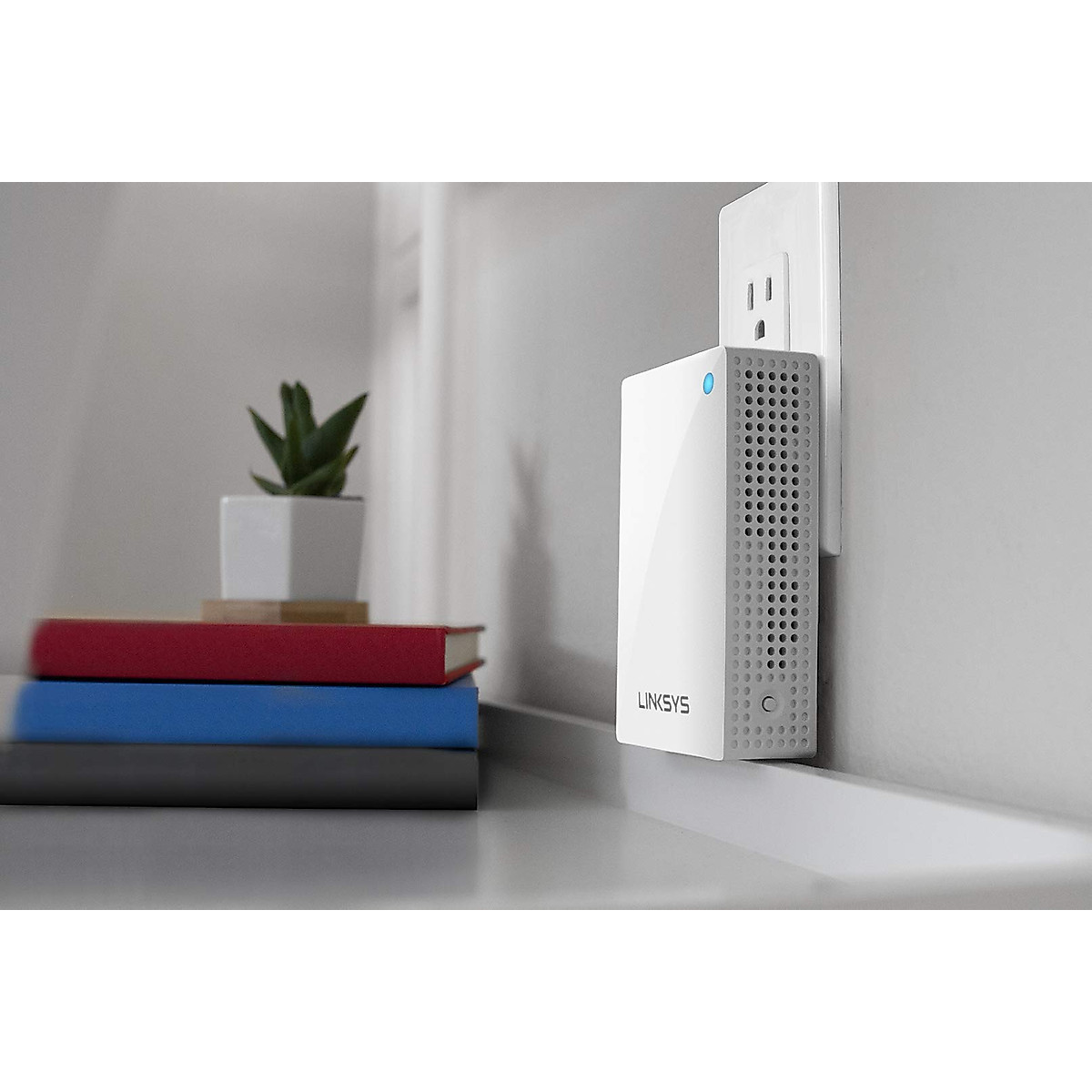
Image source: Bing (Web (fair-use with source credit))
Why Dead Zones Happen, and Why the Wrong Fix Makes It Worse
Distance is only half the problem. Walls, floors, and the neighbour's network all chip away at your signal before it reaches the couch.
What backhaul means, and why wireless backhaul costs you half your speed
Backhaul is the link between your extender and your router. When it's wireless, the extender talks and listens on the same radio it uses for your devices. Vendor documentation and aggregate buyer reports land in the same place.
Expect around half the throughput of a wired link.
That's fine for browsing and smart plugs. It gets ugly for 4K streams, video calls, and anything competitive.
Sticky clients and duplicate SSIDs
Phones and laptops don't roam gracefully. They cling to the router until the signal almost dies. Give the extender its own network name, like "Home_EXT", and you'll be switching manually forever.
Use the same SSID and password instead. Roaming standards such as 802.11k and 802.11v, published through the Wi-Fi Alliance, exist precisely because handoff is genuinely hard.
Signal strength in plain numbers
Signal is measured in dBm. Roughly -30 dBm is excellent, -50 is good, and -67 is about the usable floor. Anything past -75 dBm and pages start stalling.
If your dead zone reads worse than -70, a badly placed extender will just rebroadcast a weak signal.
That's the trap. A bad fix often looks like it worked.
Extender vs Mesh vs Powerline vs Access Point: The Honest Side-by-Side
Each option solves a different problem. Picking the wrong one costs you money and a weekend.
| Option | Backhaul | Typical speed loss | Best for |
|---|---|---|---|
| Wi-Fi extender | Wireless | Around 50% | One dead zone, tight budget |
| Mesh Wi-Fi system | Wireless or wired | Low, with dedicated backhaul | Whole-home coverage |
| Powerline adapter | Electrical wiring | Varies by circuit | Thick-walled homes |
| Wired access point | Ethernet | Close to zero | Anyone who can run cable |
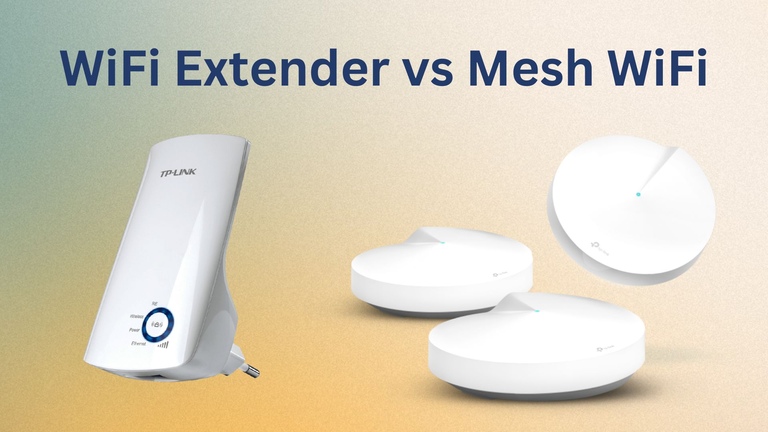
Image source: Bing (Web (fair-use with source credit))
A Wi-Fi extender is the cheapest, easiest option, and it's honest about its limits. Best when you have exactly one stubborn room and a good spot to place the unit.
A mesh system uses two or three nodes that talk to each other and hand devices off properly. It costs more and covers a whole floor plan far better.
Powerline sends data over your electrical wiring. Great in brick houses, unpredictable across different circuits and surge protectors.
A wired access point is the best answer whenever Ethernet is possible. Power over Ethernet units carry both power and data on one cable, following the IEEE 802.3af standard. Per IEEE specifications, PoE delivers up to 15.4W on that standard, which is plenty for an access point.
What to Look For on the Box: Bands, Backhaul, Ports, and Price
Those AC1200 and AX3000 numbers
Those figures sum up every band's maximum. An AC1200 extender isn't 1200 Mbps to one laptop. The 2.4 GHz radio caps out near 300 Mbps and the 5 GHz radio carries the rest.
Read the per-band spec, not the badge.
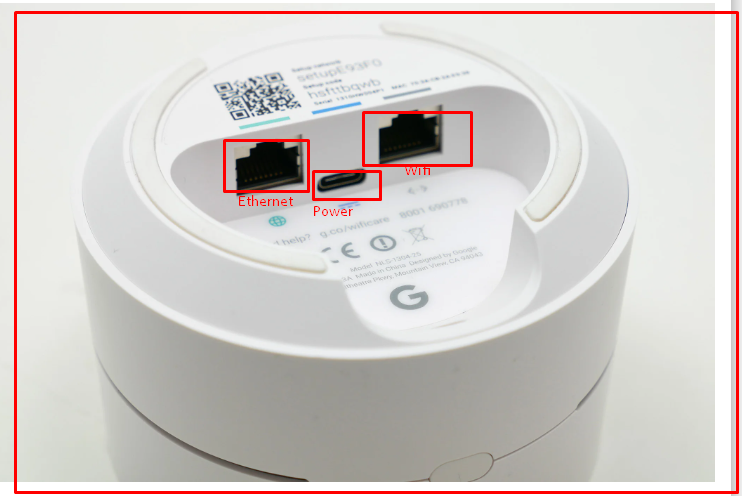
Image source: Bing (Web (fair-use with source credit))
Dual-band, tri-band, and 6 GHz
Tri-band units add a second 5 GHz or 6 GHz radio so one can serve the backhaul alone. In our reading of manufacturer documentation, that's the single biggest real-world upgrade you can buy.
6 GHz delivers faster speeds but shorter range. Power limits also differ by region, and FCC rules keep low-power indoor 6 GHz devices in a tighter box. Parts of 5 GHz are indoor-only across Europe too.
Ports, security, and price
A gigabit Ethernet port lets you wire a TV or console directly. A 2.5GbE port only matters if your broadband and router support it.
WPA3 is the current standard. WPS is convenient and widely considered risky, so leave it switched off. Network security is only part of the picture anyway, especially when your own devices stay clean.
Pricing as of 2026: basic extenders run $25 to $60, Wi-Fi 6 models $60 to $150, and Wi-Fi 7 units start around $150. Two-node mesh kits begin near $100.
Which Setup Fits Your Home and Budget
Renters with one bad room
If you rent, can't drill, and only one room is bad, an extender is the sensible buy. Choose a wall-plug model with a pass-through outlet so you don't lose a socket.
Two-story and multi-floor homes
If the dead zone is a full floor away, mesh beats a single extender. Two or three nodes with dedicated backhaul handle vertical coverage far better. If your day depends on pushing big files to the cloud, that stability matters more than peak speed.
Thick walls and old buildings
If you're in brick, stone, or plaster-and-lath construction, wireless rarely cooperates. Powerline or MoCA over coax is usually the better bet.
Home office and gaming
For calls, jitter hurts more than raw speed. Go wired if you possibly can. If the machine you work from all day sits on Wi-Fi, an extender in AP mode plus one Ethernet run fixes it.
Cameras, doorbells, and outbuildings
Smart devices sit on 2.4 GHz and need stability, not bandwidth. An inexpensive laptop in a bedroom pulls far less than a 4K television. An outdoor bridge extender can reach a garage or barn.
Placement and Setup: Getting Real Gains Instead of Half Speed
Test before you buy
Run a speed test and note signal strength in the dead zone and beside the router. That gap tells you whether you're fighting distance or interference.
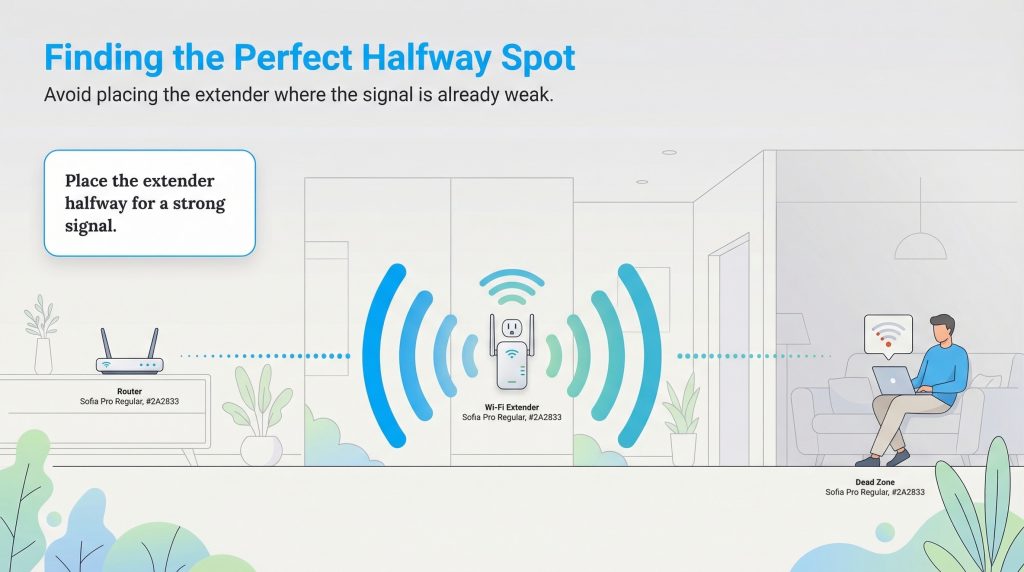
Image source: Bing (Web (fair-use with source credit))
Find the midpoint, not the dead zone
The classic mistake is plugging the extender into the room with no signal. It can't repeat what it can barely hear. Put it roughly halfway between router and problem room, elevated, and away from microwaves and metal.
Pair it, then fix the SSID
Use the app or WPS to pair the unit. Update firmware straight away. Then match the extender's SSID and password to your main network so devices roam instead of clinging.
Switch to AP mode when Ethernet is possible
If a cable can reach the spot, run it. AP mode removes the backhaul penalty entirely and gets you close to full router speed.
Five mistakes that kill performance
- Placing it inside the dead zone
- Leaving a separate network name
- Skipping firmware updates
- Hiding it behind a TV or inside a cupboard
- Plugging it into a power strip beside a surge protector
Long-term upkeep
Check firmware twice a year and re-scan channels if speeds drop. Placement usually matters more than the badge on your client. A newer Wi-Fi 6 machine will still choke in a badly served corner.
An entry-level notebook beside a well-placed extender often feels faster.
Troubleshooting an Extender That Isn't Helping
Most disappointing extenders are badly placed or badly configured, not faulty. Work through these checks in order before you box anything up.
The extender connected, but speeds dropped
Test throughput at the extender, then again in the dead zone. If the second number is far lower, wireless backhaul is your bottleneck. Move the extender closer to the router in one-metre steps and retest each time.
Signal above -70 dBm at the extender's location is a red flag.
Devices keep holding onto the router
That's a sticky client. The fix is a matching SSID and password on both units, plus 802.11k and 802.11v support. If either box is several years old, handoff won't happen cleanly.
Only the 2.4 GHz band connects
5 GHz has a shorter reach, so it struggles first. If the extender sits far from the router, its 5 GHz radio can't hear the source. Cameras and doorbells cope fine on 2.4 GHz.
Laptops and televisions do not.
Speeds collapse in the evening
That's neighbour congestion. Run a channel scan and move both devices to a clearer channel, ideally on 5 GHz. Skip 160 MHz channel widths in dense apartment blocks.
Also check the extender isn't sharing a power strip with a surge protector.
Real Homes, Real Answers: Three Scenarios
A one-bedroom flat with a weak bedroom
Renters with a single bad room and no cable options should buy an AX3000-class plug-in extender, roughly $70. Position it just outside the bedroom door, not inside. Expect 40 to 60% of router throughput, which handles streaming and video calls comfortably.
A 1930s brick terrace with three bad rooms
Wireless won't cross brick reliably, so an extender is the wrong tool. Go powerline instead, using G.hn or AV2 gear at $70 to $120 per kit. If coax cable already runs through the walls, MoCA 2.5 beats powerline on speed.
A modern two-story house with a detached garage
Use mesh for the house and an outdoor bridge extender aimed at the garage. Keep the outdoor unit within line of sight where you can. Past roughly 30 metres, you'll need a directional antenna and some patience.
Security and Long-Term Care for an Extended Network
An extender inherits your router's security settings, which means it inherits the weaknesses too. Treat it as a network device that needs patching, not a plug-in appliance you forget about.
- Switch WPS off after pairing. It's convenient and widely considered a weak point.
- Use WPA3 where both units support it, WPA2-AES otherwise. Never TKIP.
- Change the default admin password, since extenders get found by network scans.
- Keep a guest network for visitors and cheap IoT gear.
- Check firmware twice a year. Most budget models never update themselves.
What to check every six months
Run a speed test in the room that used to be dead. If throughput has dropped, a power cut may have reset the extender to default channels. Confirm it's still in extender mode and not broadcasting an open network.
What's normal versus what's broken
Some slowdown is by design, not a fault. Losing roughly half your throughput is the wireless backhaul penalty you agreed to when you bought it. Losing 90% points to firmware, placement, or interference.
If a reboot fixes things for a day and then it fails again, the unit is overheating or dying.
Check manufacturer documentation for your specific model before assuming it's dead. Some units log disconnects under a hidden diagnostics page. A model that's been discontinued for three years with no firmware since launch is a lost cause.
Replace it rather than nursing it.
The Verdict: How to Decide in Under Five Minutes
Run the checklist below. Most people land on an answer before they finish it.
| Your situation | The right buy |
|---|---|
| One bad room, rent, no cable runs | Wi-Fi extender |
| Two or more bad rooms, or a whole floor | Mesh system |
| Brick or stone walls, cable impossible | Powerline or MoCA |
| Ethernet can reach the spot | Wired access point |
Choose an extender if
You have exactly one stubborn dead zone, a decent spot roughly halfway to it, and a budget under about $100. It'll handle streaming, browsing, and smart home gear without drama.
Skip the extender and go mesh if
More than one room struggles, or you want devices to hand off without you thinking about it. If your household leans on remote work and keeping files synced across devices, mesh earns its price.
Go powerline, MoCA, or wired AP if
Your walls block wireless or you can run a cable. This is the closest you'll get to a router-quality connection in a far room. If you'd rather not tinker, sending files to the cloud works fine over a slower link, just not for live calls.
If your dead zone is genuinely one room and you can place the unit roughly midway, buy the extender and stop worrying. If the coverage gaps keep multiplying, admit it early and move to mesh or Ethernet.
One last thing before you commit either way: run your speed test on a wired connection first. If your broadband itself is the bottleneck, no extender on earth will fix it.
Frequently Asked Questions
Will a Wi-Fi extender work with any router?
Mostly, yes. Any extender can join a standard 2.4 GHz or 5 GHz network. Brand-matched pairs add conveniences like mesh roaming and one-app management.
Buy the same brand if you can, but you don't have to.
Do I need a Wi-Fi extender or a mesh system?
One bad room means an extender is enough. Two or more weak areas, multiple floors, or constant roaming complaints mean you want mesh. Mesh costs more and covers far better, so match the tool to the size of the problem.
Why is my extender slowing my internet down?
Wireless backhaul. The extender uses the same radio to talk to your router and to your devices, so throughput drops by roughly half. Fix it by moving the unit closer to the router, or switching to AP mode with an Ethernet cable.
Where exactly should I put a Wi-Fi extender?
Halfway between the router and the problem room, high up, and out in the open. Not inside the dead zone, and not behind a TV. Aim for roughly -50 to -60 dBm at the extender's location before you pair it.
Can an extender handle gaming and video calls?
Calls, generally yes. Competitive gaming, it's shaky, because latency and jitter climb on wireless backhaul. Wire the machine you game on if you can.
Otherwise place the extender well and accept the compromise.
Is a Wi-Fi extender the same as a booster or repeater?
Functionally, yes. Repeater, booster, and extender all describe a device that receives a signal and rebroadcasts it. Mesh nodes do the same job differently, with better coordination between units and proper device handoff.
Does a newer laptop make an extender unnecessary?
No. A modern machine like Apple's M5-equipped MacBook Pro has a better Wi-Fi chipset, but it still can't hear a signal that isn't there. Client hardware helps in marginal coverage, never in a true dead zone.
How much should I spend on an extender?
Spend $25 to $60 for browsing and smart devices, $60 to $150 if you want Wi-Fi 6 and a gigabit port, or $150 and up for Wi-Fi 7. Above $200, a two-node mesh kit is usually the smarter buy.
Aim for the low end if you're just chasing a weak corner, and let the price rise only when your broadband or router genuinely justifies it.
Match the spend to the problem and you'll get far more value than chasing the biggest badge on the shelf.
Then get it set up right, test it once in the room that used to be dead, and leave it alone.

Similar Posts


















[…] an overloaded router drops commands or delays them by seconds. If your network already stutters, a stronger signal is the fix before you add anything […]