
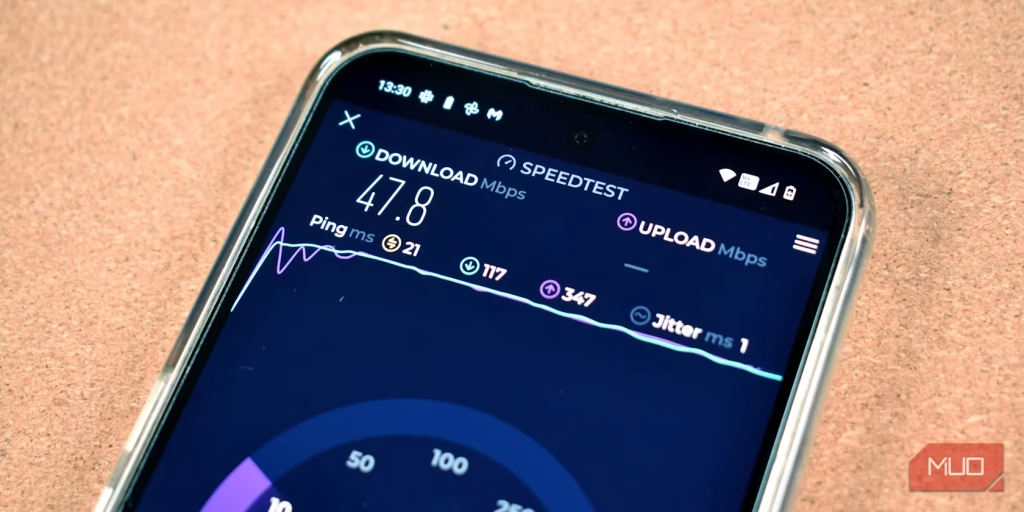
You run an internet speed test, see 480 Mbps, and feel pretty good about life. Then your video call stutters anyway. That gap between the number on screen and the experience in your chair is where most people get stuck.
A speed test measures one path, on one device, at one moment in time. Per the FCC, broadband now means 100 Mbps down and 20 Mbps up. Plenty of people on gigabit plans still report lag.
To understand why, you need to know what each figure actually measures. Then you can test in the right order.
Quick Answer
An internet speed test measures download speed, upload speed, and ping. Download speed is how fast data reaches you. Upload speed is how fast you send data out.
Ping is round-trip delay in milliseconds. Test wired first, then over Wi-Fi.
Why Your Speed Test Result Is Probably Misleading You
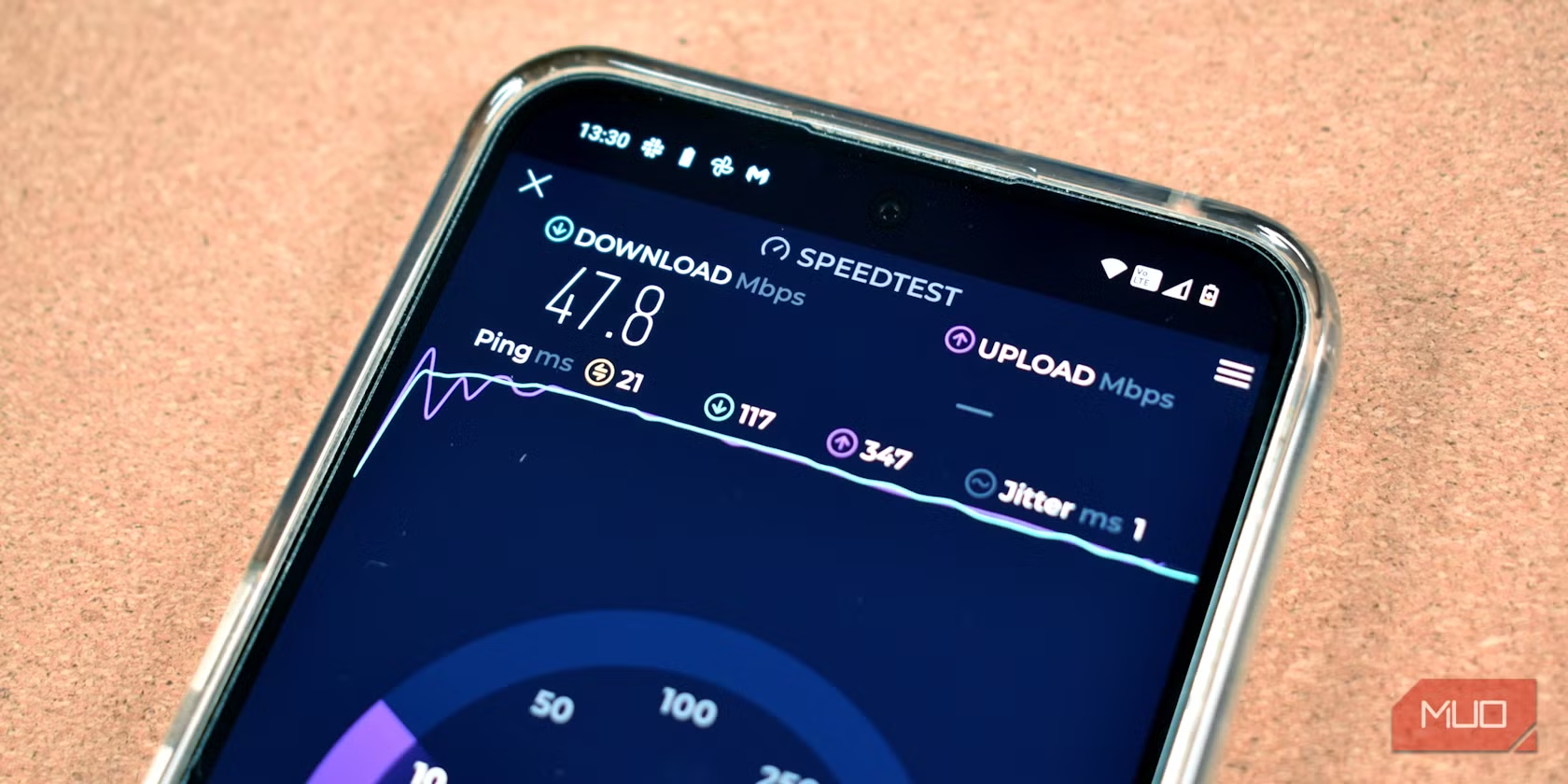
Speed tests aren't lying to you. They're answering a narrower question than you think. One test tells you how fast data moved between your device and one server at one moment.
It says nothing about how your line behaves at 8pm when the whole street is streaming.
The One Number People Stare At, and the Two They Ignore
Most people watch download speed and nothing else. Upload and ping matter just as much. If you work on video calls or back up files, upload decides whether your day goes well.
Gamers live and die by ping.
Mbps vs MB/s: The Unit Mix-Up That Fools Everyone
Megabits and megabytes are not the same thing. One megabyte equals eight megabits. A 100 Mbps connection tops out around 12.5 MB/s in a real file download.
Steam, browsers, and backup tools usually report MB/s. That's why a gigabit line can look like it's crawling.
What a Speed Test Can and Can't Tell You
A speed test confirms whether your line delivers the throughput you pay for. It can flag packet loss and jitter. It can't tell you why one room has bad Wi-Fi, or why Netflix buffers while everything else runs fine.
Those need separate tests.
Why Advertised Up To Speeds Aren't a Promise
"Up to" is marketing language. Regulators have pushed back hard on it. As of 2026, FCC broadband consumer labels must spell out typical speeds and latency.
In the UK, Ofcom requires providers to quote a minimum guaranteed speed. That figure is the one you can hold them to.
How Speed Tests Work and What Each Number Actually Measures
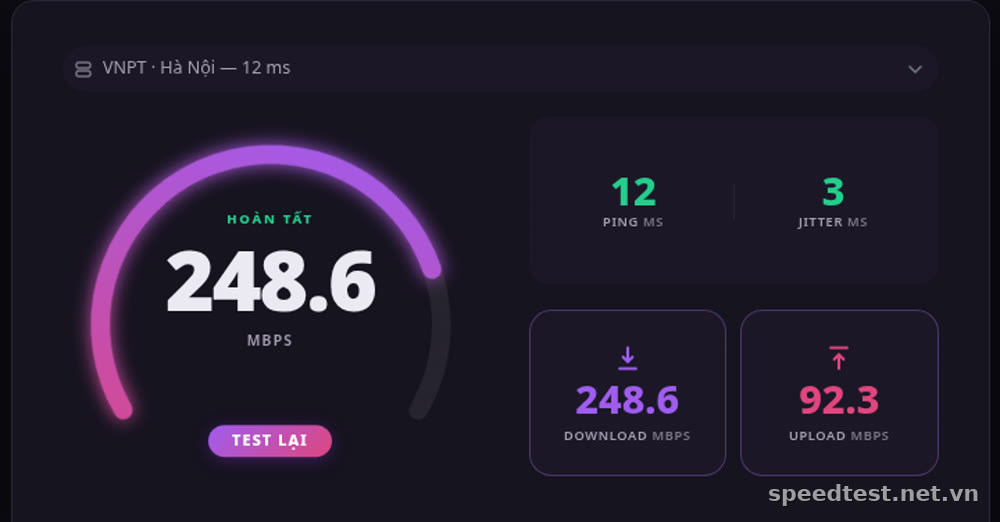
A speed test opens several parallel connections to a server and pushes data both ways. The app times how long a known chunk of data takes to arrive. Then it repeats the process in reverse.
Download, Upload, Ping, Jitter, and Packet Loss
Download speed is throughput toward you. Upload is throughput away from you. Ping is the round-trip time for a tiny packet, measured in milliseconds.
Jitter is how much that ping wobbles. Packet loss is the percentage of data that never arrives.
Latency Under Load, the Number Most Tests Hide
Latency under load is your ping while the connection is busy. A line can hit 900 Mbps and still spike to 300ms when someone uploads a video. That's bufferbloat.
It makes calls freeze and games rubber-band, even on a fast plan.
Test Server Distance and Peering
The server you pick matters more than most people realize. A server 800 miles away adds travel time. A server on your ISP's own network will look artificially fast.
Pick a nearby server from a different provider for a realistic read.
Browser Test vs App vs CLI vs Hardware Monitor
Browser tests are quick but limited by the browser. Native apps reach higher speeds. Command-line tools like Ookla's Speedtest CLI or M-Lab's NDT give you repeatable, scriptable results.
Hardware monitors run scheduled tests and log trends over weeks. That's how you catch peak-hour drops. If you keep offsite backups running overnight, a scheduled test shows whether your upload window is actually clear.
The Five Variables That Decide Your Result
Two people on the same plan can get wildly different numbers. Here's what drives the gap.
1. Wired vs Wi-Fi
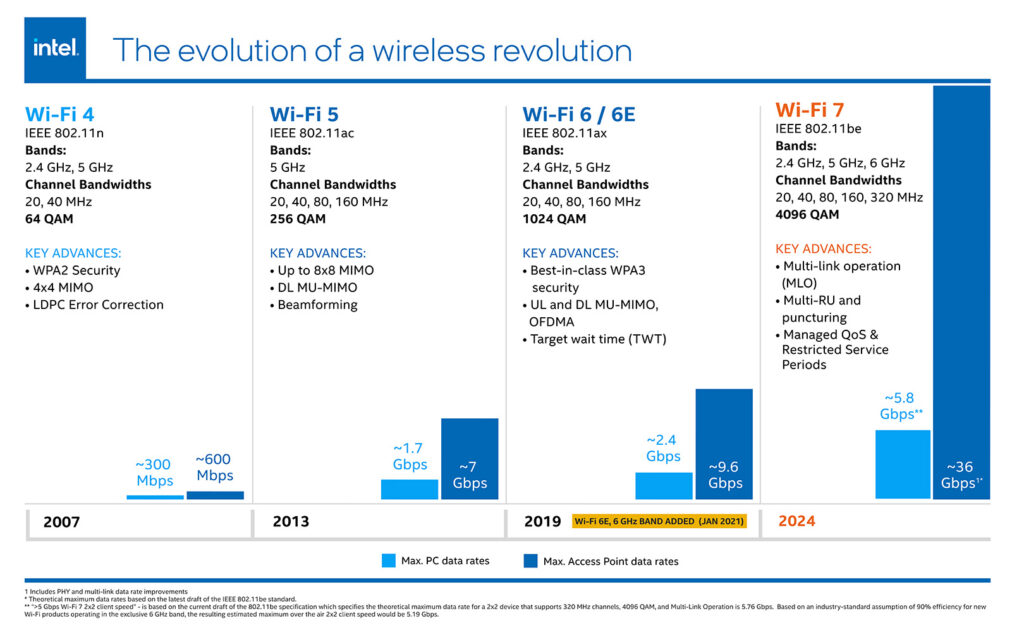
Ethernet beats Wi-Fi almost every time. Wi-Fi 6 can theoretically hit 9.6 Gbps, but real-world throughput is far lower. Walls, distance, and neighbors' networks all eat into it.
If you want to test your line, plug in.
2. Your Device
An old phone with a Wi-Fi 4 chip will cap out well below your plan. So will a laptop with a 100 Mbps Ethernet port. Check your adapter's rating before you blame the ISP.
It's the most common false alarm we see.
3. The Test Server
Servers get overloaded. A busy server under-reports your speed no matter how good your line is. Test three or four servers and take the best result, not the average.
4. Time of Day
Peak hours are real. Cable networks share bandwidth across a neighborhood. Between 7pm and 11pm, speeds can drop 30% or more in dense areas.
Test at 7am and again at 9pm to see the spread.
5. VPNs and Background Traffic
A VPN adds encryption overhead and an extra hop. Some cut your speed in half. If you run a paid VPN service by default, switch it off before you test.
Close updates, cloud sync, and any connected gadgets pulling data in the background.
The Speed Test Decision Tree: Test in This Order
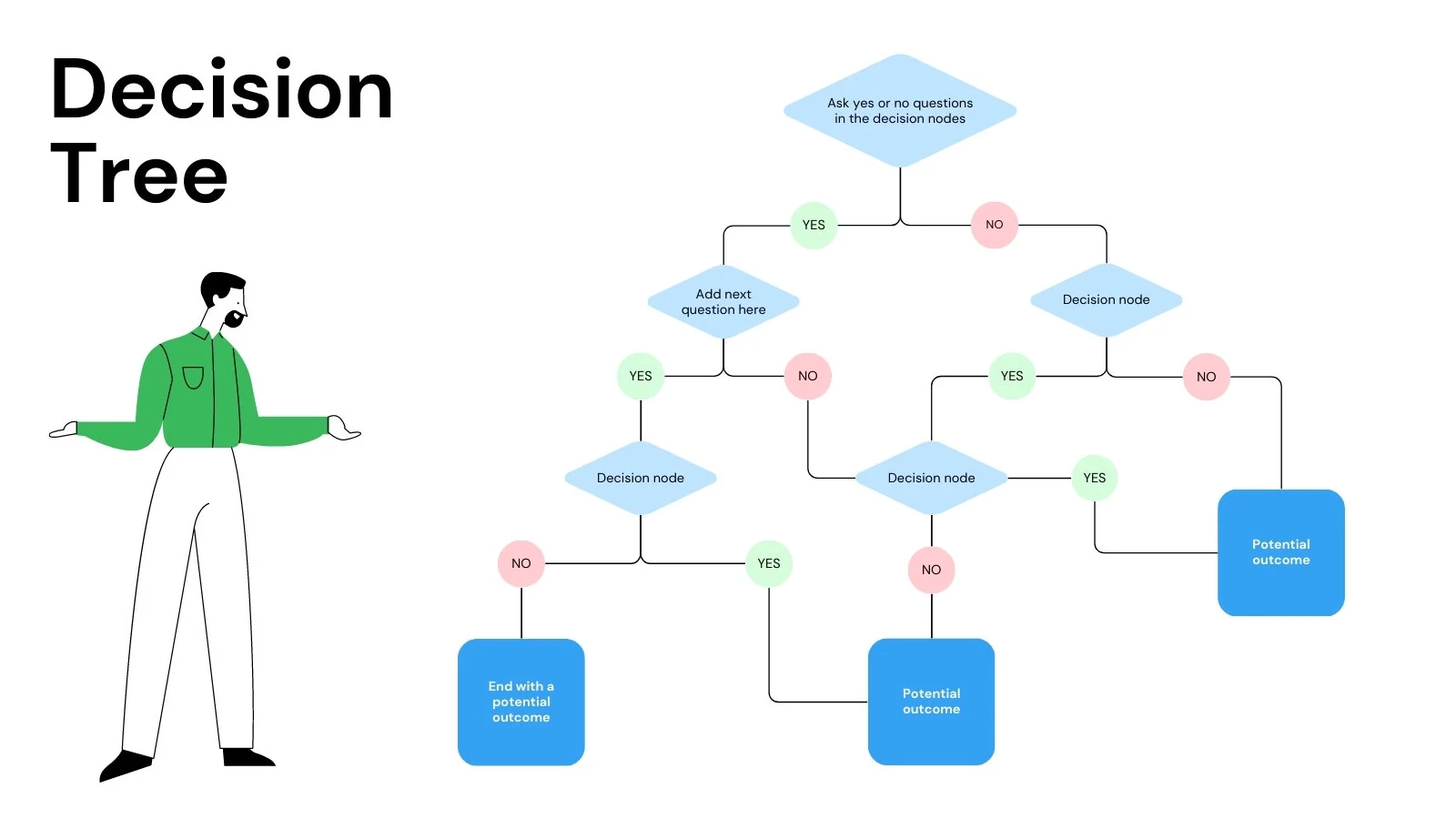
Order matters. Test in the wrong sequence and you'll chase the wrong problem for an hour.
Steps 1 to 7
- Check your plan and the guaranteed minimum you're owed.
- Test wired straight into the modem, router bypassed.
- Test wired through the router.
- Test over Wi-Fi standing next to the router.
- Test over Wi-Fi from where you actually sit.
- Repeat across two devices, three servers, and two times of day.
- Run a bufferbloat and packet loss check.
Reading the Branches
| Result | What it means | Next move |
|---|---|---|
| Fast wired, slow Wi-Fi | Your network | Fix Wi-Fi or router |
| Slow wired at the modem | Line or ISP | Call the ISP |
| Fast everywhere, still laggy | Latency or DNS | Test bufferbloat |
Branch A: Fast Wired, Slow Wi-Fi
Your line is fine. Something between the router and your device is throttling you. That's a Wi-Fi or router problem, not an ISP one.
Branch B: Slow Wired at the Modem
If a direct wired test to the modem misses your plan by a wide margin, the fault sits with the line. Document the result and call your provider.
Branch C: Fast Everywhere, Still Feels Slow
Your throughput is fine but latency spikes under load. Run a bufferbloat test. If you get a C or worse, your router needs smarter queue management.
Fixes for Each Branch: Wi-Fi, Router, Modem, or ISP
Once you know which branch you're on, the fix list gets short.
Wi-Fi Fixes
Move to the 5 GHz or 6 GHz band. Switch the channel to one your neighbors aren't using. Put the router high, central, and out of cabinets.
If one room stays dead, signal boosters can help, though they halve throughput on the far side.
Router Fixes
Update the firmware. Old firmware sits behind a surprising number of slow connections. Turn on QoS or SQM if your router supports it.
That's what kills bufferbloat. If your router is more than five years old, a modern Wi-Fi 6 unit will often beat any tweak.
Modem and Line Fixes
Check coax splitters and cable condition. Confirm your modem's DOCSIS version matches your plan. A DOCSIS 3.0 modem cannot deliver gigabit speeds no matter what.
If your ISP uses CGNAT and you need port forwarding, ask about a static IP.
Cable and Port Fixes
Cat5e handles 1 Gbps fine up to about 100 feet. Beyond that, or for 2.5G and 10G links, you want Cat6 or better. Also check that your router's LAN ports aren't stuck at 100 Mbps.
Some budget units still are.
When to Upgrade Your Plan Instead of Your Gear
If your wired test hits your plan and your gear is current, you're done. Extra speed won't fix lag. For most households, 200 to 500 Mbps down and 20 Mbps up covers 4K streaming, video calls, and gaming at once.
Mesh kits that cover a whole house are a better spend than a faster tier.
Mistakes That Send You Down the Wrong Branch, and When to Call Your ISP
Testing Over Wi-Fi and Blaming the ISP
This is the number one error, and it wastes everyone's time. Wi-Fi adds variables your provider doesn't control. If your wired test hits your plan, the problem lives inside your home.
Don't open a ticket yet.
One Test, One Device, One Moment in Time
A single result proves almost nothing. It's a snapshot of one path at one second. You need at least three tests across two devices and two times of day before a pattern shows up.
Screenshots, Timestamps, and Logs That Actually Get Results
Support agents respond to evidence, not frustration. Save screenshots with the date and time visible. Note the server name, the device, and whether you were wired.
Ten timestamped results move things faster than any phone call.
Your Rights: FCC Labels and Ofcom Guarantees
US providers must publish labels with typical speeds and latency. In the UK, Ofcom requires a minimum guaranteed speed in your contract. If your line consistently falls below that figure, you have grounds to act.
Automatic Compensation and Exit Rights
Under Ofcom's rules, UK customers can claim automatic compensation for delayed repairs and missed appointments. US customers should check their state consumer protection office. Exit rights usually kick in once speeds sit below the guaranteed minimum for a set period.
Line Check or Technician?
Ask for a line check first. It's remote and free. If the line tests clean but your modem shows poor signal levels, then request a technician.
Bring the specific numbers you've logged.
Frequently Asked Questions
Is my internet speed test accurate?
Mostly, yes, within about 10% on a wired connection. Wi-Fi tests swing far more. Accuracy depends on server distance, device age, and network load.
Treat one result as an estimate, not a verdict.
Why is my speed test slower on my phone than my laptop?
Older phones often have slower Wi-Fi chips or fewer antennas. A Wi-Fi 4 phone can cap well below a Wi-Fi 6 laptop on the same network. Test both on the same band before blaming the connection.
Should I test with a VPN on or off?
Off. A VPN adds an encrypted hop that cuts throughput, sometimes by half. Test without it to see your true line speed.
Then test with it on to see what your VPN actually costs you.
What's a good ping for gaming?
Under 20ms is excellent. Under 50ms is fine for most titles. Above 100ms, you'll feel the delay in fast shooters.
Jitter matters just as much, so keep it under 10ms.
How much speed do I actually need?
Netflix 4K needs about 15 Mbps. A 1080p group video call needs around 3 Mbps up and down. For a typical household running several streams and calls at once, 200 to 500 Mbps down covers it.
Why does my speed drop at night?
Cable networks share bandwidth across your neighborhood. Between 7pm and 11pm, everyone streams at once and your share shrinks. Fiber and some 5G home services hold up better under peak load.

