InVideo AI Video Generator: Transform Text into Amazing Videos
Founder & Lead SaaS Analyst at PCSaaS · Google Ads & Analytics Certified · SaaS Stack Architect · 500+ Software Tools Tested · 8+ years in B2B SaaS evaluation, AppSumo lifetime deal curation, performance marketing, and AI workflow automation
InVideo AI Video Generator: Transform Text into Amazing Videos
Generate scripts, visuals, voiceovers, and music instantly with InVideo AI Video Generator. No editing skills required!
Imagine typing your video concept, and instantly getting a ready-made script, perfect visuals, voiceovers, and music—all handled automatically. Whether you want to make marketing clips, social media posts, or explainer videos, this tool makes it easy, even if you have no prior video editing experience. Ready to see how InVideo AI can transform your content creation process? Check it out here: InVideo AI Video Generator. Keep reading to discover how it works and why it might be exactly what you need.
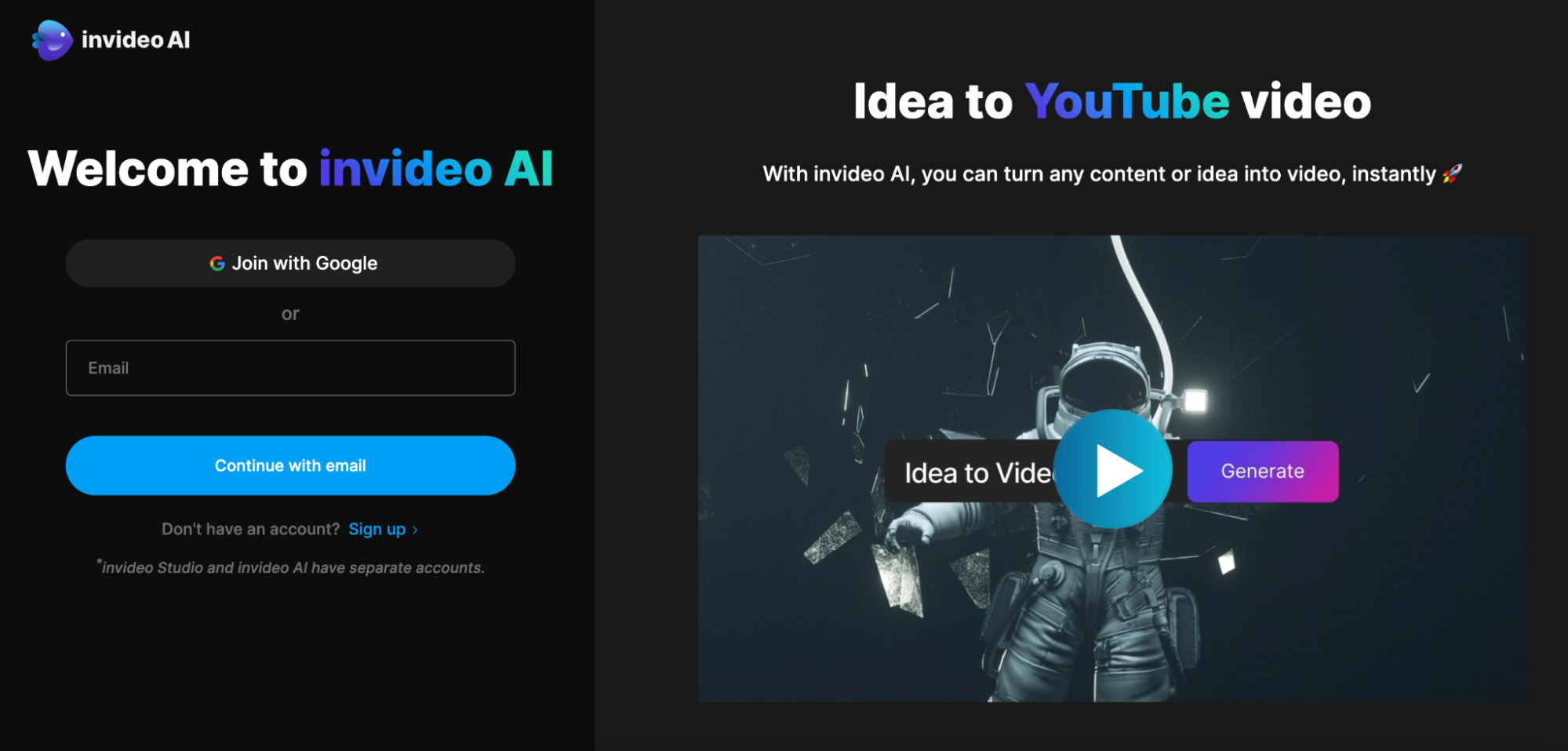
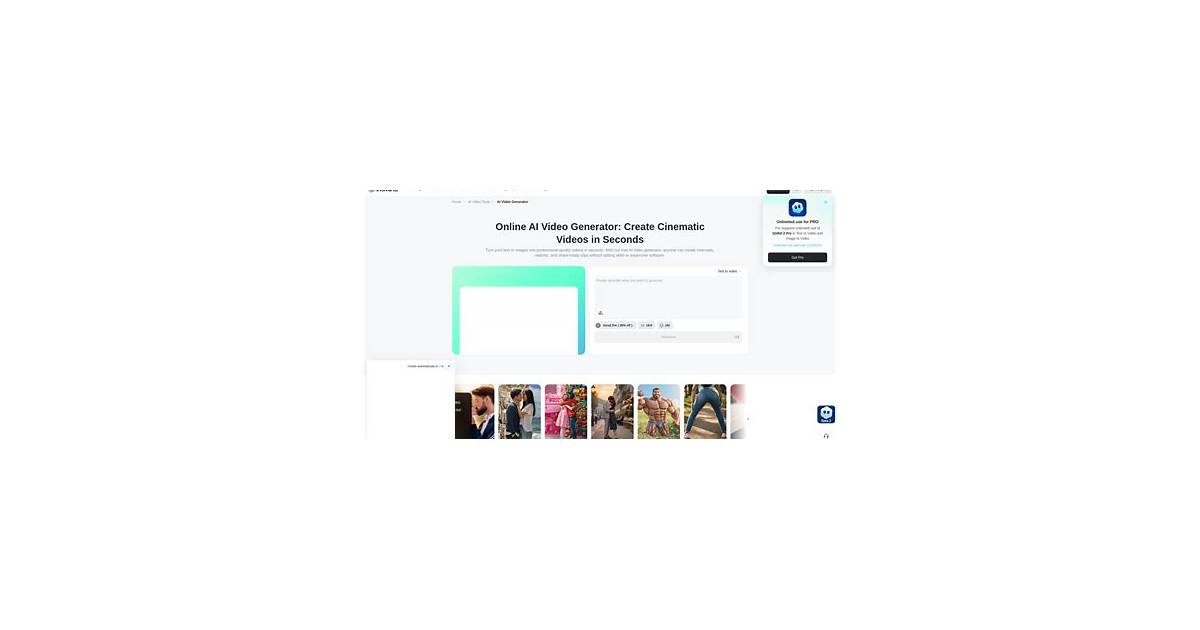
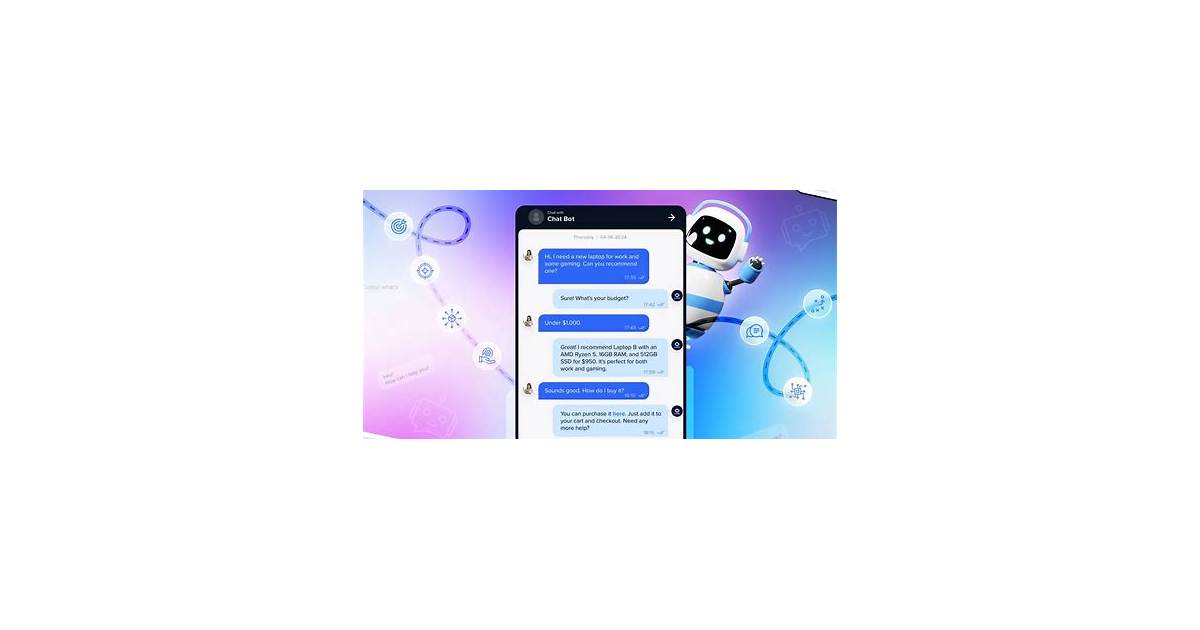
The InVideo AI dashboard showing text-to-video generation options. Credit: fox40.com
Introduction To Invideo Ai Video Generator
InVideo AI Video Generator is a tool that creates videos from simple text prompts. It uses artificial intelligence to build scripts, select footage, add voiceovers, and edit automatically. This makes video creation easy for beginners and fast for experts. The tool runs in a browser, so no software downloads are needed.
Overview Of Invideo Ai And Its Purpose
InVideo AI transforms text ideas into complete videos. You start by typing what the video should be about. The AI then:
Writes a clear script.
Picks suitable stock videos and images.
Adds voice narration, either AI or your cloned voice.
Includes music, captions, and effects.
This process saves time and effort. The main goal is to help users produce videos quickly without technical skills.
How Invideo Ai Simplifies Video Creation
InVideo AI handles all key video steps automatically:
Input: Enter your video idea and choose the platform and mood.
Generation: The AI creates script, visuals, voiceover, and music.
Editing: Use simple commands or a visual editor to adjust your video.
Export: Save videos ready for YouTube, TikTok, or other platforms.
The tool also supports video translation and dubbing in over 50 languages. This makes content accessible worldwide.
For a practical example, imagine you run a small bakery and want a 30-second Instagram Reel promoting a new cupcake flavor. You type “New chocolate mint cupcake launch – fresh ingredients, fun visuals, upbeat music” and select Instagram as the target platform. Within seconds, InVideo AI generates a script, pairs it with stock footage of baking and close‑ups of cupcakes, adds a cheerful voiceover, and sets a pop soundtrack. You can then tweak the timing or swap a clip using simple text commands. This entire workflow cuts what used to take hours down to just a few minutes.
Target Audience And Use Cases
InVideo AI suits many users:
Content creators who want fast video production.
Businesses needing marketing or explainer videos.
Educators making tutorials or presentations.
Social media users creating engaging posts for various platforms.
Use cases include:
Use Case Description
Marketing Videos Create ads and promos quickly with professional quality.
Explainer Videos Generate clear tutorials using AI avatars and voice cloning.
Social Media Content Make short clips tailored for platforms like TikTok or Instagram.
Multilingual Videos Translate and dub videos to reach global audiences.
How to Get Started with InVideo AI: A Step-by-Step Guide
Getting started with InVideo AI is straightforward, even if you have no prior video experience. Follow these steps to create your first video:
- Sign up – Go to the InVideo website and create a free account.
- Choose a video type – Select from options like promotional, social media, explainer, or tutorial.
- Enter your text prompt – Type a clear description of your video idea. Be specific about the topic, tone, and any key messages.
- Select style and platform – Pick a visual style (e.g., cinematic, modern, playful) and the target aspect ratio (16:9 for YouTube, 9:16 for TikTok/Instagram, etc.).
- Let the AI generate – The AI produces a draft script, selects stock clips, adds a voiceover, and sets background music. This usually takes under a minute.
- Review and refine – Use the simple text editor to adjust the script, replace footage, or change the voice tone. You can also fine‑tune the timeline manually.
- Export – Choose your desired resolution (up to 1080p on most plans) and download the video ready for publishing.
A common mistake first‑time users make is not specifying the target platform upfront. Always select the correct aspect ratio from the beginning to avoid awkward cropping later. If you’re creating multiple videos for different channels, consider using AI‑powered video marketing tools to batch process variations quickly.
Ready to see it in action? Start with the free plan and create your first video in minutes.

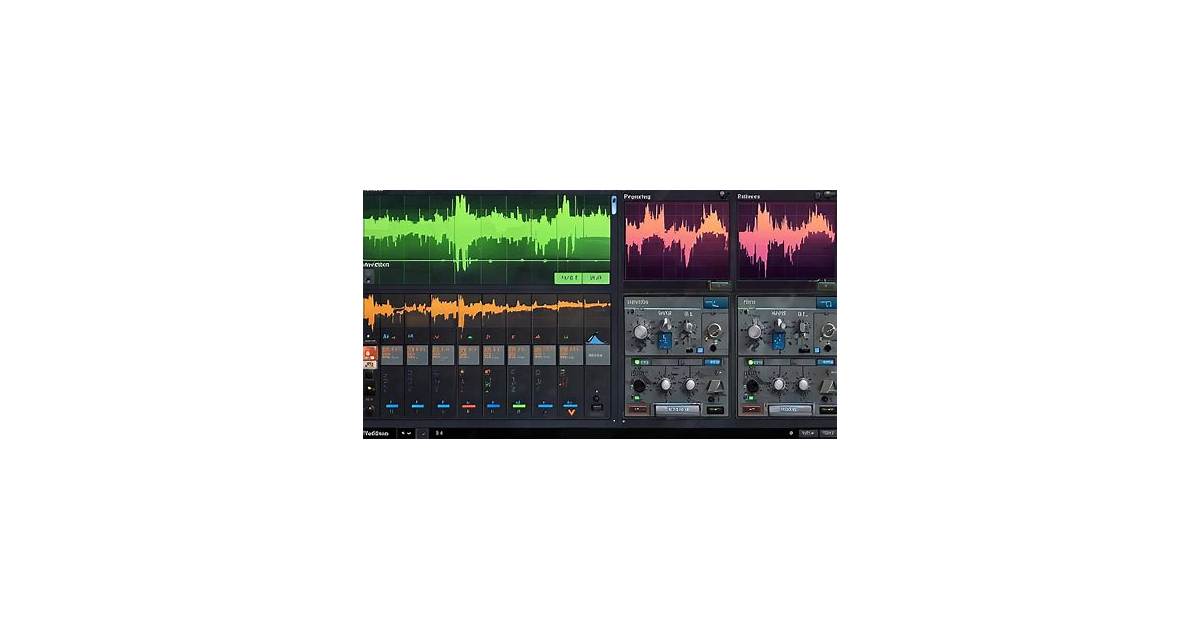
Example of InVideo AI's automated script and media selection process. Credit: invideo.io
Key Features That Make Invideo Ai Unique
InVideo AI stands out by simplifying video creation through smart automation. It transforms simple text into polished videos quickly and easily. The platform blends AI technology with user-friendly tools, making it ideal for both beginners and professionals. Below are the key features that highlight its uniqueness.
Ai-powered Text-to-video Conversion
InVideo AI automatically turns your text prompts into full videos. It writes the script, picks matching stock footage, and arranges everything smoothly. This feature saves hours of manual work. Just type your idea, choose the video style, and the AI handles the rest. It’s perfect for creating videos for social media, marketing, or tutorials.
Voice Cloning And Custom Voiceovers
Record a voice sample and InVideo AI clones it for use in your videos. This creates a personalized voiceover without needing to record every time. You can also choose from various AI-generated voices. It adds a natural and consistent audio touch that fits your brand or style perfectly.
Multi-language Support And Localization
Videos can be translated and dubbed into over 50 languages. This feature helps reach a global audience easily. It automatically adjusts captions and voiceovers to match the selected language. Localization ensures your message is clear and culturally relevant worldwide.
Advanced Video Editing With Ai Assistance
After the AI creates your video, you can tweak it with smart editing tools. The AI suggests improvements for scripts, clips, and captions. You can easily replace footage, adjust timing, or add effects. This keeps the editing process fast and flexible, even for users with little experience.
User-friendly Timeline Editor
The timeline editor is simple yet powerful. It lets you drag and drop clips, adjust layers, and sync audio easily. The interface is clean, avoiding complex menus. This tool gives precise control while keeping the editing process smooth and stress-free.
Extensive Media Library Integration
Access millions of royalty-free videos, images, and music tracks. The library is built into the platform, so you never need to leave it. All assets are licensed and ready to use. This vast collection ensures your videos look professional and unique without extra cost or effort.
Expert Tips for Maximizing InVideo AI
To get the most out of InVideo AI, keep these practical observations in mind:
- Use voice cloning for brand consistency – Once you record a high‑quality voice sample, every video will have the same narrator. This builds familiarity with your audience.
- Always preview the AI‑generated script – The AI does a good job, but a quick read‑through can catch odd phrasing or factual errors. Adjust the tone to better match your brand voice.
- Leverage multi‑language dubbing – Repurpose a single marketing video into several languages without re‑shooting. This is a cost‑effective way to enter new markets.
- Add custom overlays to stock footage – To avoid a generic look, overlay your logo, branded lower‑thirds, or unique text animations. Even small customizations make the video feel yours.
- Experiment with different video styles – The AI offers multiple preset moods (e.g., cinematic, corporate, playful). Test two or three for the same prompt to see which resonates best with your audience.
If you’re exploring other AI‑powered creative tools, check out this AI animation lifetime deal for additional motion graphics options.
Pricing And Affordability Breakdown
InVideo AI offers flexible pricing tailored to various users. It includes a free plan with essential features and several paid plans with expanded benefits. Understanding each option helps creators choose the best fit for their needs and budget.
Free Plan Features And Limitations
The free plan is ideal for beginners or those testing InVideo AI’s capabilities. It provides:
Access to the AI video generator
Basic stock footage and images
Standard AI voiceovers
Export videos with watermark
Limited video length and quality options
Limitations include:
Watermarked exports reduce professionalism
Restricted access to premium assets
Fewer customization choices in editing
Lower priority support
Paid Plans Overview And Benefits
Plan Monthly Cost Key Benefits
Basic $15
No watermarks on exports
Access to premium stock footage
Longer video duration
More voiceover options
Standard support
Professional $30
All Basic plan features
Voice cloning capability
AI avatars for personalized videos
Priority customer support
Higher export resolution
Business $60
All Professional features
Team collaboration tools
Custom branding options
Advanced editing controls
Dedicated account manager
Cost Vs. Value Analysis For Different User Types
Casual users benefit most from the free plan. It offers enough tools to create simple videos with minimal investment.
Content creators aiming for higher quality and customization find the Basic or Professional plans worthwhile. These plans remove watermarks and add premium features.
Businesses and teams gain the most value from the Business plan. It supports collaboration, branding, and offers priority support, justifying the higher cost.
Free plan: Best for learning and small projects.
Basic plan: Good for solo creators needing professional results.
Professional plan: Fits creators requiring advanced AI tools and avatars.
Business plan: Designed for teams with heavy video production.
The pricing structure balances cost with powerful AI features. Users can scale their investment as their video needs grow.
Note: Pricing plans and features are subject to change. For the most up‑to‑date information, refer to the official InVideo pricing page. As of 2026, InVideo continues to offer competitive plans for creators and businesses.
Read More : InVideo AI Reviews: Best AI Video Creator for Marketers & Creators
Pros And Cons Based On Real-world Usage
InVideo AI simplifies video creation with artificial intelligence. It helps users turn text prompts into full videos quickly. Users enjoy a mix of benefits and limitations from daily use. This section covers the key advantages and challenges. It also compares InVideo AI with other popular tools like Canva.
Advantages: Efficiency, Creativity Boost, And Accessibility
Efficiency stands out as InVideo AI’s main strength. The AI automates scripting, video selection, voiceover, and editing. This reduces the time needed to create videos drastically. Users can produce content in minutes instead of hours.
The Creativity Boost comes from AI suggestions and automatic content assembly. The tool offers ideas for visuals, voice styles, and music that fit the video’s mood. This helps users who struggle with creative decisions. Even beginners can create polished videos with ease.
Accessibility is high since InVideo AI runs in a browser. No powerful hardware or software installation is needed. The interface is simple and clear, suitable for non-expert users. Features like voice cloning and AI avatars expand creative options.
Fast video generation from text prompts
Automatic script and media selection
Large library of stock assets
Supports voice cloning and AI avatars
Easy-to-use editing tools
Browser-based with no setup required
Limitations: Editing Constraints And Social Media Integration Challenges
Editing options in InVideo AI are helpful but can feel limited. The simple editor allows basic adjustments but lacks advanced controls. Users wanting fine detail editing may find it restrictive.
Social media integration poses some challenges. Although InVideo AI supports export for platforms like YouTube and TikTok, direct posting or scheduling features are missing. Users must manually upload videos to social sites.
Limitation Description
Editing Constraints Basic editing only; lacks detailed timeline or multi-track options
Social Media Integration No direct posting or scheduling; manual upload required
Comparison With Other Video Creation Tools Like Canva
Canva offers a broad design platform with video features but differs from InVideo AI. Canva relies on manual editing and user input for scripts and visuals. It suits users who want full creative control.
In contrast, InVideo AI automates most steps using AI, speeding up video production. It is better for users needing quick results from simple text prompts. Canva’s video tools are more flexible but require more effort.
Feature InVideo AI Canva
Video Creation AI-driven from text prompts User-designed with templates
Editing Simple, AI-assisted editing Manual, detailed editing tools
Asset Library Large stock video and audio library Wide range of images and video clips
Social Media Export only, no direct posting Some direct posting options
Ease of Use Beginner-friendly, quick results Flexible but needs more time
InVideo AI vs. Other AI Video Generators
Beyond Canva, several other AI video tools serve different niches. Here is how InVideo AI compares with Synthesia and Pictory, two popular alternatives:
| Feature | InVideo AI | Synthesia | Pictory |
|---|---|---|---|
| Primary Focus | Text-to-video automation | AI avatar videos | Video repurposing from blogs |
| Custom Avatars | Yes (AI avatars) | Yes (realistic avatars) | No |
| Voice Cloning | Yes | No | No |
| Script Generation | AI generates script | Manual input | From blog content |
| Stock Library | Millions of clips | Limited | Limited |
| Multilingual | 50+ languages | 60+ languages | Yes |
| Pricing | Free + paid plans | $30+/month | $19+/month |
InVideo AI stands out for its all‑in‑one approach covering text‑to‑video, voice cloning, and a large stock library. Synthesia excels in realistic AI avatars for talking‑head videos but lacks voice cloning. Pictory is ideal for turning long‑form blog posts into short social clips. Choose based on your primary need: InVideo for full automation, Synthesia for avatar‑based narratives, or Pictory for content repurposing.
If you also collect customer testimonials, pairing InVideo AI with a dedicated video testimonial collection platform can streamline your entire production pipeline.
Ideal Users And Recommended Scenarios For Invideo Ai
InVideo AI suits a wide range of users who need fast, quality videos. It helps both beginners and pros create videos from simple text prompts. This tool saves time by automating scripting, visuals, voiceovers, and editing.
The AI handles all key video elements, so users focus on ideas and creativity. Its versatility fits different fields like content creation, marketing, education, and training. Below are the main groups who benefit most from InVideo AI and when to pick it over others.
Content Creators And Social Media Influencers
Content creators and influencers use InVideo AI to produce videos quickly for platforms like YouTube, TikTok, and Instagram. It generates scripts and matches them with relevant stock footage automatically.
Create engaging stories without scripting skills.
Produce videos regularly with less effort.
Customize videos for different social media formats.
Use AI voiceovers or clone their own voice for consistency.
This tool helps maintain a steady upload schedule and keeps audiences engaged with fresh content.
Small Businesses And Marketing Teams
Small businesses and marketing teams use InVideo AI to make promotional and explainer videos fast. It helps them communicate ideas clearly without hiring video professionals.
Generate marketing videos from simple text inputs.
Access a large library of royalty-free images and music.
Save costs on video production and editing.
Translate and dub videos into over 50 languages for global audiences.
Marketing teams create campaigns faster and test different video styles with ease.
Educators And Trainers
Educators and trainers use InVideo AI to build lesson videos and tutorials. It simplifies the process of turning lesson plans into engaging video content.
Turn text lessons into videos with voiceover and captions.
Create digital avatars to explain topics clearly.
Customize videos for various learning platforms.
Use AI-generated voice or clone their own for a personal touch.
This helps make learning more visual and accessible for students.
When To Choose Invideo Ai Over Other Platforms
Choose InVideo AI when speed and ease matter most. It fits users who want to:
Generate videos from text quickly without complex editing skills.
Access a huge stock library and AI tools in one platform.
Use AI voice cloning to maintain brand voice consistently.
Translate and dub videos easily for global reach.
Edit videos simply with an intuitive interface after AI generation.
It outperforms platforms that require manual scripting or heavy video editing skills. InVideo AI suits users who want high-quality videos with minimal effort.
Screenshot from an InVideo AI tutorial explaining its features. Credit: www.youtube.com
Best Practices for Creating High-Quality Videos with InVideo AI
To ensure your videos look and sound professional, follow these proven best practices:
- Write clear, detailed text prompts – The more specific your description, the better the AI can match visuals and tone. For example, instead of “product video,” try “30‑second product launch video for a new eco‑friendly water bottle with upbeat music and a friendly voice.”
- Select the right video style – InVideo AI offers presets like cinematic, explainer, and social media. Choose one that aligns with your brand and audience expectations.
- Customize AI‑generated voice speed and tone – A fast, high‑energy voice works for short social clips, while a slower, calm voice suits tutorials. Adjust these settings before final export.
- Add on‑screen text and captions – Many viewers watch without sound. Use the built‑in caption tool to add text overlays that reinforce key messages.
- Export in the highest resolution available – Even if you’re posting to social media, starting with 1080p gives you flexibility to re‑purpose the video later for larger screens.
- Test multiple variations – Run the same prompt with two different styles or voiceovers and compare engagement on your first few posts. This data‑driven approach helps refine your content strategy over time.
For small businesses looking to automate other aspects of their marketing, exploring AI‑powered business tools can complement your video production efforts.
Frequently Asked Questions
Is Invideo Ai Free To Use?
Yes, InVideo AI offers a free plan. It allows video creation and export with an InVideo watermark. Sign up on their website to start using it.
What Are The Disadvantages Of Invideo?
InVideo has limited editing features and a less intuitive script-to-video editor. It struggles with spelling accuracy in text overlays and offers basic social media integrations.
Is Invideo Better Than Canva?
InVideo excels in AI video generation and editing, while Canva offers broader design tools. Choose based on your video or graphic needs.
What's The Best Ai Video Generator?
InVideo AI stands out as a top AI video generator. It offers easy text-to-video creation with free and premium plans. Users enjoy intuitive editing, diverse templates, and fast exports, making it ideal for content creators seeking professional-quality videos quickly and affordably.
Can I upload my own footage and images?
Yes, InVideo AI allows you to upload your own media files. You can replace stock footage with custom clips, images, and logos directly in the timeline editor. This is useful for brands that want to use their own product shots.
How long does it take to generate a video?
Generation time depends on video length and complexity. Simple 60‑second videos typically take under a minute. Longer projects with multiple scenes may take a few minutes. The cloud‑based AI processes requests quickly, so you rarely wait more than five minutes.
Is there a limit on the number of videos I can create?
The free plan includes a weekly limit (usually 10 minutes of exported video). Paid plans offer higher or unlimited quotas. Check the current plan details on the InVideo website for exact numbers.
Does InVideo AI support 4K export?
The Professional and Business plans support 1080p and higher resolutions. Some plans may offer 4K export. For the most accurate information, refer to the official InVideo pricing page.
Conclusion
InVideo AI makes video creation simple and fast. It turns your text into full videos automatically. You do not need special skills or software. The tool provides many stock clips, music, and voice options. You can edit videos easily after they are made. It suits small businesses and content creators well. Try InVideo AI for your next video project. Start creating now with this InVideo AI Video Generator.

Similar Posts












[…] is praised for vivid colors and wide viewing angles. Their IPS panels are great for photo and video editing. LG monitors come in various sizes and resolutions. They balance performance with affordable […]
[…] AI YouTube tools handle three core tasks: script generation (turning your topic into a structured narrative), voice synthesis (creating lifelike voiceovers), and auto-editing (compiling clips, adding […]