
Disclosure: This article contains affiliate links. If you buy through them, we may earn a commission at no extra cost to you.
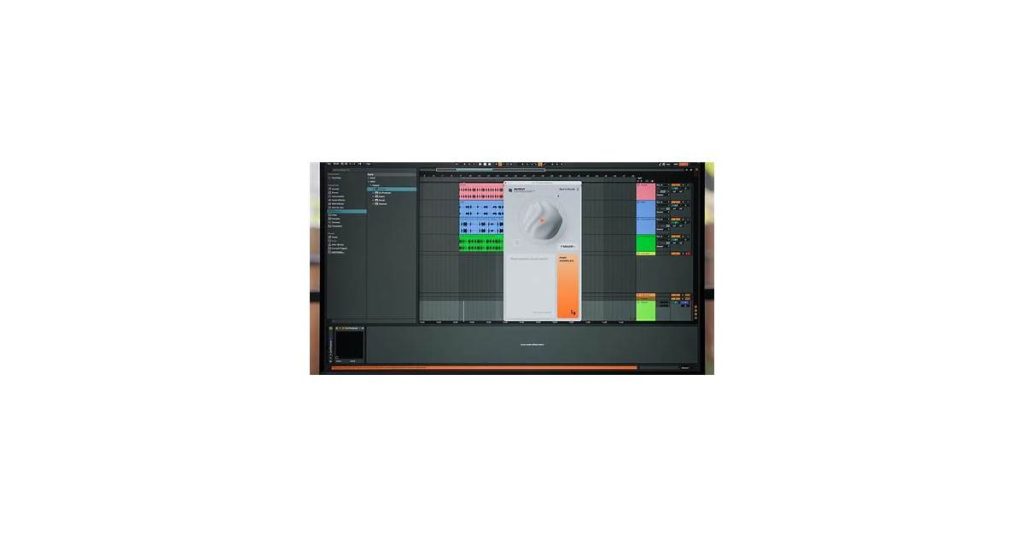
Audio Forge AI integrates with DAWs like Ableton Live, Logic Pro, and Pro Tools as a plugin suite for AI-powered audio processing. This allows producers to automate tasks such as noise reduction and vocal enhancement, saving time while maintaining creative control and achieving professional results faster within their existing workflow.
Audio Forge AI integration with DAWs like Ableton Live, Logic Pro, and Pro Tools works as a plugin suite for AI-powered audio processing. It handles noise reduction, vocal enhancement, and dynamic adjustments in real time within your existing workflow. This lets producers achieve professional results faster by automating tedious tasks while keeping creative control.
What is Audio Forge AI?

Audio Forge AI is a plugin suite designed to integrate seamlessly with popular digital audio workstations (DAWs) like Ableton Live, Logic Pro, and Pro Tools. It brings AI-driven processing to tasks such as noise reduction, vocal enhancement, and dynamic range correction, allowing producers to achieve studio-quality results with minimal manual tweaking. Unlike traditional plugins that rely on static algorithms, Audio Forge AI adapts to the audio material in real time—automatically adjusting parameters based on the input signal.
The tool excels in handling common production challenges: cleaning up muddy recordings, isolating instruments from mixed tracks, or intelligently balancing levels across a mix. It works within existing DAW workflows, appearing as a standard plugin insert or effect chain component rather than requiring external processing. This integration means producers can leverage AI capabilities without disrupting their creative process.
See also: Audio Forge AI Features Overview: Enhancing Sound Processing.
Key Features of Audio Forge AI
Audio Forge AI streamlines audio production with a suite of AI-powered tools designed to work seamlessly within your existing DAW workflow. Its intelligent noise reduction identifies and removes background hums, clicks, or wind interference without compromising vocal clarity or instrument definition. The system adapts to different audio sources—whether it’s cleaning up a recorded interview or polishing a live band performance.
For audio enhancement, the software analyzes frequency imbalances and dynamic inconsistencies in real time. It can automatically smooth out harsh highs, boost intelligibility in muddy dialogue, or add presence to dull acoustic tracks. Unlike basic EQs, these adjustments respond contextually to the content of the audio itself.
Automated editing features include intelligent clip trimming that detects pauses or filler words, crossfade optimization for seamless transitions, and even tempo-matching for imported audio clips. The AI learns from user adjustments over time, applying preferred editing styles to repetitive tasks like podcast episode prep or vocal comping.
See also: Audio Forge AI Software: Features, Setup, and Usage Guide.
How to Integrate Audio Forge AI with Your DAW
Connecting Audio Forge AI to your digital audio workstation (DAW) requires just a few steps. The process varies slightly depending on whether you use Ableton Live, FL Studio, Logic Pro, or Pro Tools, but the core principles remain the same.
- Install the Audio Forge AI plugin – Download the VST/AU/AAX version matching your DAW and operating system. Most DAWs automatically scan for new plugins during startup.
- Activate the plugin – Open your DAW’s plugin manager if Audio Forge AI doesn’t appear automatically. In Ableton, check Preferences > Plugins; in Logic Pro, use the Plugin Manager under the Audio FX dropdown.
- Insert on your track – Drag Audio Forge AI onto an audio track or bus like any other effect. For MIDI processing, create an audio track first and route your MIDI through it.
- Set your input/output – Ensure the plugin receives audio by checking your track’s routing. Some DAWs like Pro Tools may require explicit input assignment on the track.
- Adjust buffer settings – Lower buffer sizes (128-256 samples) reduce latency for real-time processing, while higher buffers (1024+ samples) prevent CPU overload during mixing.
For specific DAWs: FL Studio users should confirm the plugin is visible in the Plugin Database under Effects > Generators. Pro Tools requires the AAX version and may need a restart after installation. If you encounter issues, try clearing your DAW’s plugin cache – this often resolves missing plugin errors.
See also: How to Automate Music Creation to Streaming Release.
System Requirements for Integration
For smooth Audio Forge AI integration with your DAW, ensure your system meets these specifications. Intel i5 or AMD Ryzen 5 processors (or higher) are recommended for real-time processing. Systems with 16GB RAM handle complex projects better, though 8GB may suffice for lighter sessions.
Storage matters—SSDs drastically improve plugin loading times and project responsiveness. Keep at least 10GB free for temporary files during AI processing. Audio Forge AI supports Windows 10/11 (64-bit) and macOS 10.15+, but newer OS versions tend to show fewer compatibility quirks.
DAW compatibility varies:
- Full native support: Ableton Live 11+, FL Studio 21+, Logic Pro X 10.7+
- VST3/AU compatible: Cubase 12+, Reaper 6+, Studio One 5+
- Limited functionality: Older versions may lack features like real-time stem separation
Dedicated GPUs aren’t mandatory but help with visualizations—NVIDIA GTX 1060 or AMD RX 580 provide noticeable UI improvements. For laptop users, thermal management is crucial; sustained CPU loads during AI processing can trigger throttling on thinner devices.
Browser and Extension Considerations
Audio Forge AI works best in modern browsers like Chrome, Edge, or Firefox (latest stable versions). Safari users may encounter occasional compatibility issues due to stricter security policies. Avoid niche browsers like Opera Mini or older versions of Internet Explorer, as Web Audio API support may be inconsistent.
For DAW integration, Chrome’s Audio Forge AI Bridge extension is required – this handles the communication between your browser-based tools and desktop DAW. Common installation problems include:
- Extension failing to load after installation – usually fixed by restarting the browser
- Browser extensions that block Web MIDI (like some ad blockers) may require whitelisting
<li”network error”=”” messages=”” during=”” daw=”” handshake=”” –=”” often=”” resolved=”” by=”” temporarily=”” disabling=”” vpns=”” or=”” firewall=”” software<=”” li=””>
</li”network>
If sessions frequently drop or fail to sync between browser and DAW, try switching from WiFi to wired Ethernet connections – real-time audio data transfer is particularly sensitive to network latency.
Common Issues and Troubleshooting
Integrating Audio Forge AI with your DAW usually runs smoothly, but a few issues crop up regularly. One frequent hiccup is the plugin not appearing in your DAW’s list—often resolved by rescanning plugins in your DAW preferences or ensuring the installation path matches your DAW’s plugin folder. If you’re on Windows, check that the .dll file is in the correct VST folder; Mac users should verify the .component or .vst file is in the correct Library/Audio/Plug-Ins folder.
Latency issues are another common complaint. If Audio Forge AI introduces noticeable delay, try adjusting your DAW’s buffer size (lower settings reduce latency but may strain your CPU). Some DAWs like Ableton Live or FL Studio also have plugin delay compensation settings that need manual adjustment when using AI-powered tools.
- Crashes during processing: Usually indicates insufficient RAM—close other memory-intensive applications or freeze tracks before applying AI processing
- Missing features: Some DAWs require you to enable advanced plugin permissions (like Pro Tools’ “AAX” format) during installation
- Authentication errors: Often solved by ensuring your Audio Forge AI software is updated to the latest version before DAW integration
When all else fails, the brute-force approach works surprisingly often: completely uninstall Audio Forge AI, restart your computer, then reinstall while your DAW is closed. Many integration problems stem from partial installs or background processes that need a clean slate.
Network and Extension Problems
Audio Forge AI relies on stable connections between your browser, extensions, and digital audio workstation (DAW). If you’re experiencing lag, disconnections, or plugin failures, start by checking these common points of failure:
- Browser extensions: Disable other audio-related extensions that might conflict. Chrome users should type
chrome://extensionsin the address bar to manage them. - Firewall blocks: Windows Defender and third-party firewalls often block DAW communication. Add exceptions for both Audio Forge AI and your DAW in the firewall settings.
- Router prioritization: Enable QoS (Quality of Service) settings on your router to prioritize traffic to your studio computer, especially if others are streaming on the same network.
For Wi-Fi users, a 5GHz band provides less interference than 2.4GHz for audio streaming, but wired Ethernet remains the most reliable option. If using a VPN, try disconnecting it temporarily—some reroute local network traffic through remote servers, adding latency.
Best Practices for Audio Forge AI Integration with DAWs
Integrating Audio Forge AI with your digital audio workstation (DAW) can streamline your workflow and enhance your audio processing capabilities. Start by ensuring your DAW and Audio Forge AI are compatible—most modern DAWs support plugin formats like VST, AU, or AAX. Install the plugin correctly and verify it appears in your DAW’s plugin list.
Use Audio Forge AI’s batch processing features to handle repetitive tasks efficiently. For example, if you’re working on a podcast with multiple tracks, apply noise reduction or equalization settings across all files at once. This saves time and maintains consistency.
Customize presets to match your project needs. Whether you’re mastering music or cleaning up dialogue, saving tailored settings allows you to apply them quickly in future sessions. Experiment with the AI’s advanced settings to fine-tune results, but avoid over-processing—subtle adjustments often yield the best outcomes.
Lastly, monitor your CPU and RAM usage. While Audio Forge AI is optimized for performance, complex tasks can strain your system. Freeze tracks or use offline rendering to manage resources effectively, especially in larger projects.
Why Audio Forge AI Integrates Seamlessly with Your DAW
Audio Forge AI bridges the gap between advanced audio processing and your existing workflow. Its deep integration with major DAWs means you get AI-powered tools without leaving your preferred environment—no clunky exports, no disruptive switching between applications. Whether you’re cleaning up dialogue, enhancing live recordings, or sculpting instrumentals, the AI adapts to your session in real time.
The real advantage lies in how these features complement traditional mixing. Need to isolate a vocal buried in a messy demo track? The AI handles the grunt work, freeing you to focus on creative decisions. Struggling with inconsistent room tone between interview clips? Let the AI smooth the transitions while you refine the pacing. It’s not about replacing your skills—it’s about accelerating the tedious parts.
For producers and engineers already comfortable with their DAW’s shortcuts and routing, Audio Forge AI feels like unlocking a hidden toolkit. Try it on a problem track; you might find yourself reaching for its noise reduction or spectral editing faster than you’d expect.
Frequently Asked Questions
Which DAWs does Audio Forge AI integrate with?
Audio Forge AI integrates with Ableton Live, Logic Pro, Pro Tools, FL Studio, Cubase, Reaper, and Studio One. It supports VST, AU, and AAX plugin formats depending on your DAW. Full native support is available for Ableton Live 11+, FL Studio 21+, and Logic Pro X 10.7+.
How do I install Audio Forge AI in my DAW?
Download the VST/AU/AAX version matching your DAW, install it, then let your DAW scan for new plugins. If it doesn’t appear automatically, check your DAW’s plugin manager (Ableton: Preferences > Plugins, Logic Pro: Audio FX dropdown). Insert it on a track like any other effect.
What audio tasks does Audio Forge AI automate in DAWs?
It automates noise reduction, vocal enhancement, dynamic adjustments, clip trimming, crossfade optimization, and tempo-matching. The AI adapts to audio material in real time, cleaning up muddy recordings, isolating instruments, or balancing mix levels without manual tweaking.
Why is Audio Forge AI not showing up in my DAW?
Rescan plugins in your DAW preferences or verify the installation path. Windows users should check that the .dll file is in the correct VST folder; Mac users should verify that the .component or .vst file is in the correct Library/Audio/Plug-Ins folder. Clearing your DAW’s plugin cache or restarting often resolves missing plugin errors.
Does Audio Forge AI increase latency in my DAW?
Lower your DAW’s buffer size (128-256 samples) to reduce latency during real-time processing. Some DAWs like Ableton or FL Studio may need manual plugin delay compensation adjustments. Higher buffers (1024+ samples) prevent CPU overload but increase latency.
What system specs are needed for Audio Forge AI in a DAW?
Use an Intel i5/AMD Ryzen 5 or better, 16GB RAM (8GB minimum), and an SSD with 10GB free space. Windows 10/11 or macOS 10.15+ is required. Dedicated GPUs like NVIDIA GTX 1060 improve UI performance but aren’t mandatory.
Conclusion
Audio Forge AI integration with DAWs brings AI-powered audio processing directly into your workflow. It handles noise reduction, vocal enhancement, and dynamic adjustments while adapting to your audio in real time. The plugin works seamlessly within major DAWs like Ableton, Logic Pro, and Pro Tools, so you can focus on creativity rather than technical tweaks.
To get started, download the plugin version matching your DAW and follow the simple installation steps. Experiment with its features on a test project—you’ll quickly see how it speeds up tasks like cleaning recordings or balancing mixes. The more you use it, the more it adapts to your style, making repetitive edits faster and more consistent.

