
Disclosure: This article contains affiliate links. If you buy through them, we may earn a commission at no extra cost to you.
This Audio Forge AI user interface guide explains how to navigate and use the platform’s tools effectively. Whether you’re editing podcasts, music, or field recordings, understanding the interface helps you streamline workflows, access AI-powered features like noise reduction, and customize your workspace for better productivity.
Audio Forge AI user interface guide: Getting Started

Audio Forge AI helps musicians, podcasters, and audio engineers quickly enhance recordings with AI-powered tools. Access it through the web dashboard after signing up for an account—no complex software installation required. The interface works in Chrome, Firefox, and Safari browsers.
First-time setup involves three steps:
- Create a free account with email or Google login
- Select your audio processing goals (e.g., noise reduction, vocal enhancement, mastering)
- Upload your first audio file—supported formats include WAV, MP3, and FLAC up to 500MB
The dashboard automatically organizes projects by date, with color-coded labels showing processing status. First-time users see interactive tutorial prompts highlighting key controls like the waveform editor and preset library.
See also: Audio Forge AI Software: Features, Setup, and Usage Guide.
Signing Up and First-Time Setup
Getting started with Audio Forge AI is straightforward. Begin by visiting the official website and clicking the “Sign Up” button. You’ll be prompted to enter your email address and create a password. After verifying your email, you’ll gain access to the platform. If you’re using a mobile app, the process is similar—download the app, follow the prompts, and complete the registration.
Once logged in, the system will guide you through a quick setup process. You’ll be asked to select your preferred language and audio output format (e.g., MP3, WAV). These settings can be adjusted later from the user interface. Additionally, you’ll have the option to integrate external tools or platforms, such as cloud storage services, for seamless workflow management.
For first-time users, Audio Forge AI offers a brief tutorial that highlights key features and navigation tips. This is especially useful for understanding the layout and functionality of the interface. After completing the setup, you’re ready to start creating or editing audio projects.
Understanding the Mobile Experience
Audio Forge AI’s mobile interface is designed to streamline audio editing on the go, offering a responsive and intuitive experience. While the core features remain consistent across platforms, the mobile version prioritizes ease of use with simplified controls and touch-friendly elements. For instance, waveform manipulation and effect application are optimized for smaller screens, allowing precise adjustments with taps and swipes.
One key difference from the desktop version is the condensed layout. Mobile users will find fewer on-screen elements at once, reducing clutter and focusing on the task at hand. Navigation relies on collapsible menus and gestures, making it easy to access tools without overwhelming the interface. Additionally, cloud integration ensures seamless project sharing between mobile and desktop, so you can start editing on your phone and finish on your computer.
While the mobile experience is robust, it’s worth noting that some advanced features, like multi-track editing, may feel more streamlined on the desktop version due to the larger screen and additional input options. However, for quick edits, voice recordings, or on-the-fly adjustments, Audio Forge AI’s mobile interface delivers a capable and efficient solution.
See also: Audio Forge AI Features Overview.
Core Features of Audio Forge AI
The Audio Forge AI user interface is designed to streamline audio editing with intuitive tools and advanced capabilities. One of its standout features is the AI-powered noise reduction, which automatically identifies and removes background noise without compromising audio quality. This is particularly useful for podcasters or voiceover artists dealing with less-than-ideal recording environments.
Another key functionality is the real-time waveform visualization, which allows users to monitor audio levels and pinpoint issues instantly. The interface also includes a multitrack editor, enabling seamless layering of sound effects, music, and dialogue for projects like film scoring or audio post-production.
For users focused on precision, Audio Forge AI offers a robust set of manual editing tools. These include precise trimming, fade-in/fade-out controls, and EQ adjustments. The software’s AI-assisted mastering feature ensures your audio is optimized for platforms like Spotify or YouTube, adjusting levels and dynamics automatically.
Finally, the interface supports batch processing, saving time for users handling multiple files. Whether you’re compressing audio for a website or converting formats, this feature simplifies repetitive tasks while maintaining consistency across projects.
See also: Audio Forge AI System Compatibility: A Comprehensive Guide.
AI-Powered Audio Processing
Audio Forge AI integrates artificial intelligence to streamline complex audio editing tasks. Its AI engine analyzes audio files to identify and separate elements like vocals, instruments, and background noise. This allows users to isolate specific tracks or remove unwanted sounds with precision, reducing the need for manual adjustments.
The platform’s intelligent noise reduction feature automatically detects and eliminates hums, clicks, and other disturbances. Unlike traditional methods, AI adapts to the unique characteristics of each audio file, preserving clarity while minimizing artifacts. For creators working with voiceovers or podcasts, this ensures professional-grade results without extensive editing experience.
Audio Forge AI also offers AI-driven mastering tools. These analyze the frequency spectrum and dynamics of a track, then apply balanced enhancements tailored to the content. Whether you’re refining a music demo or polishing a spoken-word piece, the AI adjusts settings like EQ, compression, and stereo width to optimize the final output.
Additionally, the interface simplifies advanced tasks like pitch correction and time-stretching. AI algorithms maintain natural sound quality even when altering tempo or tuning, making these tools accessible for both beginners and experienced producers.
Music and Audio Loading Options
Audio Forge AI supports a wide range of audio file formats, making it easy to import existing recordings, samples, or music tracks. The most commonly used formats include WAV (uncompressed), MP3 (compressed), AIFF (common in professional audio), FLAC (lossless), and OGG (open-source).
To load audio, you can either drag and drop files directly into the workspace or use the File > Import menu. The software maintains original sample rates and bit depths during import. For multi-track projects, Audio Forge AI preserves separate channels when loading stereo or surround sound files.
Batch importing is available for working with multiple files at once. Simply select the files in your operating system’s file explorer and drag them into the timeline – they’ll automatically align sequentially. The software displays waveform previews during import, letting you visually verify the content before loading.
Command Line Capabilities
Audio Forge AI’s command line interface (CLI) provides advanced users with precise control over audio processing tasks. Ideal for automation and batch processing, the CLI allows you to execute commands directly from your terminal or script without relying on the graphical user interface. This is particularly useful for repetitive tasks or integrating Audio Forge AI into larger workflows.
To access the CLI, open your terminal and navigate to the Audio Forge AI installation directory. Commands are structured with specific flags and parameters to define tasks such as noise reduction, format conversion, or audio enhancement. For example, you can use a command like audioforge --input file.wav --output file_cleaned.wav --noise-reduce to apply noise reduction to a file.
Common CLI features include:
- Batch processing multiple files with a single command
- Applying specific audio effects or filters using predefined parameters
- Exporting files in various formats with customizable settings
For detailed syntax and available commands, refer to the official CLI documentation included with Audio Forge AI. This tool is designed for users comfortable with terminal operations, offering flexibility and efficiency for complex audio editing tasks.
Navigating the User Interface

Audio Forge AI’s workspace is divided into four key areas: the project dashboard, timeline editor, effects panel, and preview controls. Each serves a distinct purpose while remaining interconnected for seamless workflow.
The left sidebar houses your active project files and imported media. Drag-and-drop functionality works for both local files and cloud storage integrations. Right-click any file for quick access to metadata editing or conversion options.
Central to the interface is the multi-track timeline. Zoom controls in the bottom-right corner adjust view granularity, crucial when editing precise audio segments. The magnetic snapping feature (toggled with S) helps align clips to markers or other tracks automatically.
Key UI elements to master:
- Smart Toolbar: Context-sensitive buttons change based on your selection (clip trimming tools appear when hovering over audio edges)
- Spectrogram View: Toggle with F7 to visualize frequency content alongside waveform displays
- Custom Workspaces: Save and switch between layout presets via Window > Workspaces
- Plugin Chain: Right-click any effect slot to rearrange processing order without reopening dialogs
Navigation shortcuts significantly speed up work: J/K/L for shuttle controls, Tab to cycle through open panels, and Ctrl/Cmd+Scroll for horizontal zooming. Most tools can be accessed through keyboard commands, with a complete list available under Help > Key Bindings.
Main Dashboard Overview
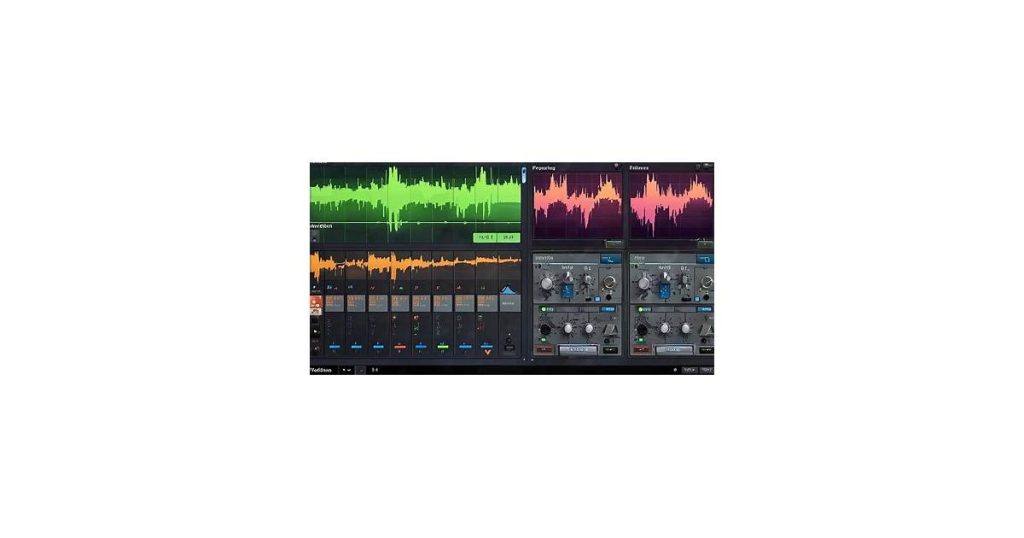
The Audio Forge AI main dashboard serves as the central hub for all your editing tasks. At the top, you’ll find the navigation bar, which provides quick access to essential features like file management, settings, and help resources. Below this, the workspace dominates the screen, where audio files are displayed visually, allowing for precise editing and manipulation.
To the left, the tool panel houses a variety of editing tools, including EQ, compression, and noise reduction. Each tool is represented by an intuitive icon, making it easy to identify and select the right function for your task. On the right side, the properties panel displays detailed settings for the currently selected tool or audio clip, enabling fine-tuned adjustments.
At the bottom of the dashboard, the timeline offers a comprehensive view of your project, complete with markers and keyframes for seamless navigation. Nearby, playback controls allow you to preview your edits in real-time, ensuring accuracy before finalizing your work. Together, these components create a streamlined interface designed to enhance both efficiency and creativity.
Customizing Your Workspace
Audio Forge AI’s interface adapts to your workflow rather than forcing you to adapt to it. The layout is fully modular – every panel, toolbar, and window can be rearranged, resized, or hidden. Drag any element by its header to reposition it, or hover near the edges to resize. Your configuration saves automatically between sessions.
Common customizations include:
- Docking frequently used tools together – group the equalizer, compressor, and spectral analyzer in one tabbed panel for quick switching
- Creating multiple monitor layouts – arrange the waveform editor on your primary display while keeping mixer channels on a second screen
- Saving alternate workspace presets – switch between “mixing,” “mastering,” and “restoration” layouts with one click
Right-click any toolbar to show/hide buttons or create custom shortcut groups. Power users often strip the interface down to just the transport controls and a single effects rack when doing detailed spectral editing, then restore their full setup for multitrack work.
Using the Chat Feature for Assistance
The Audio Forge AI chat feature provides real-time support directly within the application, making it easy to troubleshoot issues or clarify features. Located in the bottom-right corner of the interface, the chat icon resembles a speech bubble. Clicking it opens a conversational window where you can type your questions or concerns.
When using the chat, be as specific as possible to receive tailored assistance. For example, instead of asking “How do I export a file?” try “How do I export a project as a WAV file?” This helps the AI provide more accurate and relevant responses. The chat also supports follow-up questions, allowing you to dive deeper into a topic without starting over.
If the AI cannot resolve your query, it will connect you to a human support agent. This seamless transition ensures you always get the help you need, whether it’s a quick question about shortcuts or a more complex technical issue.
Practical Examples and Use Cases

Audio Forge AI’s interface simplifies complex audio tasks for both beginners and professionals. A podcast producer can drag-and-drop raw interview files directly into the timeline, use the one-click noise reduction tool to clean up background hum, then apply AI-powered level balancing to ensure consistent volume across speakers—all within three clicks.
Music producers leverage the spectral editor to surgically remove mic stand bumps or string squeaks without affecting the surrounding performance. The visual waveform display makes it easy to spot and eliminate these imperfections, while the real-time preview lets users audition edits before committing.
- Field recording cleanup: Nature documentarians import hours of raw wildlife audio, then batch-process files to remove wind noise while preserving bird calls and ambient textures
- Accessibility workflows: Audiobook engineers use the AI voice isolation to salvage dialogue from recordings with page-turn noises, then export chapter markers as accessible MP3s
- Restoration projects: Archivists working with vintage recordings apply the “tape hiss reduction” preset followed by gentle spectral repair to recover 1940s radio broadcasts
The interface’s collapsible panels prove particularly useful for video editors working on tight deadlines. They can keep the essential tools like loudness metering visible while hiding advanced forensic audio tools until needed, creating an uncluttered workspace focused on immediate tasks.
Creating a Simple Audio Project
To start editing in Audio Forge AI, create a new project by selecting File > New Project. The interface will display a blank timeline and media browser. Drag your audio file from the browser onto the timeline—this could be a voice recording, music track, or sound effect.
Basic editing begins with the selection tool (press V). Click and drag along the waveform to highlight sections. Right-click a selection to access common actions:
- Cut/Delete removes unwanted sections
- Fade In/Out smooths abrupt starts or endings
- Normalize adjusts volume levels consistently
For quick volume adjustments, hover near the top edge of the audio clip until the cursor becomes a double-arrow, then drag up or down. A yellow line indicates the new volume level. When finished, export using File > Export and choose common formats like MP3 or WAV.
Advanced AI Matching Techniques
Audio Forge AI’s matching capabilities go beyond basic sound alignment. The tool excels in scenarios where precision and adaptability are critical. For instance, when syncing dialogue with background noise, the AI analyzes frequency patterns and timing nuances to ensure seamless integration, even in challenging audio environments.
One advanced technique involves using the AI to match disparate audio sources, such as merging a studio-recorded vocal track with a live performance. The tool identifies key characteristics like pitch, rhythm, and dynamics, then adjusts the studio track to align perfectly with the live recording. This is particularly useful for remixing or creating cohesive soundscapes from multiple takes.
Another powerful feature is the ability to match audio to specific emotional tones. By analyzing elements like tempo, intensity, and harmonic structure, Audio Forge AI can adjust a piece of music or dialogue to evoke a desired mood. This is invaluable for filmmakers and sound designers aiming to enhance storytelling through sound.
For users working with multilingual projects, the AI’s advanced matching can synchronize translations with original audio, preserving natural cadence and intonation. This ensures that dubbed content feels authentic and maintains the emotional impact of the original recording.
These techniques showcase the versatility of Audio Forge AI, making it an indispensable tool for professionals seeking sophisticated audio solutions.
Frequently Asked Questions
What devices can run Audio Forge AI?
Audio Forge AI is compatible with Windows and macOS desktop systems. It also supports mobile devices running iOS and Android, ensuring flexibility across platforms.
How does Audio Forge AI differ from traditional audio software?
Audio Forge AI automates complex audio tasks like noise reduction and mastering through AI, unlike traditional software that requires manual adjustments. Its AI instantly analyzes tracks and applies optimal enhancements, saving hours of tweaking. The interface is streamlined for quick results rather than deep technical controls.
Can I use Audio Forge AI for professional music production?
Audio Forge AI is well-suited for professional music production, offering advanced audio editing and enhancement tools. Its intuitive interface allows for efficient workflows, making it ideal for tasks like mastering, mixing, and sound design. However, its capabilities may complement rather than replace specialized DAWs in complex projects.
Conclusion
Audio Forge AI’s interface is designed to streamline audio editing while maintaining flexibility for both beginners and advanced users. Its intuitive layout, combined with powerful tools like real-time previews and customizable workflows, makes it accessible without sacrificing depth. By focusing on core features such as the waveform editor, effects panel, and batch processing, you can quickly enhance your audio projects with precision.
Experiment with presets, adjust advanced settings, and learn shortcuts to work more efficiently. Whether you’re editing podcasts, music, or sound effects, Audio Forge AI’s interface adapts to your workflow. Start with basic tasks, build confidence, and explore its advanced tools to improve your audio projects.

