
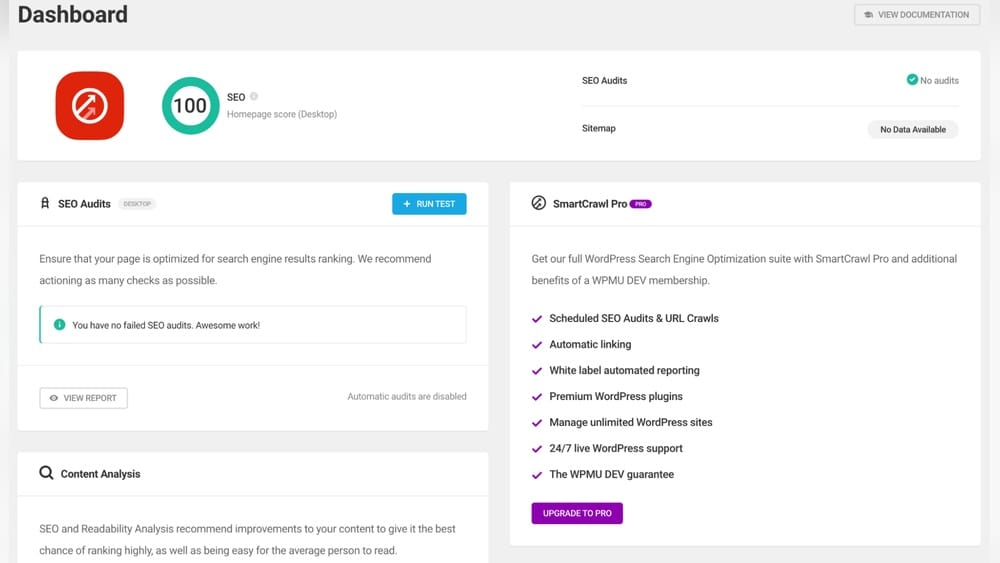
Discover the best SEO tool for WordPress to optimize your site, improve visibility, and rank higher on Google with ease.
That’s exactly what a good SEO plugin for WordPress can do for you. Whether you’re just starting or looking to boost your existing site’s rankings, the right SEO tool will make your life simpler and your site more visible. Keep reading to discover which SEO tools are best for WordPress and how they can transform your website’s performance. For more on this, see our guide on white label seo tool.
Top WordPress Seo Plugins
Choosing the right SEO plugin can boost your WordPress site's search rankings. These plugins help you optimize content, manage technical SEO, and improve site visibility. The market offers several popular options that suit different needs and skill levels. Here are some top WordPress SEO plugins that stand out for their features and ease of use.
Yoast Seo Features
Yoast SEO is a widely used plugin known for its user-friendly interface. It offers real-time content analysis to improve keyword use and readability. The plugin creates XML sitemaps automatically for better indexing. It also handles meta titles and descriptions with ease. Yoast provides tools for social media integration. It checks for duplicate content and helps fix it. Regular updates keep it compatible with the latest WordPress versions. For more on this, see our guide on best keyword research tool for seo.
All In One Seo Benefits
All in One SEO (AIOSEO) is a powerful plugin with a simple setup process. It supports schema markup to improve search result appearance. AIOSEO generates XML sitemaps and optimizes robots.txt files. It offers local SEO options, which is great for businesses. The plugin includes SEO audit checklists to find and fix issues. It also allows control over social media sharing settings. AIOSEO works well for beginners and advanced users alike.
Rank Math Advantages
Rank Math is gaining popularity for its wide range of features. It allows integration with Google Search Console for performance tracking. The plugin supports multiple focus keywords per post. It includes built-in 404 monitoring and redirection tools. Rank Math offers advanced schema types for rich snippets. The setup wizard makes it quick to start using. It provides detailed SEO analysis and suggestions within the dashboard.
Which Plugin Fits Your Workflow?
Each plugin excels in different areas. Yoast is best for beginners who want a guided content analysis experience. AIOSEO shines when you need local SEO features or a clean audit checklist. Rank Math appeals to power users who want advanced schema control and keyword tracking. There is no single “best” — choose based on your specific needs, such as multi‑keyword optimization or local business markup. A common mistake is switching plugins too often; instead, commit to one and learn it thoroughly.
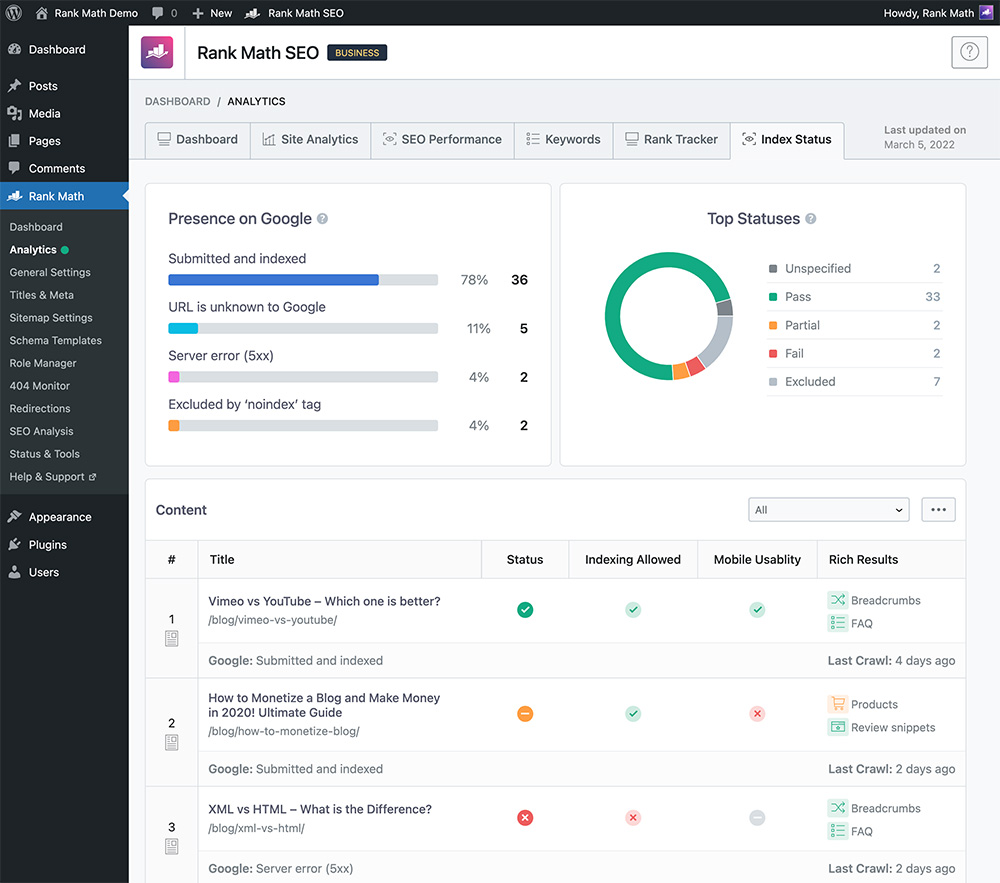
Live preview of content analysis within a WordPress post editor — a core feature of leading SEO plugins.
Credit: rankmath.com
Keyword Research Strategies
Keyword research is the base of effective SEO. It helps you find the terms your audience uses. Choosing the right keywords increases your site's visibility in search engines. Good keyword strategies guide your content creation and optimization.
In WordPress, using SEO tools makes keyword research easier and more accurate. These tools help identify valuable keywords and analyze competitors. Let’s explore key strategies to improve your keyword research.
Finding Relevant Keywords
Start by thinking about your topic and audience. Consider what words or phrases they might use. Use simple terms that match your content’s focus. Avoid overly broad or very rare keywords. Balance between popular and less competitive terms.
Look at search volume to see how often keywords are used. Check keyword difficulty to avoid too tough competition. Choose keywords that fit your site’s niche and goals. This makes your content more targeted and effective.
Don’t Overlook Long‑Tail Keywords
Long‑tail keywords are specific phrases with lower search volume but higher conversion intent. For example, “best free SEO plugin for WordPress 2026” instead of “SEO plugin.” They let you compete in less crowded spaces and attract visitors who know exactly what they want. Your SEO tool can help you find these by filtering keyword suggestions by word count or question format. In practice, targeting two or three long‑tail keywords per post often yields faster ranking gains than fighting for broad terms.
Analyzing Competitor Keywords
Competitor analysis reveals what keywords others use successfully. Identify top-ranking sites in your niche. Use SEO tools to extract their main keywords. See which keywords bring them traffic and rank well.
Focus on keywords where you can compete or find gaps. Look for keywords your competitors miss or ignore. This helps create unique content that meets audience needs. Learning from competitors saves time and boosts your SEO efforts.
Using Keyword Tools
Keyword tools simplify research by providing data and suggestions. Popular tools include Google Keyword Planner, Ahrefs, and SEMrush. They offer search volume, competition, and related keywords.
Use these tools to expand your keyword list. Analyze trends and seasonal changes in keyword popularity. Filter keywords by location or language to match your audience. Many WordPress SEO plugins integrate keyword tools for easy access.
Read More : Best Local Seo Tools: Ultimate Guide to Boost Your Rankings
Content Optimization Tips
Optimizing content is crucial for better search engine rankings and user engagement. Effective content optimization helps your WordPress site attract more visitors and keep them interested. Using the right SEO tools can simplify this process and improve your results.
Writing High-quality Content
Focus on creating original and useful content that answers your audience’s questions. Use clear and simple language. Break text into short paragraphs for easy reading. Include relevant keywords naturally to help search engines understand your topic. Avoid keyword stuffing as it can harm rankings.
Structure your content with H2 and H3 headings — this helps both readers and search engines quickly grasp the page’s hierarchy. Many SEO plugins provide a snippet preview that lets you check how your meta description and title will appear in search results. Use that preview to confirm your page is compelling before publishing.
Improving Click-through Rates
Craft meta titles and descriptions that catch attention. Use action words and clear benefits to encourage clicks. Keep titles under 60 characters and descriptions under 160 characters. Make sure they match the content on the page. Well-written snippets increase the chance users will visit your site.
Consider adding numbers or power words like “Proven,” “Easy,” or “2026” to make your title stand out. A/B test different versions if your plugin supports it. Remember that click‑through rate (CTR) is a ranking signal — higher CTRs can lead to better positions over time.
Adding Internal Links
Link related posts and pages within your site to guide visitors. Internal links improve navigation and keep users on your site longer. They help search engines discover and index your content better. Use descriptive anchor text to show what the linked page is about. Avoid overloading your content with too many links.
Create content silos by linking from your pillar article to supporting cluster posts. For instance, a core guide on “WordPress SEO” can link to deeper articles about keyword research or site speed. This strengthens topical authority and makes it easier for search engines to understand your site’s structure. For a deeper dive, exploring the fundamentals of what SEO tools are can sharpen your linking strategy.
Technical Seo Settings
Technical SEO settings form the foundation of a strong WordPress site. They help search engines crawl and index your site easily. Proper settings improve your site’s visibility and user experience. This section covers key technical SEO steps you must take.
Setting Seo-friendly Permalinks
Permalinks are the URLs of your posts and pages. SEO-friendly permalinks are short, clear, and include relevant keywords. In WordPress, set permalinks to use the post name. This option appears under Settings > Permalinks .
Clear URLs help search engines and users understand your page content. Avoid default numeric or date-based URLs. For example, use yourwebsite.com/seo-tool instead of yourwebsite.com/?p=123 .
If you run an e‑commerce store, consider structure like /product-category/product-name/ to keep URLs logical. Avoid changing permalinks after content is indexed — use 301 redirects (built into Rank Math and AIOSEO) if you must.
Creating Xml Sitemaps
An XML sitemap lists all important pages on your site. It helps search engines find and index your content faster. Many SEO plugins for WordPress automatically generate sitemaps.
Ensure your sitemap updates when you add new content. Submit the sitemap URL to Google Search Console. This step improves your site’s crawl efficiency and indexing speed.
Consider enabling separate sitemaps for posts, pages, categories, and product types if you have a large site. Most plugins handle this automatically. Check your plugin’s settings to exclude low‑value pages like tag archives or draft pages.
Adding Alt Text To Images
Alt text describes images to search engines and users with disabilities. It improves your site’s accessibility and SEO. Write short, descriptive alt text that explains the image content clearly.
In WordPress, add alt text when uploading images or editing them in the Media Library. Avoid keyword stuffing. Use natural language that fits the image purpose.
Also rename the image file itself before uploading — e.g., wordpress-seo-dashboard.png instead of IMG_12345.jpg. Plugin‑based image optimization tools can compress files without losing quality, improving both page speed and alt‑text management.
Site Performance Enhancements
Improving site performance is essential for better user experience and higher search rankings. Faster websites keep visitors engaged and reduce bounce rates. Enhancing your WordPress site's speed and efficiency helps search engines crawl and index your pages more effectively.
Optimizing Site Speed
Site speed affects how quickly pages load for visitors. Compress images to reduce file sizes without losing quality. Minimize CSS and JavaScript files to decrease loading times. Use lazy loading for images to load content only when visible. Monitor your site's speed regularly with tools like Google PageSpeed Insights.
Beyond image compression, enable Gzip compression and leverage browser caching through your caching plugin or hosting panel. Every 100ms of improvement can lift conversion rates, so treat speed as an ongoing maintenance task rather than a one‑time fix.
Using Caching Plugins
Caching plugins store copies of your web pages to serve them faster. This reduces server load and speeds up page delivery. Popular caching plugins include W3 Total Cache and WP Super Cache. Configure caching settings to suit your site's needs. Clear cache after updates to show fresh content to visitors.
Many modern hosting providers offer integrated caching layers (server‑level Redis or Varnish). Pairing a good hosting plan with a lightweight caching plugin avoids conflicts. If you use a performance plugin like WP Rocket, it already combines caching, minification, and lazy loading in one tool.
Choosing Fast Hosting
Your web host affects site speed significantly. Choose hosting providers known for reliability and fast servers. Look for hosts offering SSD storage and CDN integration. Shared hosting can slow down your site during traffic spikes. Consider managed WordPress hosting for better performance and support.
Choosing a reliable managed host is one of the highest‑leverage decisions for site speed and uptime.
Mobile And User Experience
Mobile and user experience are crucial for WordPress SEO. A site that works well on phones keeps visitors engaged and lowers bounce rates. Search engines favor sites that load fast and are easy to use on any device.
Improving mobile experience helps your site rank better. A smooth, user-friendly site encourages visitors to stay longer and explore more pages. This section covers key steps to enhance mobile responsiveness, navigation, and site health.
Ensuring Mobile Responsiveness
Mobile responsiveness means your site adapts to any screen size. Use a responsive WordPress theme that resizes content automatically. Test your site on different devices to check usability.
SEO tools for WordPress often include features to analyze mobile performance. Fix issues like small fonts or buttons too close together. Fast loading times on mobile also improve user experience and search rankings.
Improving Navigation With Categories And Tags
Clear navigation helps users find content quickly. Organize posts with categories and tags for easy browsing. This structure also helps search engines understand your site better.
Use SEO plugins to manage categories and tags effectively. Avoid too many or too few categories. Keep tags relevant and consistent. Good navigation reduces frustration and keeps visitors on your site longer.
Fixing Broken Links
Broken links hurt user experience and SEO. They cause frustration and lower your site’s credibility. SEO tools can scan your site to find broken links easily.
Regularly check and fix broken links. Replace or remove dead links to keep your site healthy. A well-maintained site improves trust and helps search engines crawl your content better.
If a page permanently moves, set up a 301 redirect instead of leaving a dead link. Plugins like Rank Math include redirect managers that log 404 errors and let you map old URLs to new ones in one click.
Local SEO Optimization for WordPress Sites
Local SEO helps businesses appear in location‑based searches such as “plumber near me” or “best coffee shop in Austin.” Without it, even a well‑optimized WordPress site can miss visitors who are ready to buy.
Start by installing a plugin that supports local schema markup — AIOSEO and Rank Math both offer dedicated local business modules. Fill in your business name, address, phone number, and operating hours. This structured data can trigger rich results like a knowledge panel or map snippet.
Next, create a dedicated “Contact” or “Locations” page with an embedded Google Map and consistent NAP (Name, Address, Phone) information. Submit your site to Google Business Profile and connect it to your WordPress site via a plugin or manual link. Regularly update your local landing pages with area‑specific content — e.g., “Best Italian Restaurant in North Beach — San Francisco.”
For multi‑location businesses, use a plugin like WP‑Sitemap to generate separate local landing pages for each branch, each with its own address and schema.
E‑Commerce SEO Considerations for WordPress
If you run a WooCommerce store, SEO becomes more granular. Product pages need unique meta descriptions, rich schema (Product, Review, Price), and optimized images.
Start by enabling product schema in your SEO plugin. Rank Math offers a dedicated schema type for WooCommerce products, including fields for price, availability, and reviews. Use descriptive, keyword‑rich product titles and avoid duplicate content from variable products (e.g., same shirt in different colors) by using canonical tags.
Improve internal linking by adding “Related Products” sections and linking from category pages to subcategories. Monitor crawl budget — too many low‑value product variation URLs can waste Google’s time. Use “noindex” for filter pages (e.g., “color=red&size=large”) that add little value. Finally, ensure your checkout and cart pages are accessible but not indexed via “noindex, follow” directives.
Tracking And Analytics
Tracking and analytics are essential for understanding how your WordPress site performs in search engines. They show how visitors interact with your pages. This data helps improve your SEO strategies effectively. Using the right tools, you can monitor traffic, user behavior, and conversion rates. These insights guide adjustments that boost your site's visibility and ranking.
Setting Up Google Analytics
Google Analytics is a powerful tool to track website traffic. To set it up, create a Google Analytics account. Then, link it to your WordPress site using a plugin like Google Site Kit or MonsterInsights. This connection allows you to see detailed reports directly in your WordPress dashboard. It tracks page views, session duration, and traffic sources.
Monitoring User Behavior
Tracking how users behave on your site reveals what content works best. You can see which pages keep visitors longer and which have high exit rates. Heatmaps and session recordings offer visual insights into user actions. This data helps identify problems like confusing navigation or slow pages. Understanding user behavior allows you to improve the user experience and SEO.
Adjusting Seo Based On Data
Data from analytics helps make informed SEO decisions. If certain pages get low traffic, you might need better keywords or content updates. High bounce rates could mean content isn’t relevant or engaging. Use the data to refine meta titles, descriptions, and internal links. Regularly reviewing analytics ensures your SEO stays effective and aligned with user needs.
Go one step further: set up goals in Google Analytics to track conversions — form submissions, product purchases, or newsletter signups. Then, filter your SEO reports by goal completions. This tells you not just which pages attract visitors, but which ones actually generate business results.
Common SEO Mistakes to Avoid in 2026
Even experienced site owners fall into these traps. Here are five frequent missteps and how to sidestep them:
Ignoring Core Web Vitals — Google’s page experience signals are now a ranking factor. Use tools like Lighthouse or PageSpeed Insights to monitor Largest Contentful Paint (LCP), First Input Delay (FID), and Cumulative Layout Shift (CLS). A single unoptimized image can ruin your LCP score.
Keyword Stuffing in Headings — Repeating the same keyword in every H2 may get you penalized. Write headings naturally; include synonyms and related terms. Your SEO plugin’s readability check can flag over‑optimisation.
Neglecting Index Coverage Reports — Google Search Console shows which pages are indexed and which are excluded. Check weekly for errors like “soft 404” or “submitted URL not selected as canonical.” Many issues are quick to fix but silently hold your rankings back.
Using Too Many Plugins — Each plugin adds code and potential conflicts. Stick to a core set: one SEO plugin, one caching plugin, one analytics integration, and one security plugin. Overloading your site bloats code and slows load times.
Forgetting to Update Content — SEO isn’t set‑and‑forget. Refresh old posts with new statistics, updated screenshots, and additional sections. Google favors fresh content — a simple date update and two new paragraphs can revive a dying post.
Frequently Asked Questions
Which Seo Tool Is Best For WordPress?
Yoast SEO and All in One SEO (AIOSEO) are top WordPress SEO tools. They simplify optimization, manage meta tags, and improve rankings effectively.
How Do I Do Seo On WordPress?
Install an SEO plugin like Yoast or AIOSEO. Perform keyword research and create quality content. Optimize permalinks, images with alt text, and site speed. Use internal links, an XML sitemap, and ensure mobile responsiveness. Monitor performance with Google Analytics for continuous improvement.
Does WordPress Have Built-in Seo Tools?
WordPress includes basic SEO features like customizable permalinks and mobile-friendly themes. For advanced SEO, install plugins such as Yoast SEO or All in One SEO. These tools help optimize meta tags, create XML sitemaps, and improve content for better search engine rankings.
Is Seo Free On WordPress?
SEO on WordPress can be free using plugins like Yoast SEO or AIOSEO. However, some advanced features may require paid plans.
How often should I update my SEO plugin?
Keep your SEO plugin updated to the latest version — most major plugins release monthly updates that align with Google algorithm changes. Enable automatic updates in WordPress for security patches and new features.
Can two SEO plugins be used together?
No — running two SEO plugins simultaneously can cause conflicts, duplicate sitemaps, and broken redirect managers. Choose one and disable or uninstall the others.
What is the most important technical SEO setting for a new WordPress site?
Setting permalinks to “Post name” is the single most impactful step. It instantly makes every URL cleaner and more descriptive, benefiting both users and search engines.
Conclusion
Choosing the right SEO tool for WordPress makes a big difference. It helps improve your site’s visibility and ranking. Simple steps like using plugins, optimizing content, and improving site speed matter. Keep your site organized with clear links and categories.
Remember to add alt text for images and set SEO-friendly URLs. Regular updates and monitoring keep your SEO on track. Small efforts add up to better search engine results. Start using these tips to make your WordPress site easier to find.
Take the first step toward higher rankings — install a free SEO plugin and run the setup wizard tonight.

