Top Project Management Tools: Boost Your Team’s Productivity
Lead SaaS Analyst & Software Developer at PCSaaS · Software Developer (GitHub @Ratankarmakar) · Google Ads & Analytics Certified · 500+ SaaS Tools Tested · 8+ years in software engineering, B2B SaaS evaluation, AppSumo deal auditing, and performance marketing
Discover the top project management tools to boost productivity, track tasks, and collaborate seamlessly with your team!
These tools help streamline workflows, track progress, and ensure tasks get completed on time. In today's fast-paced work environment, having the right project management tool is essential for success. Whether you're a small business owner, a team leader, or a freelancer, the right tool can make a huge difference.
It can help you stay organized, improve communication, and boost productivity. But with so many options available, how do you choose the best one? This blog post will guide you through some of the top project management tools available. We'll explore their features, benefits, and how they can help you manage your projects more effectively.
If you're looking to save on software costs, consider exploring platforms that offer lifetime access to premium tools — many project management applications are available through such deals, reducing your long-term expenses.
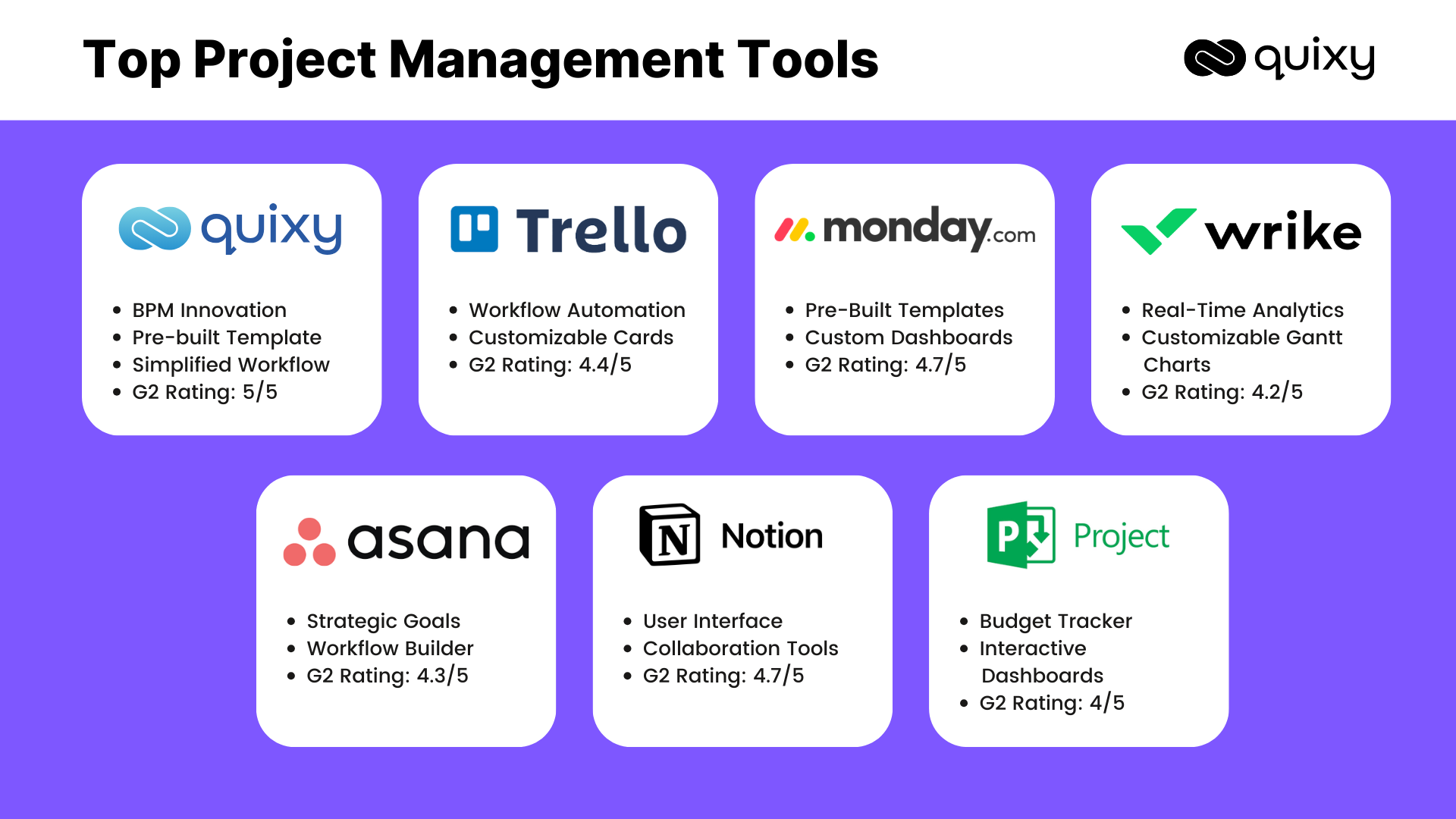 Overview of popular project management tools displayed on a dashboard mockup. Credit: quixy.com
Asana
Asana is one of the top project management tools available today. It's designed to help teams organize, track, and manage their work. Many businesses use Asana to keep their projects on track and meet deadlines. Let's dive into some of its key features and pricing plans.
Key Features
Asana offers a variety of features to make project management easier. You can create tasks, assign them to team members, and set deadlines. This helps everyone know what they need to do and when. You can also add comments and attach files to tasks. This keeps all information in one place.
Asana has a user-friendly interface. You can view your tasks in different ways, such as lists or boards. This flexibility helps you choose the best way to visualize your work. Another useful feature is the timeline. It allows you to see your project’s progress over time. You can identify any delays or issues quickly.
Asana integrates with many other tools. Whether you use Slack, Google Drive, or Microsoft Teams, Asana can connect with them. This integration streamlines your workflow and reduces the need for switching between apps.
Beyond the basics, Asana supports task dependencies and automations. You can set rules that automatically assign tasks, move them to the next stage, or send notifications when certain conditions are met. This reduces manual work and keeps projects moving without constant oversight. For teams that need a structured approach, Asana’s project templates provide a head start on common workflows.
Pricing Plans
Asana offers several pricing plans to fit different needs and budgets. The Basic plan is free and includes core features. It's suitable for individuals or small teams starting out. The Premium plan costs $10.99 per user per month. It adds features like timelines and advanced search.
The Business plan is priced at $24.99 per user per month. It includes additional features like portfolio management and advanced integrations. For large enterprises, there is an Enterprise plan. The pricing for this plan is customized based on the organization’s needs.
Each plan offers a free trial. This allows you to test the features before making a decision. Choosing the right plan can help your team work more efficiently.
Note: Pricing listed above may not reflect current rates. Always check the official Asana pricing page for the most up-to-date information.
Trello
Trello is a popular project management tool that helps teams organize tasks with visual boards. It offers an easy way to track progress and collaborate efficiently.
If you've ever found yourself overwhelmed by project tasks and deadlines, Trello might just be the solution you need. Trello is a highly visual project management tool that uses boards, lists, and cards to help you organize and prioritize your projects in a fun, flexible, and rewarding way. Whether you're managing a team or just your own workload, Trello's user-friendly interface can make your life a lot easier.
Card System
One of Trello's standout features is its card system. Think of cards as digital sticky notes that you can move around to different lists on your board. Each card can contain a wealth of information such as checklists, due dates, attachments, and comments. This makes it easy to keep everything related to a task in one place.
I remember a time when I was coordinating a big event. I had a card for each task—booking the venue, contacting speakers, arranging catering. It was incredibly satisfying to move each card to the "Done" list as I completed each task. It kept me motivated and on track.
Trello also offers Power-Ups (built-in integrations) that add functionality like calendar views, time tracking, and voting. One of the most useful Power-Ups is Butler, which lets you automate repetitive actions — for example, when a card is moved to a certain list, Butler can automatically assign it to a team member and add a due date. This turns Trello into a surprisingly powerful automation engine for simple workflows.
Integration Options
Another powerful aspect of Trello is its integration options. You can connect Trello with other tools you already use, like Slack, Google Drive, and Jira. This allows you to streamline your workflow and keep all your information synchronized across platforms.
For instance, if you're already using Google Calendar to keep track of deadlines, you can integrate it with Trello to ensure you never miss a due date. Or, if your team uses Slack for communication, you can integrate it with Trello to get updates directly in your Slack channels.
By leveraging these integrations, you can create a seamless workflow. This means less time switching between apps and more time focusing on getting things done.
What are your thoughts on Trello's card system and integration options? Do you think they could help streamline your projects?
For teams that want to extend Trello’s capabilities further, third-party add-ons available through business growth platforms can unlock additional features like advanced reporting or custom fields.
Monday.com
Monday.com is a popular project management tool that helps teams organize tasks and projects. It is known for its user-friendly interface and versatile features. With Monday.com, teams can streamline their workflow, improve collaboration, and track progress efficiently.
Customizable Workflows
Monday.com offers customizable workflows to fit any team's needs. Users can create boards tailored to their specific projects. It allows teams to set up different columns and define statuses that match their workflow. This flexibility helps teams stay organized and focused.
Each workflow can be adjusted based on the project's requirements. Teams can add custom fields, automate tasks, and integrate other tools. This makes Monday.com suitable for various industries and project types.
Monday.com’s automation recipes are particularly powerful. You can set up triggers like “when status changes to ‘In Progress’, assign the task to the project lead and send a Slack notification.” This reduces manual follow-ups and ensures that no step falls through the cracks. The platform also provides a library of pre-built templates for common workflows (e.g., marketing campaigns, software development, HR onboarding).
Collaboration Features
Monday.com enhances collaboration among team members. It provides features like task assignment, comments, and file sharing. Teams can communicate directly within tasks, reducing the need for external communication tools.
Users can mention colleagues in comments to get their attention. This helps keep everyone on the same page. Monday.com also supports real-time updates, ensuring that everyone is aware of any changes instantly.
With these collaboration features, Monday.com helps teams work together seamlessly and efficiently.
For teams that need to collaborate with external stakeholders, Monday.com offers guest access with limited permissions — perfect for clients or freelancers who only need to see specific boards.
 Side-by-side comparison of leading project management tools and their key attributes. Credit: www.elevatiq.com
Jira
When it comes to project management tools, Jira stands out for its versatility and robust features. Whether you are managing a small team or a large enterprise, Jira can help streamline your processes. With its user-friendly interface and comprehensive functionalities, it’s no wonder many teams choose Jira for their project management needs.
Agile Project Management
Jira is a powerhouse for Agile project management. It allows you to create and manage sprints effortlessly. You can visualize your workflow with customizable Kanban boards and Scrum boards.
Tracking progress becomes a breeze with Jira's real-time updates. You can quickly see which tasks are completed and what still needs attention. This keeps your team aligned and focused on priorities.
Jira also supports backlog grooming. You can easily prioritize tasks and ensure that your team is working on the most critical items. This helps in maintaining a steady flow of work and avoiding bottlenecks.
Jira’s advanced roadmaps (formerly Portfolio) help you plan across multiple teams and sprints. You can see dependencies between issues, simulate different team allocations, and forecast delivery dates. This is invaluable for scaling Agile practices beyond a single team. Additionally, Jira integrates with CI/CD tools like Jenkins and GitHub, making it a natural choice for software development teams.
Reporting Capabilities
Jira's reporting capabilities are top-notch. You can generate a variety of reports to gain insights into your project's progress. The burndown charts, for instance, help you track the completion rate of tasks against the planned timeline.
Additionally, you can create custom reports tailored to your specific needs. These reports can provide detailed insights, helping you make informed decisions and adjustments as needed. This level of detail is invaluable for keeping your project on track.
One of the standout features is the ability to share these reports with stakeholders easily. This ensures transparency and keeps everyone in the loop. Regular updates and clear communication can significantly enhance your project's success.
Have you ever used Jira for your projects? What features did you find most helpful? Share your experiences in the comments below!
Basecamp
Basecamp stands out as a top project management tool. It simplifies team collaboration with to-do lists, file sharing, and messaging.
Project management can be chaotic without the right tools. Basecamp is one of those tools that can bring order to your projects. It combines various features to help you manage tasks efficiently and keep your team in sync.
Centralized Management
Basecamp's centralized management is a game changer. It provides a single platform where you can manage all your projects. This means no more jumping between different apps and tools.
Imagine having all your to-dos, files, and conversations in one place. With Basecamp, you can see the status of all your projects at a glance. This clarity helps in prioritizing tasks and ensures nothing falls through the cracks.
Basecamp also includes a unique Hill Chart feature that visualizes progress — tasks start at the bottom of a hill and climb to the top as they become clearer, then descend as they near completion. This gives teams a quick, intuitive sense of project health without needing to dig into details.
Communication Tools
Communication is the backbone of any project. Basecamp excels here with its robust communication tools. You can chat with your team in real-time, share files instantly, and even have threaded discussions.
One feature I love is the message board. It's perfect for posting updates and getting feedback. This keeps everyone on the same page and reduces the need for endless meetings.
Have you ever felt lost in a sea of emails? Basecamp eliminates this by keeping all communications related to a project in one place. This makes it easy to find past conversations and keeps your inbox clutter-free.
Basecamp isn't just a tool; it's a way to streamline your project management. If you haven't tried it yet, you might be missing out on some serious productivity boosts. So, what project management challenges are you facing that Basecamp could solve?
For teams that need to communicate with clients or freelancers, Basecamp’s separate client mode allows you to grant access only to certain projects, keeping internal discussions private.
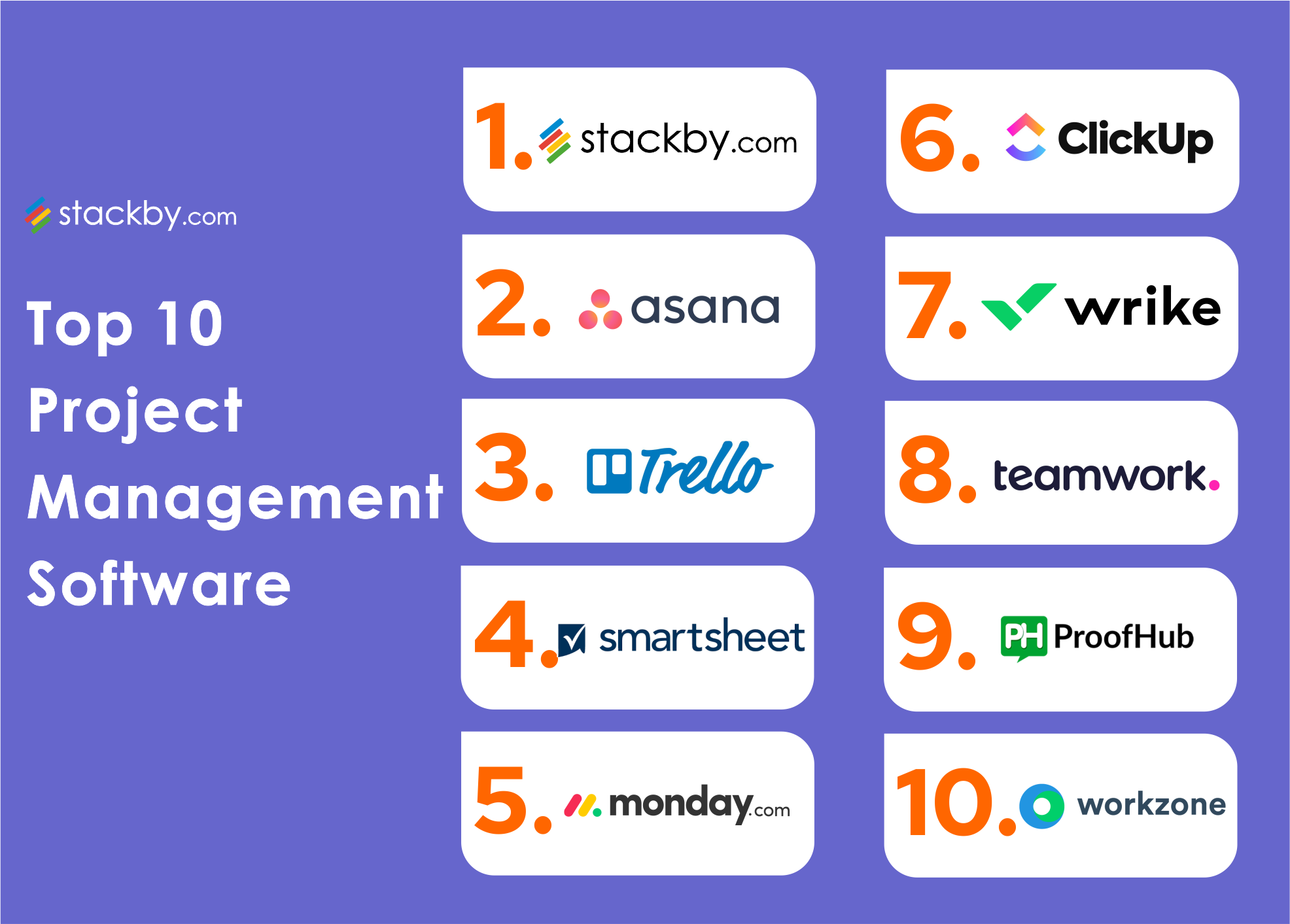 Logos of popular project management tools arranged for quick comparison. Credit: stackby.com
Clickup
ClickUp stands out as one of the top project management tools. This versatile platform offers a range of features to streamline tasks and projects. Teams of all sizes use ClickUp to stay organized and efficient.
Task Management
Task management in ClickUp is straightforward and efficient. Users can create tasks, set priorities, and assign them to team members. The platform supports task dependencies, making it easier to manage complex projects. The drag-and-drop interface simplifies organizing tasks. Moreover, custom statuses help track progress at each stage.
ClickUp offers multiple views — List, Board, Gantt, Calendar, and even a mind map view. This flexibility allows each team member to work in the way that suits them best. For example, a project manager can use the Gantt view to see dependencies, while a developer might prefer the Board view to drag tasks through stages. Custom fields let you add any data point (e.g., budget, priority score) to tasks, making ClickUp adaptable to virtually any workflow.
Time Tracking
Time tracking is a crucial feature in ClickUp. Users can log time spent on each task. This helps in monitoring productivity and managing workloads. The built-in time tracker is easy to use. It integrates seamlessly with tasks, ensuring accurate time logs. Users can also generate detailed time reports. This aids in analyzing work patterns and improving efficiency.
ClickUp also allows you to set estimated time for each task and compare it against actual time logged. This reveals where your team’s estimates are off and helps you improve future planning. For teams that bill by the hour, the time tracking data can be exported directly to invoices.
Wrike
When managing projects, having the right tools can make all the difference. Wrike is one such tool, widely recognized for its robust features and user-friendly interface. It's designed to streamline project management, enhancing productivity and collaboration.
Real-time Collaboration
Wrike shines in real-time collaboration. Imagine your team spread across different locations but working together seamlessly. Wrike lets you do that.
With live editing capabilities, you can see changes as they happen. No more waiting for updates or dealing with version control issues. It’s like having your team in the same room, even if they are miles apart.
Have you ever faced delays because of miscommunication? Wrike helps eliminate that by providing a platform where everyone stays on the same page. You can chat, share files, and update tasks instantly.
Wrike also includes a built-in proofing and approval workflow for creative assets. You can assign reviewers, collect annotations directly on the file, and track approval status — all within the same platform. This reduces the back-and-forth email chains that often slow down marketing and design projects.
Advanced Analytics
Tracking progress and making data-driven decisions are crucial in project management. Wrike’s advanced analytics feature helps you do just that.
You get detailed reports and dashboards that offer insights into your project’s performance. Identify bottlenecks, track time, and measure productivity with ease.
Consider the last project you managed. Were you able to pinpoint what went wrong? Wrike’s analytics tools help you understand where things can improve, ensuring your next project runs smoother.
Wrike’s custom dashboards let you combine multiple reports into a single view — for example, a portfolio dashboard showing budget status, task completion rates, and resource utilization across all active projects. You can share these dashboards with stakeholders for real-time visibility.
Have you tried using Wrike for your projects? What features did you find most useful? Share your thoughts and let’s discuss how Wrike can help streamline your project management process.
Comparison
Choosing the right project management tool can be challenging. With so many options available, it's crucial to compare different tools based on their features and pricing. This comparison will help you find the best fit for your team and projects. Let's dive into the details!
Feature Comparison
Project management tools offer a variety of features, but not all tools are created equal. Some tools focus on simplicity and ease of use, while others offer advanced features for complex projects.
For instance, Trello is known for its visual boards and simplicity. It's great for smaller teams or straightforward projects. On the other hand, tools like Asana and Jira offer more advanced features like task dependencies, custom workflows, and integration with other software.
If collaboration is key for your team, consider tools that offer real-time communication and file sharing. Slack integration, for example, can be a game-changer. What features are most important to your workflow?
Pricing Comparison
Budget is always a consideration when choosing a tool. Prices can vary significantly based on the tool and the features you need.
Many tools offer a free version with basic features. Trello and Asana both have free tiers that are suitable for small teams. However, if you need more advanced features, you’ll likely need to move to a paid plan. Trello’s Business Class plan starts at $10 per user per month, while Asana’s Premium plan starts at $10.99 per user per month.
Jira, designed for more complex project management, offers plans starting at $7.50 per user per month. It's worth noting that most tools offer discounts for annual billing. What’s your budget for a project management tool?
Ultimately, the best tool for you depends on your specific needs and budget. Take advantage of free trials to test different tools and see which one suits your team best. Happy project managing!
How to Choose the Right Project Management Tool for Your Team
Selecting the optimal tool involves more than just comparing features. It requires aligning the tool’s strengths with your team’s workflow, culture, and technical maturity. Here are a few practical considerations:
- Team size and structure: Small teams often benefit from the simplicity of Trello or Basecamp, while larger organizations may need the scalability of Jira or Monday.com.
- Project complexity: If your projects involve many dependencies and cross-team coordination, tools like Asana or ClickUp with Gantt charts and timeline views are preferable.
- Integration needs: Map out the tools your team already uses (Slack, Google Workspace, GitHub, etc.) and verify that the project management tool offers native integrations or a solid API.
- Learning curve: Some tools (e.g., Jira) have a steeper learning curve, so factor in training time and adoption resistance. Tools like Basecamp pride themselves on being intuitive out of the box.
- Budget and billing model: Beyond per-user pricing, consider whether you prefer flat-rate plans (Basecamp) or per-user scaling (Asana, Monday.com). Some tools offer lifetime deals via alternative marketplaces that can dramatically reduce long-term costs.
A common mistake is choosing a tool based on features alone without piloting it with a real project. Always run a two-week trial with a small team before committing. This hands-on experience will reveal whether the tool matches your actual workflow, not just your wish list.
Frequently Asked Questions
What Is The Most Popular Project Management Tools?
Popular project management tools include Trello, Asana, Monday. com, Jira, and Microsoft Project. These tools enhance team collaboration and productivity.
What Are The 5 P's Of Project Management?
The 5 P's of project management are:
- Plan: Develop a clear roadmap. 2. Process: Implement effective workflows. 3. People: Assemble a skilled team. 4. Power: Ensure authority and resources. 5. Performance: Measure and track progress. These elements ensure project success.
What Are The Big 3 In Project Management?
The big 3 in project management are scope, time, and cost. These elements form the project management triangle, balancing quality and success.
What Are The 5 M's Of Project Management?
The 5 M's of project management are Manpower, Money, Materials, Machinery, and Methods. These elements ensure project success by managing resources effectively.
Which project management tool is best for remote teams?
Tools that emphasize real-time communication and asynchronous updates are ideal for remote teams. Basecamp and Monday.com both offer built-in chat, message boards, and shared calendars that reduce reliance on email. Trello’s card comments and notifications also work well for distributed teams. For software development teams, Jira combined with Slack or Microsoft Teams is a common remote setup.
Can I use multiple project management tools together?
Yes, many teams use a combination — for example, a lightweight tool like Trello for daily task tracking and a more robust tool like Jira for long-term planning. However, maintaining consistency across tools can be challenging. Consider using integration platforms like Zapier to sync data between them, or choose a single tool that offers multiple views (like ClickUp) to avoid tool sprawl.
How do I choose between Kanban and Scrum tools?
Kanban tools (like Trello) are best for continuous workflows with no fixed iterations — think support tickets or content publishing. Scrum tools (like Jira) are designed for time-boxed sprints and are ideal for software development teams that follow Agile ceremonies. Some tools, such as Monday.com and ClickUp, support both methodologies, allowing you to switch as your process evolves.
Conclusion
Choosing the right project management tool can greatly enhance productivity. Each tool has unique features suited for different needs. Consider your team's workflow and specific requirements. This will help you find the best fit. Test out a few options before making a final decision.
Investing time in finding the right tool will pay off. A good tool supports collaboration, keeps tasks organized, and ensures deadlines are met. Start exploring these top project management tools today. Your projects will run smoother and more efficiently.
Don't wait — start your free trial of one of these tools today and experience the productivity boost firsthand. If you're looking for cost-effective ways to acquire premium software, check out deals designed for business growth that often include project management solutions.
https://www.youtube.com/watch?v=RmKIRxtBInA After watching the video above, use this quick reference table to compare your shortlist side by side before making a final call.
Quick Reference: Tool Comparison Table
| Tool | Best For | Standout Feature | Entry Price (per user/month) |
|---|---|---|---|
| Asana | Team-wide workflow coordination | Timeline view & task dependencies | Free tier; Premium from ~$10.99 |
| Trello | Simple, visual task tracking | Card system with Butler automation | Free tier; Standard from ~$5 |
| Monday.com | Customizable no-code workflows | Automation recipes & custom columns | Free tier; Basic from ~$9 |
| Jira | Agile software development | Sprints, backlog grooming & reports | Free tier; Standard from ~$7.50 |
| Basecamp | Flat-rate, client-friendly simplicity | Message boards & Hill Chart | Flat rate per month |
| ClickUp | Replacing several tools with one | Multiple views + built-in time tracking | Free forever; Unlimited from ~$7 |
| Wrike | Marketing/creative approvals | Proofing and real-time collaboration | Free tier; Team from ~$9.80 |
Prices vary by region, billing cycle, and current promotions, so confirm the numbers on each vendor's official site before finalizing your budget. Seasonally, many of these tools run discounts — and third-party marketplaces occasionally list project management apps among their affordable software bundles, which can stretch your budget further.
A Simple Migration Checklist
Once you've selected a tool, a disciplined rollout will make or break adoption. Here's what consistently works in practice:
- Map your current workflow first. List the recurring processes your team uses before recreating them in the new tool. A common mistake is automating a messy process — the tool just makes the mess move faster.
- Bring over one historical project to use as a sandbox. It gives your team real examples to click through without the pressure of live deadlines.
- Assign a team champion who answers questions, creates templates, and encourages consistent daily use during the first month.
- Schedule a 30-day review. In that meeting, adjust columns, statuses, and automations based on actual feedback rather than assumptions.
- Clean up overlapping subscriptions. Many teams realize their new tool replaces several others. Before you keep paying for redundant apps, check whether your project management tool's native features (like time tracking or docs) can replace them — and consider how a no-code workflow platform might further reduce manual effort.
Your project management tool also works better when it's connected to the rest of your stack. Pairing it with a system that keeps customer interactions organized means fewer updates typed in two places and fewer meetings about who's handling what. And if you want a recognized methodology to guide your team, the Project Management Institute publishes standards and resources that apply to any of the tools listed above.
Make Your Choice a Team Decision
The single best predictor of project management tool success is team buy-in. Present your shortlist during a standup, share this comparison table, and let people vote. Adoption is always easier when the team feels ownership over the choice.
If budget is a concern during the evaluation phase, start with free tiers — almost every tool here has one. Once you confirm which features your team actually uses, upgrade with confidence. For teams that prefer paying once instead of monthly, one-time-payment deals can help secure a capable PM tool without an ongoing subscription.
Now take the next step: pick one tool from this list, run a two-week pilot with a real project, and measure the difference in your team's pace. The right tool — matched with a clean workflow — is one of the fastest wins available to any team.

Similar Posts














[…] Read More : Top Project Management Tools: Boost Your Team’s Productivity […]