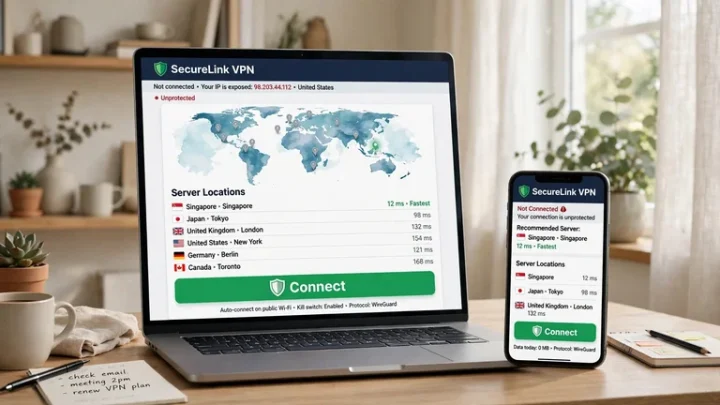
Best VPN for public wifi on laptop 2026
Lead SaaS Analyst at PCSaaS · Software Developer · 500+ Tools Tested · Google Ads & Analytics Certified · 8+ Years Experience
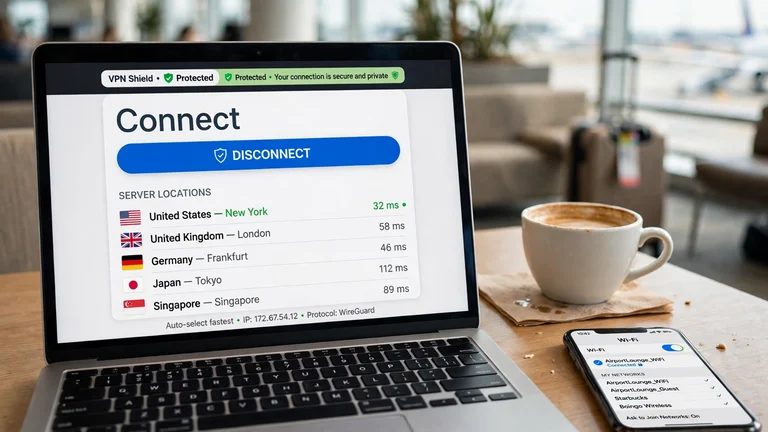
NordVPN is my top pick for public Wi-Fi on a laptop in 2026. It connects on its own, blocks traffic if the connection drops, and suits people who forget to start a VPN at a coffee shop. It cannot make a fake hotspot safe, so occasional users who need a free plan should compare Proton VPN.
Public Wi-Fi is handy. It is also easy to snoop on. Anyone on the same network may be able to read or change unencrypted traffic. A good VPN encrypts that traffic before it leaves your laptop.
This guide compares five VPNs for laptop use on public Wi-Fi. It focuses on the features that matter most: automatic connection, a kill switch, and a clear privacy policy.
I did not run hands-on tests for this guide. I relied on provider documentation, product pages, and the sources listed at the end.
See current plans and pricing
The Best VPNs for Public Wi-Fi on a Laptop at a Glance
The right laptop VPN depends on how often you use unfamiliar Wi-Fi, whether you want a free plan, and how many devices you carry. This table sums up the five picks.
| VPN | Best for | Standout strength | Laptop support | Auto-connect | Kill switch | Free plan |
|---|---|---|---|---|---|---|
| NordVPN | Automatic protection on new networks | Automatic connection and a kill switch | Windows, macOS, Linux | Yes | Yes | No |
| Surfshark | Several devices on one trip | Auto-connect and a kill switch | Windows, macOS, Linux | Yes | Yes | No |
| ExpressVPN | Hotel and airport connections | Network Lock kill switch | Windows, macOS, Linux | Yes | Yes | No |
| Proton VPN | Free occasional use | A free plan for laptop protection | Windows, macOS, Linux | Yes | Yes | Yes |
| Private Internet Access | Customizable settings | Auto-connect and configurable protection settings | Windows, macOS, Linux | Yes | Yes | No |
Auto-connect can help protect a laptop when you revisit coffee shops or join a hotspot and forget to connect by hand. Proton VPN is the only pick here with a free plan. It suits occasional use when its current plan limits fit your needs.
How I Evaluated These Laptop VPNs for Public Wi-Fi
I compared the five VPNs on five things: laptop apps, auto-connect, kill switch, privacy evidence, and plan limits. Speed claims were not the focus. On public Wi-Fi, the network itself often sets the speed limit.
NordVPN: Best for Automatic Protection on New Networks
Best for: laptop users who join unfamiliar Wi-Fi often and want the VPN to connect without relying on memory.

What stands out on a laptop
NordVPN’s auto-connect setting can start a VPN connection when a laptop joins Wi-Fi. You pick which networks or network types trigger it. Once set, it works in the background.
A kill switch handles a different problem. It can block internet access if the VPN connection drops. NordVPN offers two modes: Internet and App. The Internet mode blocks all traffic. The App mode blocks only the apps you choose.
Automatic connection helps when you move between a café, a hotel, and an airport. But it only helps if you set it up first. Turn it on before you travel.
NordVPN trade-offs
NordVPN’s main strength is the mix of automatic connection and a kill switch. The Windows and macOS apps are available, but their controls differ. So steps for one system may not match the other.
Pros:
- Auto-connect settings can reduce forgotten VPN connections on new Wi-Fi.
- Kill-switch controls can block traffic after a VPN drop.
Cons:
- Windows and macOS controls are not identical.
- A kill switch may interrupt access while completing a captive portal.
- Automatic settings must be configured before relying on them.
My verdict: I recommend NordVPN for laptop users who want automatic connections and a kill switch across frequent public Wi-Fi use.
Surfshark: Best for Covering Several Devices on One Trip
Best for: laptop users who also connect a phone or tablet to public Wi-Fi and want one subscription for all of them.
Surfshark allows unlimited simultaneous connections on one subscription. You can protect your laptop, phone, and tablet without choosing which device counts.
What stands out on a laptop
Surfshark’s unlimited-device policy is its clearest edge for travelers. The laptop apps also have practical controls. Auto-connect can be set for unfamiliar or untrusted networks.
A VPN app protects traffic from the whole laptop. A browser-only proxy covers only browser activity. That gap matters on public Wi-Fi.
Surfshark trade-offs
Unlimited connections are useful when you manage several devices. They may be unnecessary if you only use one laptop. Extra settings can also feel busy if you want a minimal app.
Pros:
- Unlimited simultaneous connections on one subscription.
- Can cover a laptop, phone, and tablet without cycling devices.
Cons:
- Windows and macOS settings are not identical.
- A captive portal may require sign-in before the VPN connects.
- Extra settings may feel busy to users who want a minimal app.
My verdict: I recommend Surfshark for travelers who want one VPN subscription across a laptop and several personal devices.
ExpressVPN: Best for Frequent Hotel and Airport Connections
Best for: laptop users who move between hotel, airport, and café Wi-Fi and want a straightforward desktop app.
What stands out for travelers
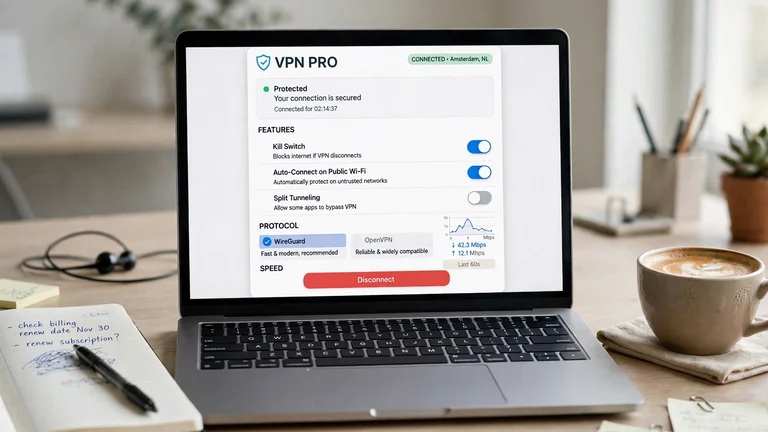
ExpressVPN’s laptop apps keep the key travel controls close to the connection screen. Auto-connect can start the VPN when you join a network. That cuts the chance of browsing on a new hotspot before the VPN starts.
Network Lock is ExpressVPN’s name for its kill switch. It is designed to block traffic if the VPN connection drops. ExpressVPN does not log your browsing activity.
For hotel and airport Wi-Fi, join the network first. Complete its sign-in page if it has one. Then connect the VPN. ExpressVPN is a paid service, but it includes a 30-day money-back guarantee.
ExpressVPN trade-offs
ExpressVPN is a paid service, and its simple app may matter more to frequent travelers than to occasional users. A VPN also cannot make a fake hotspot trustworthy. Match the network name to the one the venue gives you.
Pros:
- Windows and macOS laptop apps.
- Auto-connect helps reduce reliance on remembering to connect manually.
- Network Lock is designed to block traffic if the VPN connection drops.
- 30-day money-back guarantee.
Cons:
- Paid service, so it may not suit someone seeking a free option.
- A captive portal may need to be completed before the VPN connects.
- A VPN cannot verify that a hotspot is genuine.
My verdict: I recommend ExpressVPN for travelers who prioritize a clear laptop workflow across hotel and airport Wi-Fi.
Proton VPN: Best Free Option for Occasional Laptop Use
Best for: laptop users who want basic VPN protection on public Wi-Fi without paying, and can accept fewer servers and medium speeds.
Proton VPN’s Free plan is a reasonable starting point for occasional coffee-shop or library use. It has unlimited data. Most free VPNs cap data. This one does not.
What the free plan includes
The free plan encrypts the laptop’s connection to the VPN server. It also replaces the IP address visible to websites. Proton VPN’s app includes a kill switch, which can block internet traffic if the VPN connection drops.
The free plan’s main compromise is choice. It has a smaller set of available locations and medium speeds. The official free-plan page describes speed as medium and server locations as limited compared with paid access.
When a paid plan may make more sense
A paid plan makes more sense if you need broader server selection, higher speeds, or more flexibility. For occasional use, the free plan is often enough.
Pros:
- No-cost access for occasional laptop use.
- Unlimited data on the Free plan.
- Windows and macOS apps.
- Kill switch helps block traffic if the VPN disconnects.
Cons:
- Medium speeds compared with paid access.
- Fewer server locations than paid access.
- A limited location choice can be inconvenient for travel or location-specific needs.
My verdict: I recommend Proton VPN’s Free plan for occasional public Wi-Fi use when you want a no-cost encrypted connection.
Private Internet Access: Best for Customizable Laptop Settings
Best for: people who want configurable VPN settings across a laptop and other devices, and are comfortable spending a few minutes on setup.
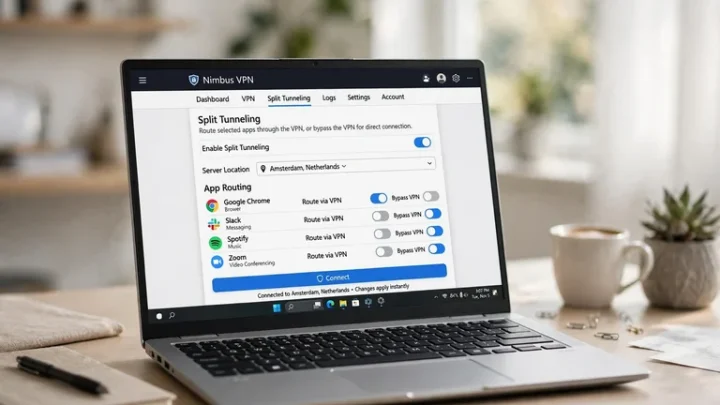
Private Internet Access (PIA) is best for laptop users who want to adjust connection safeguards and split tunnelling. It has apps for Windows, macOS, and Linux.
What stands out in the app
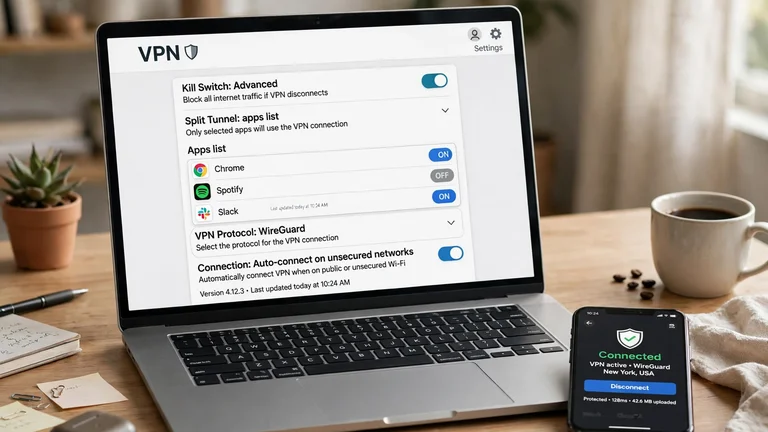
PIA’s kill switch has standard and advanced options on its supported desktop apps. The standard option blocks traffic if the VPN drops. The advanced option is stricter and can block internet access until the VPN connects.
The added control is useful even for a nontechnical user if you keep the setup simple. Enable the kill switch and auto-connect, then leave the rest alone. PIA allows unlimited simultaneous connections.
PIA is positioned as a lower-cost paid VPN, and its plans include a 30-day money-back guarantee.
PIA trade-offs
More settings create more chances to choose an option without understanding its effect. If you only want a simple app, the extra controls may feel like too much. A strict kill-switch setting can also block internet access until the VPN connects.
Pros:
- Windows, macOS, and Linux laptop apps.
- Standard and advanced desktop kill-switch options.
- Unlimited simultaneous connections.
- 30-day money-back guarantee.
Cons:
- Extra settings can overwhelm users who want a simple app.
- A strict kill-switch setting can block internet access until the VPN connects.
- Advertised pricing depends on the billing term.
My verdict: I recommend PIA for users who want control over how their laptop handles VPN interruptions and who will spend a few minutes on setup.
Set Up a VPN on Your Laptop Before Joining Public Wi-Fi
Install and configure the VPN app on a trusted connection before you travel. At a hotel or airport, complete any required Wi-Fi sign-in first, then connect the VPN.
- Download the provider’s official laptop app, install updates, and sign in while you’re on a trusted network.
- In the app, enable automatic connection on unsecured or untrusted Wi-Fi networks where that option is available.
- Set your laptop to treat shared hotspots as public networks, and decline prompts to share files or devices.
- Join the hotspot, complete its sign-in page if needed, and then connect the VPN. The app’s status should show a connected state before you browse.
Windows and macOS settings
Windows and macOS show VPN status and settings in different places, and app controls differ too. Before you travel, find the kill switch and auto-connect settings on your own laptop. A reputable IP or DNS leak-check service can show the connection details after you connect.
What to do at a hotel or airport sign-in page
Some hotspots require you to accept terms or enter a room number before internet access begins. If the VPN will not connect, finish the sign-in first, then try again. If it still will not connect, another server or a different protocol supported by the app may help.
How to Choose a VPN for Your Laptop and the Wi-Fi You Use
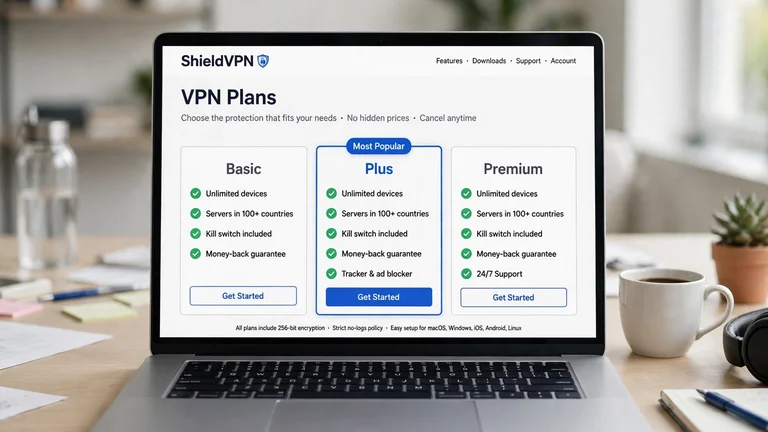
Choose a laptop VPN that reconnects reliably and can stop internet traffic if its encrypted connection drops. Auto-connect, a kill switch, those protections, and clear privacy practices matter more than a large server count or a long list of extras.
Prioritize automatic connection and a kill switch
- Operating-system support comes first. The VPN needs an app for your laptop’s operating system, not only a browser extension.
- Automatic connection on unfamiliar Wi-Fi helps. This is useful if you move between a coffee shop and a hotel network or forget to connect manually.
- Understand the kill switch. It is designed to block internet access if the VPN tunnel drops, reducing the chance that traffic continues unprotected.
- Treat server count as a secondary factor. A large network may give you more locations to choose from, but it does not tell you whether the app fits your laptop.
Review privacy evidence and plan limits
- A privacy policy should explain specifics. Look for a plain explanation of what connection or account data the provider collects and how long it keeps it.
- Independent audits are evidence, not a guarantee. An audit can assess particular systems or claims at a particular time. It does not prove that every claim holds.
- Match the plan to your needs. The plan needs a laptop app, automatic connection, a kill switch, and enough device access for your household.
- Know what the VPN protects. A VPN encrypts traffic between your laptop and the VPN service, which can help prevent other users on the same network from reading it.
- Use a trusted mobile hotspot for sensitive work when practical. A VPN adds protection on public Wi-Fi, but a personal cellular connection can avoid an unfamiliar local network entirely.
Which VPN Fits Your Public Wi-Fi Routine?
Choose based on how often you connect, how many devices travel with you, and whether you need a free plan.
| Public Wi-Fi routine | VPN to consider | Decision rule |
|---|---|---|
| Occasional café sessions | NordVPN | Prioritize automatic connection on unfamiliar Wi-Fi |
| Work trips with several devices | Surfshark | Match the plan’s current connection limit to your device count |
| Frequent hotel and airport use | ExpressVPN | Favor a straightforward laptop setup and connection workflow |
| Infrequent use with no subscription budget | Proton VPN | Read the free plan’s current limits and privacy terms first |
| Need to adjust settings | Private Internet Access | Choose it if granular configuration matters to you |
For occasional café use
If you visit cafés now and then, NordVPN is a practical choice when its laptop app’s automatic connection and kill switch are set up first.
For work trips and multiple devices
For a laptop plus a phone or tablet, Surfshark suits travelers who want one subscription across their devices. If you prefer a simple setup, consider ExpressVPN. If you prefer to adjust connection behavior yourself, Private Internet Access is the better fit.
For a no-cost starting point
Proton VPN is the option to consider if you want to start without paying. Its current free-plan limits are the trade-off. Read them before you rely on the free plan for travel.
The final choice comes down to the laptop app’s automatic-connection and kill-switch settings, matched to how you actually use public Wi-Fi.
Final Verdict
For a VPN for public wifi on laptop, I recommend NordVPN as the overall pick for people who regularly join unfamiliar networks and want automatic protection.
Choose Surfshark if covering several devices is your priority, or ExpressVPN if hotel and airport connections are your main use.
Proton VPN is the right start if you want a free plan for occasional use. PIA is the right pick if you want to tune the settings yourself.
Whichever service you choose, set it up on the laptop itself and review automatic connection and kill-switch settings before your next trip.
My verdict: I would choose NordVPN for routine public Wi-Fi use, while picking another option only when multiple devices, a free plan, or extra control matters more.
See current plans and pricing
Sources and Further Reading
- unlimited-device policy (surfshark.com)
- official free-plan page (protonvpn.com)
- apps for major laptop operating systems (privateinternetaccess.com)
Frequently Asked Questions
What is the best VPN for public Wi-Fi on a laptop?
NordVPN is my overall pick for public Wi-Fi on a laptop. It suits routine connections to unfamiliar networks, with auto-connect and a kill switch. Surfshark is best for many devices. ExpressVPN is best for a simple setup.
Do I need a VPN when using public Wi-Fi on my laptop?
A VPN is useful on public Wi-Fi because it encrypts traffic between your laptop and the VPN server. Without one, others on the same network may be able to read unencrypted traffic. Use one whenever you join a network you do not control.
Is a free VPN safe for public Wi-Fi?
Proton VPN can be a reasonable free choice for occasional laptop use when its current free-plan terms fit your needs. It has unlimited data, but speeds are medium and server choice is limited. For daily use, a paid plan is safer.
Will a VPN protect my laptop from hackers on public Wi-Fi?
A VPN encrypts traffic between your laptop and its VPN server, which can make hotspot snooping harder. It does not stop every attack. Malware, phishing pages, and weak passwords are still risks, so keep your system updated.
Should I connect to a VPN before or after joining public Wi-Fi?
Connect your laptop to the Wi-Fi network first, complete any hotel or café sign-in page, and then connect the VPN. Captive portals need internet access before the VPN can start. Once the VPN shows a connected state, browse as usual.
Can a VPN protect me from an evil twin Wi-Fi hotspot?
A VPN does not make an evil twin hotspot safe. It can encrypt traffic from your laptop to the VPN server, but the hotspot itself is still fake. Always check the network name with the venue before you join.

Similar Posts