Password Manager for Small Business Teams: 2026 picks
Lead SaaS Analyst at PCSaaS · Software Developer · 500+ Tools Tested · Google Ads & Analytics Certified · 8+ Years Experience
RoboForm for Business is my top password manager for small business teams. It is a straightforward fit for smaller groups. NordPass for Business suits teams built around Google Workspace. Keeper suits teams with formal security needs. 1Password fits developer-centered
teams, and Proton Pass is the privacy-focused option.
This guide compares five password managers by team fit, security controls, and cost. Use it to shortlist the right one for your team.
The Best Password Managers for Small Business Teams at a Glance
The right choice depends on the work your team needs the password manager to do. RoboForm for Business is the simple starting point for a smaller group. NordPass for Business suits teams centered on Google Workspace. Keeper is the pick to compare for deeper administration. The other options bring different priorities: developer workflows with 1Password, and privacy with Proton Pass.
| Product | Best for | Standout strength |
|---|---|---|
| RoboForm for Business | Small teams that want a straightforward setup | Simple small-team fit |
| NordPass for Business | Teams built around Google Workspace | Google Workspace fit |
| Keeper | Teams with formal security requirements | Deeper administration |
| 1Password | Developer-centered teams | Developer workflows |
| Proton Pass for Business | Teams that prioritize privacy | Privacy-focused approach |
Treat these as starting points, not interchangeable products. If you mainly need to stop sharing credentials in spreadsheets, prioritize easy setup and controlled sharing. If an administrator must manage access across roles or review account activity, give administration depth more weight. A team with developer workflows should assess how well a password manager fits those routines; a privacy-focused team may put Proton Pass on its shortlist.
The best-for labels identify each product’s clearest fit, not a guarantee that every feature is included in every business plan. Compare the plan you would actually buy for team size, access controls, sharing model, and integrations. This matters especially when a small company wants advanced administration but does not need a broad enterprise package.
How We Evaluated Password Managers for Small Teams
I compare these services on the work a small team needs to manage. That covers getting started, sharing credentials, and administering access. It also covers whether a specific requirement is supported.
The business features we checked
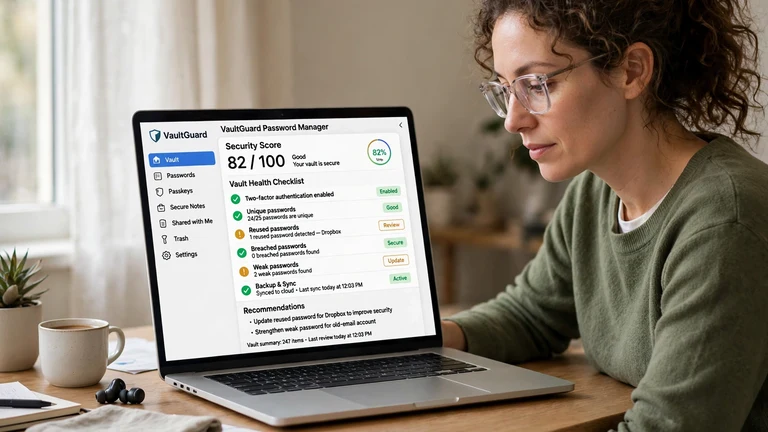
Setup matters because a difficult-to-adopt tool can leave employees storing passwords in spreadsheets or personal accounts. I assess how a team creates shared vaults and assigns permissions. I also check how it provisions or removes users, and how it restores access without weakening shared-account security.
RoboForm for Business: A Straightforward Pick for Smaller Teams
Best for: small teams seeking a straightforward password-management option.
RoboForm for Business is a team password manager for storing and filling credentials. Its familiar password-and-form-filling workflow can suit a small company replacing a shared spreadsheet. It does not need a complex identity-management setup.
What stands out
Autofill can save time across routine work: employees can fill saved sign-ins instead of retyping credentials or keeping them in personal notes. For a small team that uses many browser-based services, that convenience can make a password manager easier to adopt. RoboForm is also associated with form filling.
The business plan is intended for team use. Before rollout, decide which accounts belong in shared access and which should remain private to one employee. A shared folder or equivalent team-sharing feature is safer and easier to maintain than sending a password in chat, but only if access is limited to the people who need it.
Keep the admin workflow simple: assign an owner for the business account, set up shared access by role or work group, and establish a departure checklist. When an employee leaves, remove their account access and rotate credentials for important services they could access. That process matters regardless of which password manager the team selects.
Trade-offs to consider
RoboForm’s straightforward workflow is a good fit when the priority is password storage, autofill and practical team sharing. Teams that need tighter controls should compare the business plan’s permissions, activity reporting, SSO and directory-based provisioning with their requirements. These controls help administrators review access and manage accounts; shared passwords alone do not provide that oversight.
The admin experience depends on which controls the plan includes. Map the team’s access and reporting needs before choosing a tier: a small office with a few shared vendor accounts may need less reporting and fewer identity integrations than a company with formal audit obligations. Shared access should let an administrator decide who can use a login and revoke that access later. If RoboForm’s controls do not match the team’s needs, choose a product whose business plan supports those workflows.
- Autofill reduces repeated typing for browser-based logins.
- Form filling can help with recurring online forms.
- Business-oriented sharing can replace passwords sent through chat or spreadsheets.
- Teams with complex access policies should assess the plan’s permission controls before adopting it.
- SSO, detailed audit reporting and directory provisioning may be decisive requirements to compare.
- A shared credential still needs a named owner and an offboarding process.
My verdict: I recommend RoboForm for a small team that wants password storage, autofill and basic shared access in a straightforward workflow. I would choose another option if the team’s security policy depends on advanced administration, SSO or detailed activity reporting.
NordPass for Business: A Natural Fit for Google Workspace Teams
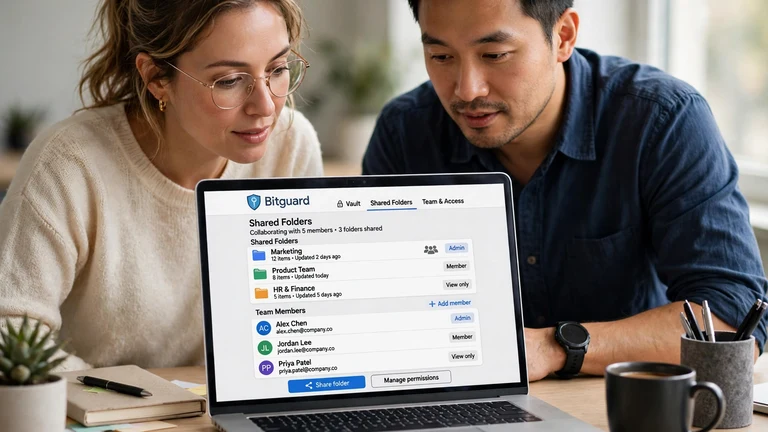
Best for: teams that want their password manager to fit a Google Workspace workflow. NordPass for Business is a team password manager that is worth considering when employees already use Google Workspace. The key is to match the connection and sign-in features in the NordPass plan to the way your team manages accounts.
What stands out
A Google Workspace connection can make NordPass a more natural fit for teams that already organize work around Google accounts. It gives you a reason to compare NordPass with a standalone password manager, especially if administrators want employee access and business credentials managed within a familiar environment.
A Google Workspace connection, single sign-on (SSO), and directory provisioning are separate capabilities; one does not automatically provide the others. Identify whether your team needs employees to sign in with company identities, user accounts provisioned from a directory, or simply a password manager that fits the existing workflow. Match those needs to the specific NordPass plan.
Activity visibility and access controls matter even for a small company. If several employees use a shared account, administrators need a way to manage access and review relevant activity. That is more useful than sending a password in chat, where it can be copied and remain accessible after someone changes roles. For offboarding, remove the departing employee’s access, review the shared credentials they could reach, and rotate passwords for accounts where continued access would create risk.
Trade-offs to consider
NordPass’s fit rests on the details of your Google Workspace setup and the plan you select. The plan’s feature list shows whether it includes the Workspace connection, SSO, and directory provisioning your team needs; a general integration label does not mean all three are available.
Commercial and administrative details affect the cost and workload of running the service. Compare the billing term, per-user cost, minimum seat commitment, onboarding support, administrator access, and available activity controls. A low per-user rate is less compelling if your team needs features available only in a higher tier.
NordPass is a weaker fit if its chosen plan does not cover a specific identity-management workflow or give administrators enough activity visibility for internal requirements. A small team with no dedicated IT role should also consider the plan’s setup and ongoing account-management workload.
- Google Workspace compatibility gives existing Google-based teams a relevant integration to assess.
- Business password management can replace credential sharing through chat or spreadsheets.
- Access controls can help administrators manage shared credentials during role changes and offboarding.
- The Workspace connection, SSO and directory provisioning are distinct requirements to evaluate.
- Plan entitlements, billing structure and seat commitments need to fit the team’s budget.
- Administrators should assess dashboard access and activity visibility before relying on it for oversight.
My verdict: I recommend NordPass for Business for teams already using Google Workspace when its specific plan supports the sign-in and administration workflow they need. I would skip it if that fit is missing or the selected plan does not provide enough oversight.
Keeper: A Candidate for Teams With Formal Security Requirements
Best for: teams that need detailed access controls and security oversight
Keeper is a business password manager built around centrally managed credentials, shared access and administrative controls. I would consider it when a small organization needs clearer oversight of who can access company logins, rather than relying on one shared account or informal password handoffs.
What stands out
Keeper for Business is a business password manager for centrally managing credentials, users, and shared folders. Its administrator console lets administrators manage users, while shared folders organize credentials by team or purpose. Shared folders let an administrator give access to a group without sending each password through email or chat. That distinction matters during a role change: an administrator can adjust folder access instead of tracking down every copy of a credential.
Keeper also includes Security Audit tools for identifying weak or reused passwords. For a small team, that can help an administrator prioritize which shared logins need attention. Keeper’s business password manager is designed for centralized team management; administration and reporting capabilities are plan-specific.
Password-health checks and activity logs serve different purposes. The plan’s feature list identifies its available event records, SSO, directory provisioning and reporting. Keeper also has BreachWatch, a service that monitors for exposed passwords; the plan determines whether it is included or offered separately. Monitoring can flag compromised credentials, but it does not replace changing an exposed password and reviewing who can access the account.
A security certification is evidence about a defined system and scope, not a blanket guarantee that a business meets every regulatory requirement. For a client, regulator or insurer requirement, assess the documentation and scope against that requirement.
Trade-offs to consider
Keeper’s administrative depth can be useful when access needs regular review, but it adds setup decisions: who administers the vault, which teams get which folders, and how access changes are approved. A very small team with few shared credentials may not need that much structure.
Compare the features in the exact business tier, including advanced reporting, SSO, provisioning and breach monitoring, along with user minimums and billing terms. Prices and plan terms change, so use Keeper’s current plan information for budgeting.
During offboarding, remove the employee’s Keeper account and revoke access to relevant shared folders promptly. That prevents further vault access, but it cannot erase a password the employee already copied or memorized. Change sensitive shared credentials when departure risk warrants it, and update recovery methods controlled by that person.
- Centralized administration helps organize users and shared credentials.
- Shared folders allow access to be granted by team or purpose.
- Security Audit tools can flag weak or reused passwords.
- BreachWatch provides password-exposure monitoring.
- Advanced oversight features may depend on the selected plan.
- Folder permissions and administration require deliberate setup.
- Revoking vault access does not invalidate a password already copied by a former employee.
My verdict: I recommend Keeper for small teams that need structured shared access and want administrators to review password hygiene. I would skip it if the team has few shared logins and does not need the added administration, or if its required reporting and identity controls are outside the chosen plan.
1Password: A Strong Option for Developer-Centered Teams
Best for: teams that want password management alongside developer workflows. 1Password combines shared team vaults with developer tools such as the 1Password CLI, which can help developers access credentials in command-line workflows. Assess developer capabilities and business administration separately against the plan you intend to buy.
What stands out
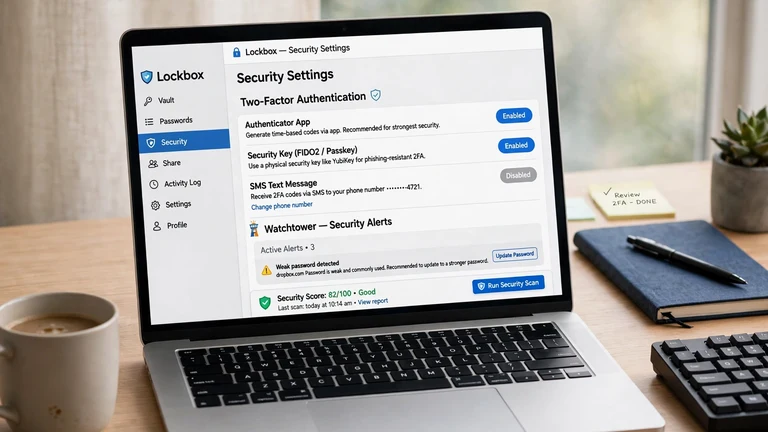
The 1Password CLI documentation describes a command-line tool for working with 1Password data. That can suit a small software team that wants developers to retrieve credentials through a managed workflow rather than leave secrets in notes, scripts, or shared chat. 1Password also documents Secrets Automation for machine and application secrets; evaluate it as a separate capability, not an automatic inclusion in every business subscription.
For everyday collaboration, shared vaults let a team organize logins by project, function, or sensitivity. A marketing vault, for example, can hold the accounts needed by the marketing team without making those credentials visible to every employee. Give access by role or work need, and keep personal logins separate from company-owned accounts.
Administrators should define who can create vaults, invite members, and manage access before rollout. When an employee leaves, remove their account access and review which shared vaults and business accounts they could use. Revoking 1Password access does not change a password or invalidate a token the employee already copied, so rotate credentials for sensitive services as part of offboarding.
The developer workflow is most useful when it addresses a real process, such as retrieving an application credential. It adds less value for a team that only needs a place to store website logins. Avoid putting production secrets into a shared vault without deciding who can access them and how the business will rotate them.
Trade-offs to consider
Compare current business options for seat requirements, per-user billing, administrator controls, account recovery, and the developer capabilities your team expects to use. The official 1Password business page provides current pricing and plan terms; billing interval and included features affect the total cost. Developer tools and advanced administrative controls are not included with every subscription.
A small team may not need extensive identity or security administration on day one. If the main need is controlled sharing, prioritize vault permissions and a workable employee departure process. If the team needs centralized identity management, formal review records, or secrets for automated deployments, compare those requirements with the selected plan before committing.
- Shared vaults organize company credentials by team or purpose.
- The 1Password CLI supports command-line credential workflows.
- Separate access for personal and business information can simplify team administration.
- Developer and automation capabilities may require separate plan or setup decisions.
- Advanced administration can be more than a very small team needs.
- Removing an employee from 1Password does not rotate credentials they already copied.
My verdict: I recommend 1Password for small software teams that will use its developer workflow as well as shared vaults. I would skip it if the team only needs basic credential sharing or if the required developer and administration features do not fit the selected plan.
Proton Pass for Business: A Privacy-Focused Option to Compare
Best for: teams that prioritize privacy and want to assess Proton’s business controls
Proton Pass is a business password manager from Proton, the privacy-focused company behind Proton Mail and Proton VPN. I would put it on the shortlist when limiting access to stored credentials and keeping data encrypted are major priorities, while assessing its administration and integrations against the tools the team already uses.
What stands out
Proton says Proton Pass uses end-to-end encryption, meaning stored information is encrypted so that Proton cannot read it. That is a vendor architecture claim, not a guarantee against compromised employee devices, weak account recovery, or someone sharing a credential improperly. Proton also publishes security information and audit materials for Proton Pass; those provide external scrutiny, but an audit does not prove that every business workflow is risk-free. See Proton’s security overview for its description of the design.
Business use depends on team controls as well as encryption. Proton Pass Business includes shared vaults and administrative tools for managing team access, so a small company can give staff access to the credentials they need without distributing a spreadsheet or sending passwords in chat. Keep vault permissions narrow: a shared vault for a finance system should not automatically be available to every employee.
Proton’s business plans do not all include the same features; dark web monitoring, password hygiene alerts, and secure-link sharing are limited to particular tiers. Secure-link sharing is useful when a recipient should receive a credential without joining a vault, but it is not equivalent to ongoing, revocable team access. Compare the plan’s feature matrix with your requirements before choosing.
Integrations matter for teams that depend on Google Workspace or another identity provider. The chosen plan’s handling of employee provisioning, sign-in, and group-based access affects how well Proton Pass fits those workflows. A password manager can store and share credentials without replacing an identity provider, and limited integration depth can leave an administrator with extra manual work. Proton Pass may suit a team already comfortable with Proton’s ecosystem better than one expecting a tightly connected workflow across many business tools.
A very small team may need shared vaults, clear ownership, and a reliable way to remove departing staff. SSO, directory automation, and richer activity oversight become more valuable as access is managed across more people and systems. The business tier determines which of these controls are included.
Trade-offs to consider
Proton Pass is a privacy-led choice, but privacy claims alone do not settle whether it fits your operations. The key trade-off is how much administration can happen inside the product versus how much your team must coordinate through its existing identity and collaboration tools. A team that needs detailed integration with its current directory should make that a selection requirement.
Compare current business tiers by included users, administration features, monitoring, and sharing controls rather than relying on an old per-user figure. If a feature such as SSO or audit visibility is essential, its inclusion in the chosen tier affects whether Proton Pass fits.
- Proton describes an end-to-end encryption model for stored data.
- Shared vaults support controlled team access to credentials.
- Published security information and audit materials offer more transparency than architecture claims alone.
- Business features are divided across plans.
- Integration depth may require extra administration for teams tied closely to another identity system.
- Privacy protections do not prevent unsafe sharing or account compromise.
My verdict: I recommend Proton Pass for privacy-conscious small teams willing to compare its business controls with their existing identity workflow. I would choose another fit if deep directory integration or a particular advanced control is essential and absent from the plan the team can adopt.
How to Choose the Right Password Manager for Your Team
Choose a password manager by mapping who needs each credential, which security controls your team actually uses, and what the required plan costs at your real seat count. A short pilot can reveal workflow problems that feature lists miss.

Start with access and offboarding
List the business accounts your team shares, then assign an owner and approved users to each group of credentials. A shared vault gives coworkers controlled access without sending passwords through email or chat; giving someone a password directly makes access harder to track and revoke.
Decide who will administer the vaults and handle new hires, role changes, and departures. When an employee leaves, disable their account, remove their access to shared vaults, and rotate credentials they knew or could have copied. SSO can centralize sign-in, but it does not by itself guarantee that a person’s vault permissions are removed.
Match controls to your risks. Role-based permissions help separate routine users from administrators. Activity records can help investigate who changed or accessed a credential. Recovery options matter if an employee loses access. If a contract or regulator requires specific compliance evidence, match the plan’s documentation to that requirement rather than assuming a security feature alone satisfies it.
Match features to your existing tools
Write down your identity provider, business email, browsers, and collaboration tools before comparing integrations. A team built around Google Workspace, for example, should assess how the password manager fits its account setup and employee workflow, not choose solely because a vendor lists a Google integration.
Separate must-haves from larger-company controls. MFA should protect administrator and employee accounts; SSO can simplify sign-in when your identity system supports it. A very small team may not need complex role structures or extensive audit retention, while a team handling sensitive client credentials may need both. Prioritize controls that someone on the team can configure and maintain.
Run a pilot with a small group before importing everything. Test importing credentials, autofill on essential business services, sharing a vault, and removing a pilot user’s access. Ask participants whether the workflow is clear enough to use consistently. A technically capable product can still fail if employees keep passwords in spreadsheets because the approved process feels awkward.
Compare the full plan cost
Compare the total bill for your actual team, not just the advertised per-user rate. Account for minimum seats, monthly versus annual billing, and whether the features you selected—such as SSO, admin roles, reporting, or recovery—require a higher tier. A low entry price can cost more once the team needs those controls.
Record the price and billing period for the exact business plan, then calculate the total for every seat the plan requires. Include likely hires only if the plan makes you pay for them now. Business pricing and plan entitlements can change, so use each provider’s current official pricing before making the final comparison.
Which Password Manager Fits Your Small-Business Situation?
No password manager is automatically right for every small business. Match the shortlist to your team’s daily workflow, the access controls you need, and the total plan cost.
For a very small team with limited admin time
- Start with RoboForm for Business if your main goal is to replace shared spreadsheets with managed team password storage without taking on a complex administration project. Keep the first rollout narrow: move essential shared logins, assign access only to employees who need it, and establish an offboarding process.
- If you expect to need detailed activity records, formal access reviews, or more advanced administration soon, compare Keeper Business as well. A simple starting point may be easier to administer, but it can be a poor fit if it lacks controls your business already requires.
For a Google Workspace-centered business
- Put NordPass for Business on the shortlist first because Google Workspace integration is a relevant part of its business workflow. Identify what your team expects that integration to do, such as support account administration or employee access changes, and choose a plan that covers that use.
- Keep the pilot focused on one group and a few shared accounts. Test the sign-in and access-management steps your administrator will actually use; an integration is useful only when it fits those routines.
For developer or higher-control environments
- Compare 1Password for developer-centered work and Keeper Business for deeper administrative oversight. These are different priorities: developers may value a workflow suited to technical work, while administrators may need stronger visibility into access and account activity.
- If audit logs, role-based access, or formal review processes are requirements, make those must-haves in the plan comparison rather than assuming they are included at every tier. A small team without those obligations may not benefit from paying for advanced controls it will not use.
Before migrating everyone, review each provider’s current plan requirements, seat rules, and feature tiers, then run a short pilot with representative users. Record whether sharing, everyday sign-in, administration, and employee access removal work as intended. Choose the option that meets your actual requirements at a sustainable total cost, not simply the lowest advertised per-user rate.
Final Verdict
For most small businesses replacing shared spreadsheets or reused logins, I would choose RoboForm for Business as the practical starting point. It is the clearest fit when a team wants business password management without making advanced enterprise controls the main buying criterion. Its trade-off is that businesses with formal audit or compliance requirements should compare its relevant plan controls closely before committing.
Choose NordPass for Business if Google Workspace is central to how your team manages accounts. Keeper is the stronger candidate when documented oversight and stricter security processes carry more weight. I would put 1Password on the shortlist for developer-centered teams, while Proton Pass for Business suits businesses that prioritize a privacy-focused approach.
Before you decide, map who needs each shared credential and how quickly an administrator can remove access when someone leaves. Then compare the business plans against those workflows, including administration and activity visibility; the lowest per-user rate is not a good value if it leaves a necessary control out. Run a pilot with representative staff before moving every account.
My verdict: I recommend RoboForm for Business as the overall password manager for small business teams that need a straightforward shared-password workflow; choose another pick when its specific strengths better match your existing tools or security obligations.
Sources and Further Reading
- business password manager (keepersecurity.com)
- 1Password CLI documentation (developer.1password.com)
- official 1Password business page (1password.com)
- Proton’s security overview (proton.me)
Frequently Asked Questions
What is the best password manager for a small business team?
RoboForm for Business is my overall pick for a small business team that needs straightforward shared-password management. Its fit is strongest when the priority is organizing team credentials without adding unnecessary complexity. Teams with specific Google Workspace workflows or formal security requirements should compare NordPass for Business and Keeper against those needs.
How much does a password manager for a small team cost per user?
A password manager for a small team is generally priced per user, but the total depends on the business plan, billing schedule, and features included. Compare the cost for every employee who needs access, and include any higher tier required for administration or security controls. Plan prices and terms can change, so check current pricing before buying.
Is a free password manager safe for a small business?
A free password manager can protect individual accounts, but a business needs to manage shared credentials and employee access as well. Without team administration, controlled sharing, and a reliable way to revoke access, a free plan may leave gaps in the workflow. I recommend choosing a business plan when multiple employees need shared logins.
What features should a small business password manager have?
A small business password manager should include shared vaults, individual user accounts, permission controls, MFA, and a clear offboarding process. Activity logs help an owner review changes or access when accountability matters. SSO is more useful when a company already manages sign-ins centrally; a very small team may not need it at the start.
How can a team share passwords securely?
A team can share passwords securely by storing credentials in a shared vault and granting access only to employees who need them. That is safer to manage than sending a password in chat or exposing a coworker’s personal vault. When a login changes, update the shared record and remove access that is no longer needed.
Which password manager works with Google Workspace?
NordPass for Business is the pick in this roundup for teams built around Google Workspace. Before adopting any password manager, decide whether you need it to connect employee sign-in and administration workflows or simply store shared credentials. Those are different requirements, so assess the integration against the tasks your team actually performs.

Similar Posts